Have you ever needed to access design and engineering data while on the job site or away from your workstation? The Vault mobile app allows you to work with your vaulted design and engineering data on your mobile device anywhere, anytime.
Overview
The Vault mobile app is a companion app to the Vault desktop client; it does not replace the Vault desktop client. The application is available for iOS and Android devices and provides access to a subset of the functionality available in the desktop version of Autodesk Vault. With Vault mobile, you can view, search, and share vault data from your mobile devices, including engineering designs, documents, and other data.
In addition, the app includes collaboration tools that enable you to share and collaborate on Vault data with other team members. Many document consumers need to access vaulted data. Document consumers may not have a dedicated workstation to access vaulted data, so accessing the Vault on mobile devices makes it easier. You can take the Vault to your colleagues on the shop floor to collaborate on a design for manufacture or take while off-site to your customer for a design review.
The Vault mobile app helps you to create a new change order directly from your mobile device. You can add a record or attachment to the change order. You can securely track and control the data when away from your workstation.
Requirements
- A subscription to one of the following editions of Vault:
- Vault Professional
- Vault Office
- Autodesk ID without entitlement for Read-only access.
- A Vault Professional server.
Download the Vault mobile app
Navigate to the app store for your device and download the Vault mobile app. You can find it in the Apple App Store or the Google Play Store as Autodesk Vault Mobile.
The app is currently available for Apple devices using iOS version 12 and higher and Android devices using Android version 8.0 and higher.
How to update the Vault mobile app
When an update is available, you can download the latest version through the device app store.
Sign in to the Vault mobile app
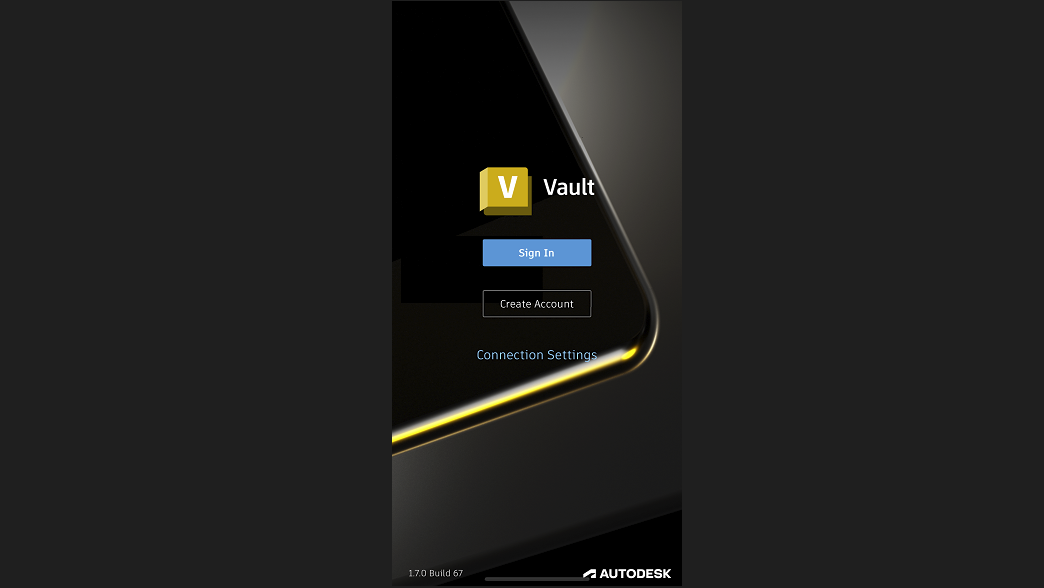
Don't have a license or entitlement? Not to worry. You can still sign in to the Vault mobile app with read-only access if you don't have a license or an entitlement . With read-only access enabled, you can only view files and data but can't create or edit files. To learn about requirements for signing in to and using the Vault mobile app, see Start Using the Vault Mobile App.
Tour the Interface
Let's now explore the Vault mobile app interface to learn where you can locate the design and engineering data.
- Items - The Items tab lists the items in the Vault. Select an item to display its item details.
- COs - The COs tab lists change orders in your worklist by default. Select a change order to display its change order details.
- Explorer - The Explorer tab lists the files and folders in the Vault. Select a file to display its file details.
- Files - The Files tab provides insights on file activity in the Vault.
- Settings - The Settings tab displays information and options for configuring the Vault mobile app. You can control specific behaviors for thumbnail, activity, search, and visualization. For more information, see The Settings Tab.
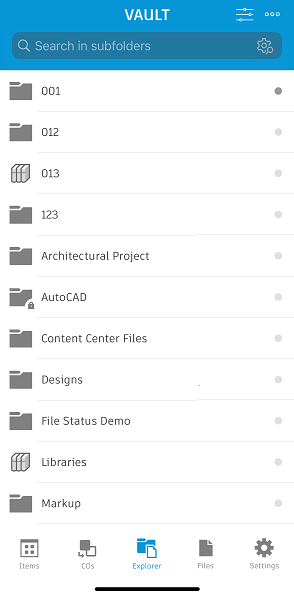
Select the
Sort icon
 to change sorting parameters or adjust the list.
Select the
More icon
 to display a list of actions. The Items, COs, and Explorer tab contains two separate more icons: one at the top of the items list
and one in item details
to display a list of actions. The Items, COs, and Explorer tab contains two separate more icons: one at the top of the items list
and one in item details
 .
.
The
Search here only searches for objects specific to the environment that it is in. Select the Search Options icon
 in the search bar to access other types of search, such as advanced searches. You can multi-select files in your search to move, delete, or select/deselect all files in bulk.
Access data from the Vault mobile app
In the Vault mobile app, on the TabBar, navigate to Items, CO, or Explorer environment and choose the file you want to work with. The Vault mobile app allows you to search and navigate your Vault to work with your design data, BOM items, lifecycle states, and change orders on the go. Browse your design file structure to find the relevant files or attachments that document your design.
The Vault mobile app can interface with other apps on your device. You can interact with data in a variety of ways, including viewing, downloading, and sharing.
- View the contents of a file in the Vault.
- Save data to your device locally or open it in other mobile apps.
- Share data by sending links to objects and copies of files.
- Superimpose annotations on a design or drawing in the viewer.
- Print a design from the viewer.
- Change a file's lifecycle state.
- Add files, items, and change orders to your favorite.
Refer to Vault Mobile App FAQ to view answers to frequent questions about the Vault mobile app.