User Interface Updates
We've made several updates to the Alias interface, including adjustable Layer Bar widths, improved docked window behavior, and more intuitive Stage Editor default settings. Additional UI improvements include clearer prompts, better control over Selection Sets and Construction Options, and refinements to the Color Editor. Performance has also been boosted with faster Marking Menus and Shader Lister responsiveness.
More Layer Bar enhancements
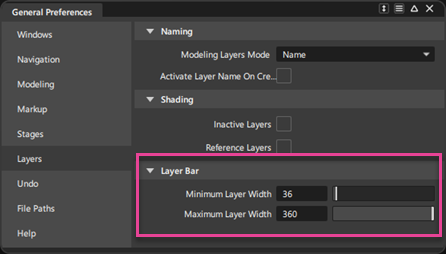
New Minimum Layer Width and Maximum Layer Width preferences now let you customize the width of the layer display in the Layer Bar. Use this to shorten layer bars when you have several layers in your scene or make it larger when you have fewer layers. You can set these preferences in Preferences > General Preferences > Layers > Layer Bar.
 For more information, see Stages.
Updates to docked windows
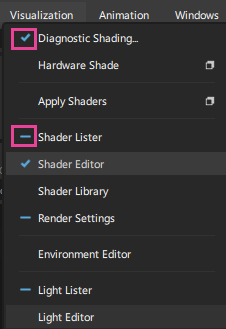
When multiple windows are grouped, such as in a tabbed group, a new check icon in the menu now indicates which one is actively open. A dash icon is used to indicate which windows are open but not currently visible. Clicking the dash icon makes that window the active window in the group. In previous versions of Alias, the check icon was used to only indicate that the window was open.
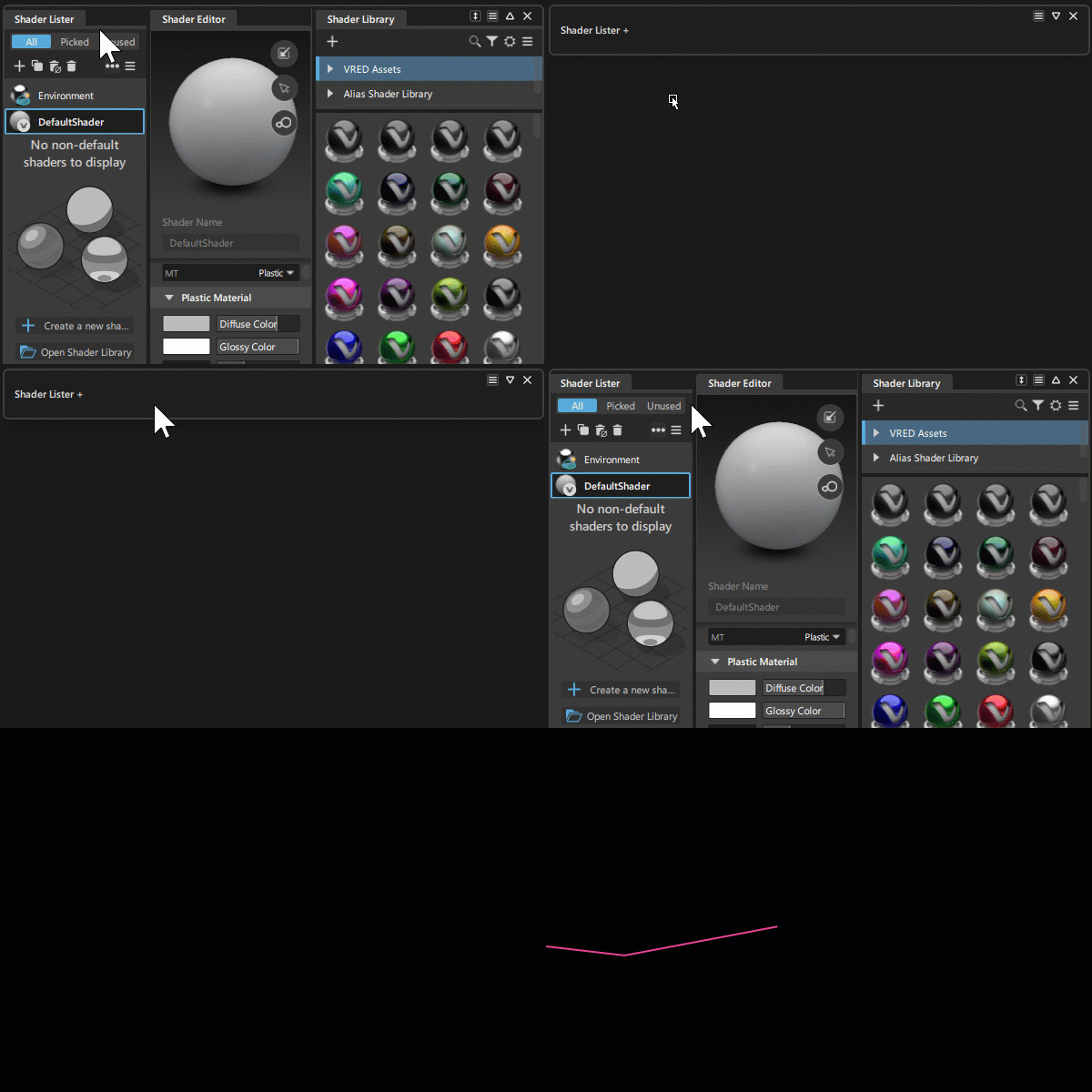
Windows that are docked vertically on top of each other in a floating group can now fully collapse, improving workspace organization and user experience. You can also now press Shift and double-click any window tab in a group to collapse or expand the group.
Collapsed floating groups now show the first window’s name, followed by a + sign to indicate multiple windows in the group. This makes it easier to identify the contents of the group when it is collapsed.
Stage Editor Improvements
New Stage Tabs
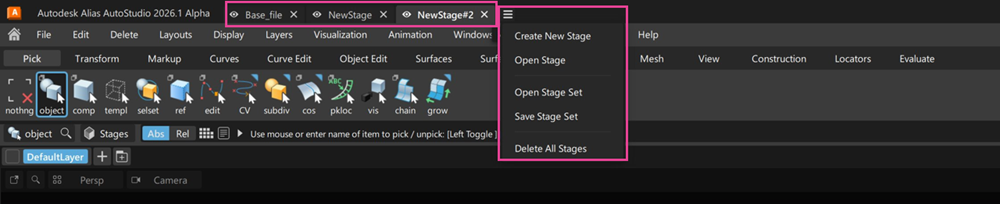
When opening files in Alias, there are now tabs that display the file name at the top of the application window. With the convenience of displaying the stages across the top, you can access Stage Editor options from a drop down menu. Clicking on the tab with the Alt key also isolates the stage like in the Stage Editor. Note that you can still access the Stage Editor from the Stages button along the action bar.
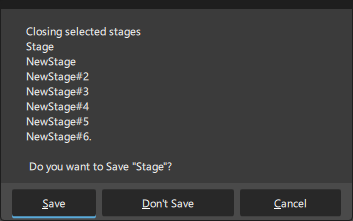
Delete Selected Stage Window
We have changed the default selection in the Delete Selected Stage window to prevent data loss. The default action when confirming with the Spacebar is now Don’t Save or Cancel instead of Save. This change addresses an issue where users inadvertently saved files they meant to delete, leading to data loss.
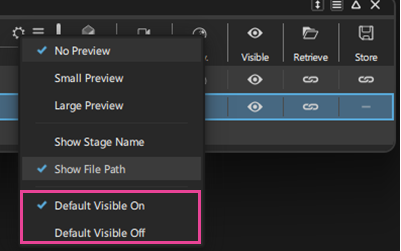
You can now control the default visibility of stages when opening or importing files. New Default Visible On and Default Visible Off options in the Stage Editor settings lets you decide whether newly loaded stages are visible by default.
For more information on the Stage Editor, see Stages.
Additional UI Improvements
Renamed Delete Unused Layers - We have renamed the Layers > Delete Unused Layers option to Delete Unused Layers and Folders. This update clarifies the functionality of the option, making it clear that it applies to both layers and folders.
We've improved the prompts on exit to be more like the prompts for deleting stages. This update includes a prompt that allows users to save all stages, no stages, or prompt for each stage when exiting Alias.
Selection Sets - If you create a Selection Set with the Transform manipulator active in the scene, the manipulator's last orientation is preserved with the Selection Set after you save the file. When you reopen the file and select the set in the Selection Set Lister, the Transform manipulator displays in its previous orientation.
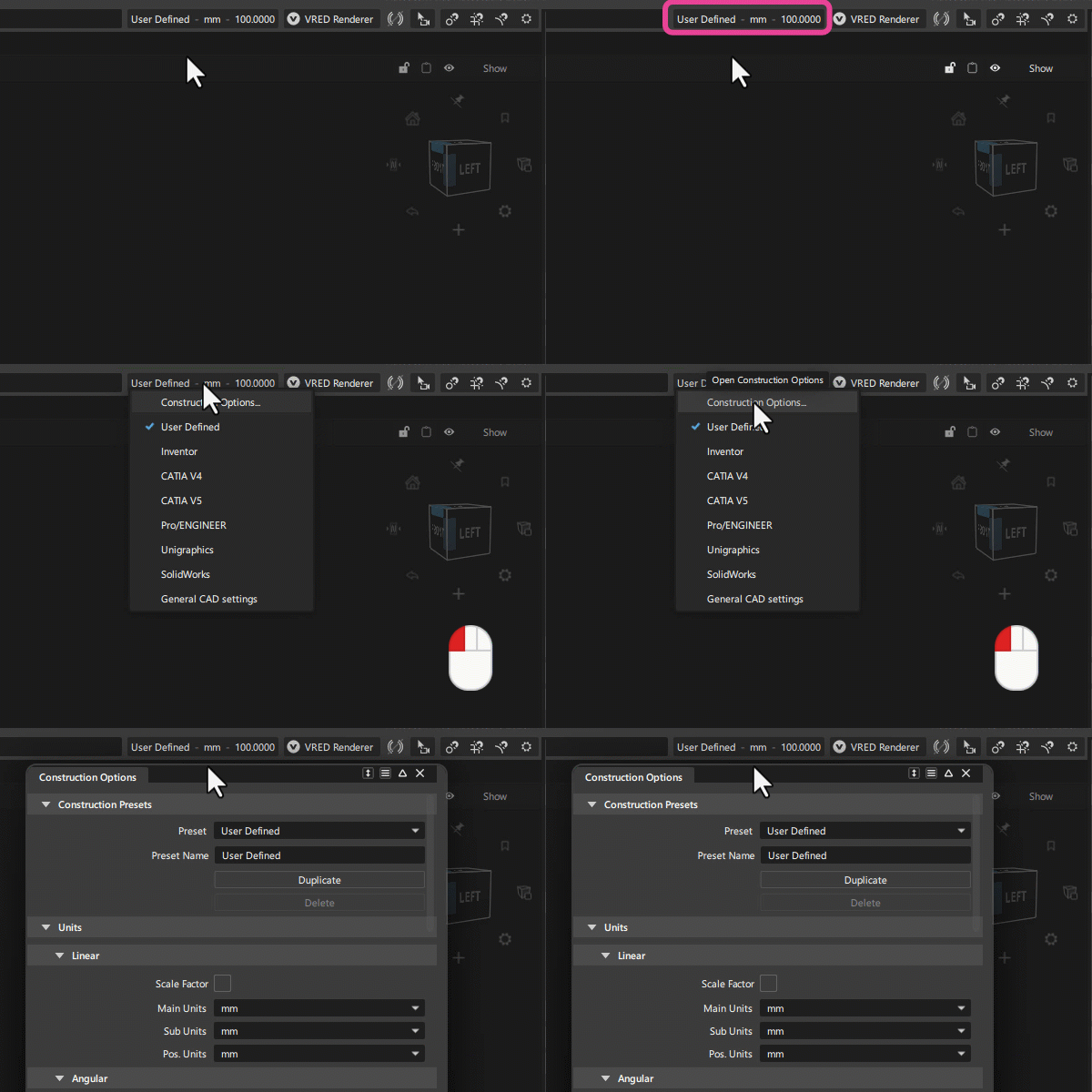
You can now access the Construction Options window from the Promptline Action bar. This allows you to quickly switch between construction presets.
Set Floating Window size - You can now set the dimensions of floating windows. After creating a New Floating Window, click the Set Dimension icon (
 ), then type values for Width and Height in the Set Dimension Window.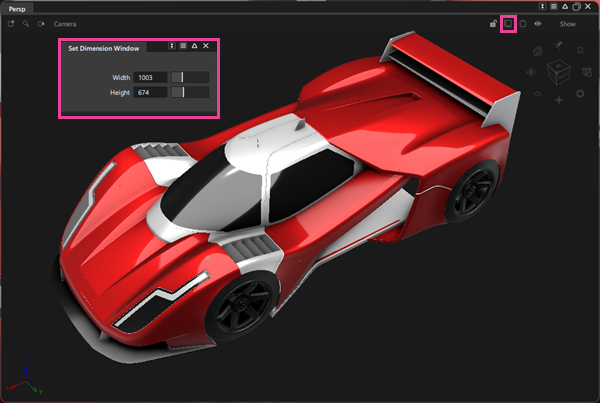
Control Panel – We've improved the spacing for labels and cell value size when the window is set to the minimum width. For example, the cropping of label names is now reduced.
The number fields in Alias windows now automatically increase in size when you increase the window size.
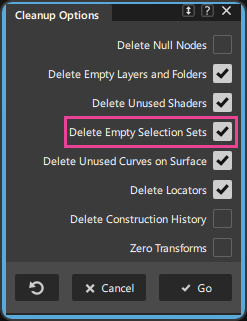
Clean Up Options – The Cleanup Options window now includes a Delete Empty Selection Sets option. This option is enabled by default and allows you to delete empty selection sets when you run the Delete > Clean Up tool.
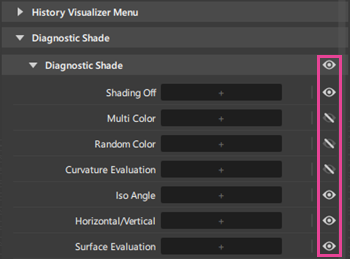
You can now hide diagnostic shaders from appearing in the Diagnostic Shaders window when using Short Menus. Open the Hotkey Menu Editor then click the Short Menu icon for diagnostic shaders you want to hide.
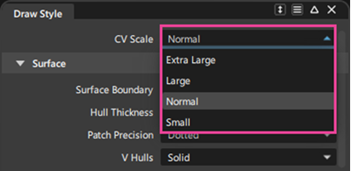
We've added a new CV Scale in the Display > Draw Style options, which now lets you choose between four different CV sizes. The new larger draw sizes are especially helpful when working on high-resolution monitors to improve visibility. Note that this is a global setting that affects curve, NURBS surface, and subdivision object CVs.
We've improved the Color Editor UI so that it now better reflects the HSL color model.
Object Lister – We've added a new Show Only Selected option to the Object Lister. This option, which is available in the Object Lister menu, lets you filter the list to show only selected objects. This makes it easier to manage and organize your scene when working with complex models that contain many objects.
Markup brushes now display a brush outline before drawing begins, helping you select the correct Brush Radius size for the tool.
UI Performance Improvements
Marking Menu - You will now find the Marking Menu more responsive.
Shader Lister – Loading and interacting with shader previews has been improved.
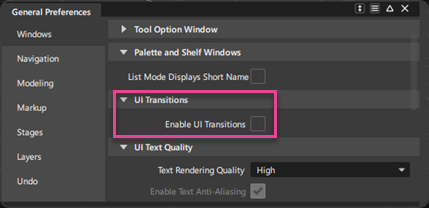
UI Transitions – Added a preference that lets you turn off UI transitions to further improve performance.
Transformer Rig – Improved the performance and responsiveness of the Transformer Rig.