Create a current shot playblast
When animating in context, the shot before and shot after are displayed in the viewport. You can also display the current shot as a playblast by using Preview Mode  . However, first you need to generate a playblast of the current shot.
To create a playblast of the current shot, click the playblast  icon.
icon.
The playblast name must be shorter than 250 characters and use only ASCII characters.
A playblast of the current shot starts rendering. At any point during the render process, you can press the Esc key to cancel it.
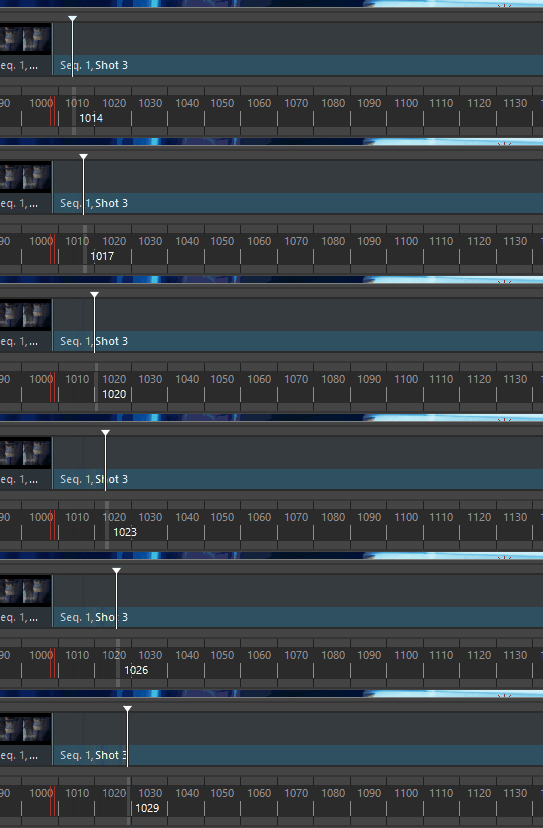
Once the render is finished, switch to Preview Mode to play back your sequence with the playblast inserted.
Creating a playblast for Animate in context is different from Maya's built-in playblast feature. For information on creating regular Maya playblasts, see playblast an animation.
When you switch back to Edit mode  after playblasting a shot, a few frames of the Viewport may display momentarily before the media updates.
Changing the playblast
Sometimes, you may want to manually insert a custom playblast for the current shot (perhaps a previously generated one, or one that was generated on a different computer). To do this, right-click the playblast icon and select Load playblast to open a file browser where you can navigate to the desired file. When loading a playblast this way, the custom playblast's duration must match that of the current shot (including handles).
The Cut Slider can only display webm playblasts (using VP8 and VORBIS codecs).
Shot playblast options
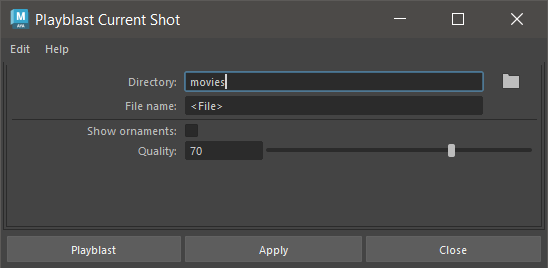
To open the Playblast Current Shot window, right-click the playblast icon in the Cut Slider and select Playblast Options...
Directory
Represents the location of the current playblast file. Playblast media are located in the movies folder specified by Maya's current project settings (for example, C:\Users\<currentuser>\Documents\maya\projects\default\movies on Windows by default). You can manually set the path or navigate to the desired playblast file using the browse button. If there are multiple directories set in the project settings, Maya will use the first location listed.
Filename
If you use the Browse button in Directory to specify the file name for your Playblast, a full path name appears in the Filename field. If a filename with no path is specified, the location of the file is set by Maya's current project setting.
The Cut Slider can only display webm playblasts (using VP8 and VORBIS codecs).
Show ornaments

Displays the camera name and axes at the origin and bottom left of the view. Disable this to hide the frame of your image plane from your Playblast animation. This will override the camera image plane's Frame Visibility attribute.
Quality
Controls the compression value for the Playblast movie output. Quality values can range from 0 to 100, with lower values resulting in more compression. The default value is 70.