Animate in context with Maya
Before trying to animate in context, make sure that you meet the requirements and follow the installation instructions.
To animate in context in Maya:
- Ensure the Autodesk Flow desktop service (
 ) is active in the system tray.
 - Open Maya and load your scene. The scene loads without the contextual information of the surrounding shots.
- Click the Cut Slider
 icon in the Playback options, or go to Windows > UI Elements > Cut Slider. This opens the Cut Slider under the Time Slider.
If you don't see the Cut Slider icon, make sure to load the Flow.py plug-in via the Plug-in Manager.
icon in the Playback options, or go to Windows > UI Elements > Cut Slider. This opens the Cut Slider under the Time Slider.
If you don't see the Cut Slider icon, make sure to load the Flow.py plug-in via the Plug-in Manager. - Click Load media into Cut Slider. This will display a browser which includes all the cuts that you have access to in Flow.
- Select a project, shot, and cut, then choose the appropriate options and click Open.
The scene loads, showing the current cut with the playback range in the Range Slider adjusted to fit. Now if you scrub across the shots in the Time Slider, the Viewport displays the appropriate before, current, or after shots.
If you don't have a valid Flow Production Tracking project set up, you can still try this feature using the included demo project.
To try animate in context in Maya without a Flow Production Tracking site:
- Ensure the Flow desktop service () is active in the system tray.
- Click the Cut Slider icon in the Playback options, or go to Windows > UI Elements > Cut Slider. This opens the Cut Slider under the Time Slider.
If you don't see the Cut Slider icon, make sure to load the Flow.py plug-in in the Plug-in Manager (Windows > Settings/Preferences > Plug-in Manager).
- Click Explore Cut Slider. The Discover Share cuts to animate in context dialog box displays.
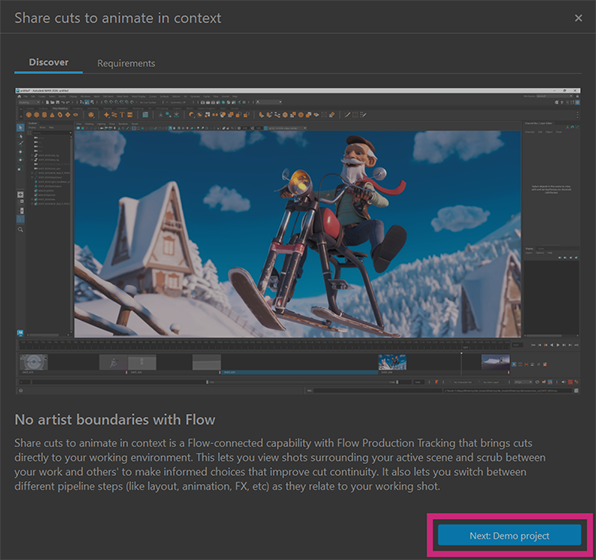
- Click Next: Demo project. A summary of the demo project displays.
- Click Open project.
Maya starts downloading the demo project (total size: approx 675MB), then opens the demo automatically once it's done. The demo includes an interactive tour, which you can follow using the control dialog box.
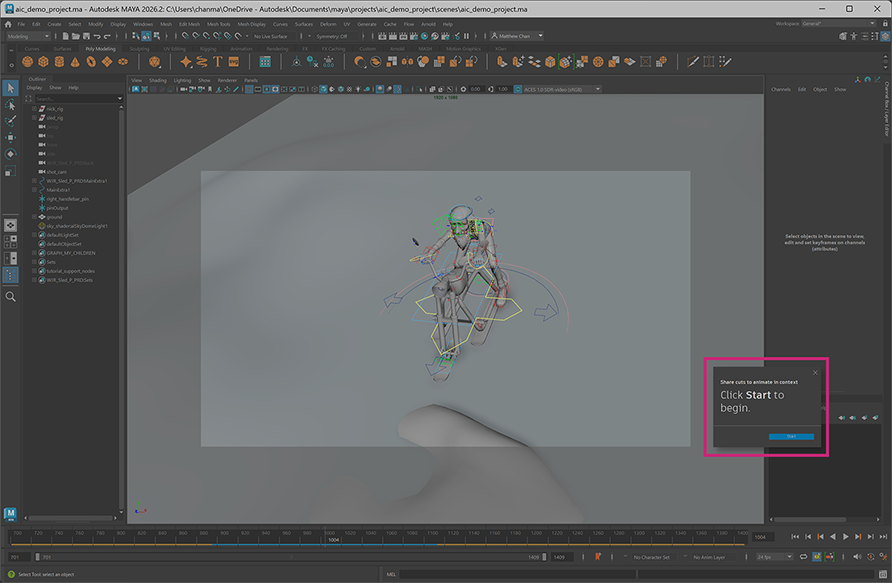
Alternatively, you can close this dialog box and explore the project on your own.
Ways to animate in context
The following table provides a brief overview of things you can do using Animate in context:
| To... | Do this |
|---|---|
| Change how shots are displayed in the Cut Slider | Resize the Cut Slider by dragging the top of it up and down to choose between different shot representations (shot names only, small thumbnails, and large thumbnails). |
| Edit your animation in the Viewport | Toggle the Edit mode icon  on in the Cut Slider controls. In this mode, you can edit objects in the Viewport like normal. on in the Cut Slider controls. In this mode, you can edit objects in the Viewport like normal. |
| Show a Playblast of the animation in the Viewport | Toggle the Edit Mode icon off in the Cut Slider controls to activate Preview Mode. In this mode, the Viewport displays the most recent playblast of the animation (which is not editable). Right-click the Playblast icon  or the Cut Slider within the current shot to load alternate media (either a different local playblast or media from Flow). or the Cut Slider within the current shot to load alternate media (either a different local playblast or media from Flow). |
| View a before or after shot in the Viewport | Scrub to the desired shot in the Time Slider. |
| Render a playblast of the current shot | Click the Playblast icon in the Cut Slider controls to render a movie of your current animation and show it in the Viewport. Note: To switch the Viewport back to your current 3D scene, re-enable Edit Mode  . . |
| Change the start frame | 1. Right-click the Cut Slider in the range of the current shot. 2. Select Set Start Time. 3. Input a new start time and click OK. |
| Frame only the current shot | Click the Focus icon  in the Cut Slider controls to frame the current shot without surrounding media. Click it again to display the entire cut. in the Cut Slider controls to frame the current shot without surrounding media. Click it again to display the entire cut. |
| Import a cut | Click the Cloud Import icon  in the Cut Slider controls to open the Flow Media Browser. From here, you can select a cut to open in the Cut Slider. in the Cut Slider controls to open the Flow Media Browser. From here, you can select a cut to open in the Cut Slider. |
| Change department context | - For a shot: Right-click a shot in the Cut Slider and select a pipeline step to load media from. - For the entire cut: Click the Pipeline Step menu and select a department to load Playblasts of the media. 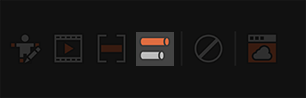 Each pipeline step displays as a different color in the Cut Slider. See Update pipeline steps for media for more information. |
| View the current shot without surrounding media | Click Mute  icon in the Cut Slider controls. icon in the Cut Slider controls. |
| Extend a shot (Pre-roll/Post-roll) | Right-click the current shot in the Cut Slider, and select Show Handles. Frames are added to the start and end of the shot. |