Creating an Expression constraint
The Expression Constraint Settings pane lets you use a more mathematical, and less graphic, method of constraining objects.
To create an Expression constraint:
Drag the Expression constraint asset into the Viewer window from the Asset browser.
The Navigator window displays the Expression Constraint Settings pane and a new folder named “Constraints” is added to the Scene browser.
Alt-drag assets and devices from the Viewer window and Scene browser into the Expressions pane.
An option appears asking you if you want to create the expression as a Sender or as a Receiver.
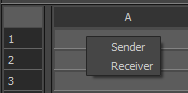
Expression as a Sender or Receiver option
Select Sender to create the Expression as a Sender that transmits data.
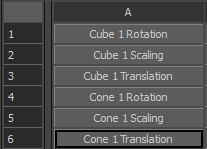
Each cell contains an object's property as shown in the following figure.
 Note:
Note:If you select Receiver, you create the expression as a Receiver that is influenced by the data transmitted from the Sender.
Double-click a cell and type a value.
Right-click in the cell and select a new data type from the Data editor to change the cell to a vector or another numerical type.
Edit a cell’s value by dragging left or right to increase or decrease the value.