VRED Stream App
VRED comes with an integrated web server, called the Web Interface, which offers a Python API, Web API, and low latency video streaming.
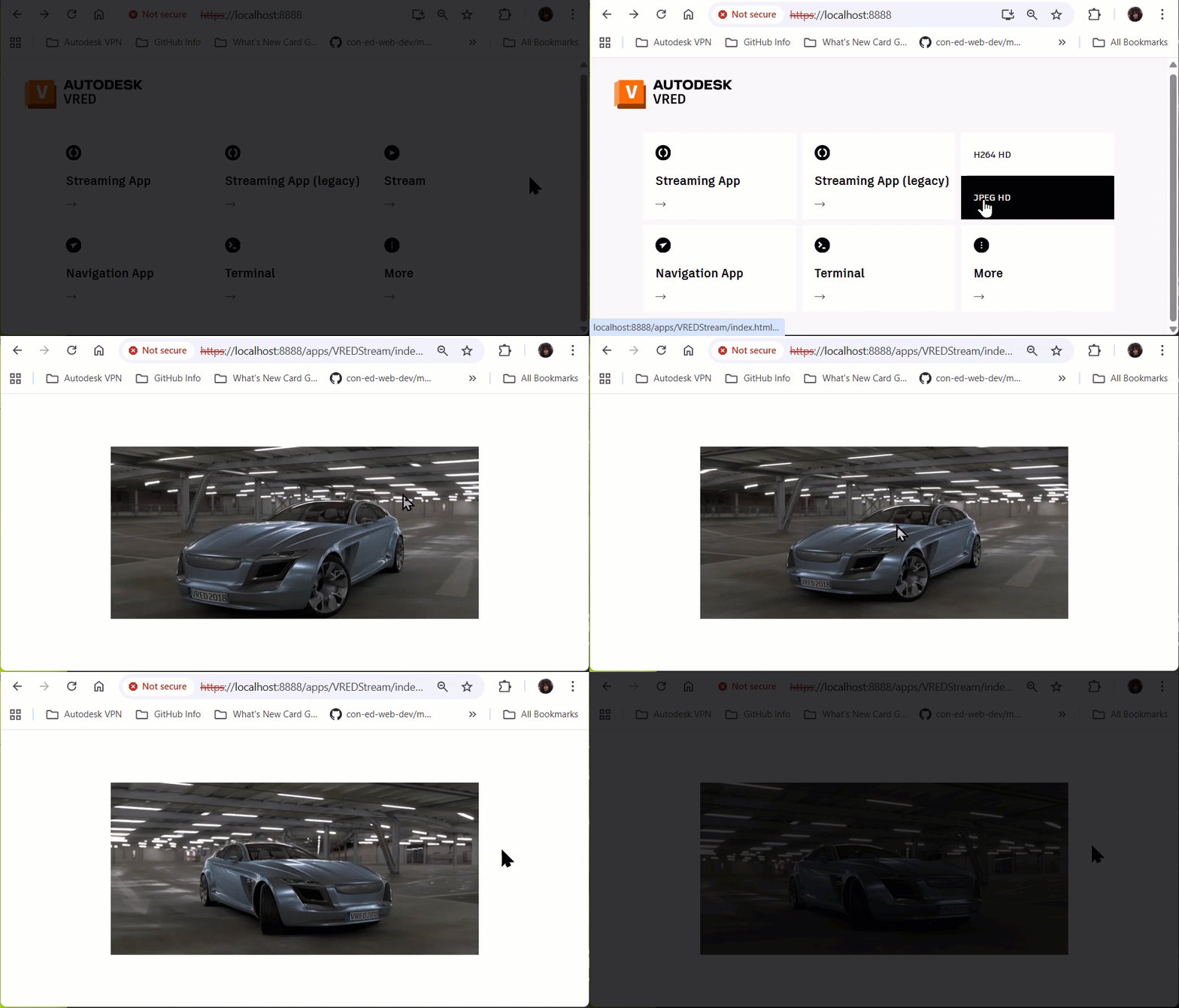
While the Python API and Web API use HTTP endpoints, the stream is provided via WebSocket for full-duplex communication. The Stream App allows streaming of rendered frames to any device, and settings like bitrate, quality, and frame rate can be adjusted to accommodate different network conditions.
When someone mentions VRED Stream, they are talking about the JPG HD and H264 HD features, found through clicking  More. These are live image streams of a VRED viewport. Once a viewport appears, LMB click-drag to pan and use the mouse wheel to zoom.
The streaming image data is encoded as JPEG and video as H264.
JPEG HD is a lossy image codec with lossy compression, meaning the quality of the image is somewhat diminished. Use it for photographs, web images, and previews. The advantages of it are smaller file sizes and faster decoding, compared to PNG. However, the disadvantages are loss of detail and no support for transparency. JPEG requires more bandwidth, but is pretty fast. It requires no separate encoder for VRED and needs no special decoder on the client-side.
H264 HD is a lossy video codec known for its high efficiency. It is a lossy compression standard, meaning unnecessary information is removed from the video. Use it for streaming, video recording, and web videos.
How to Access Stream
Your device or machine must be able to reach the PC VRED is running on. If using localhost, the browser must be running on the same machine as VRED.
When using the VRED Stream HD (H264), please download the OpenH264 codec library from GitHub first, then copy the uncompressed openh264-2.6.x-win64.dll to C:\Program Files\Autodesk\VREDPro-<internalVersion>\bin\WIN64. If the H.264 codec is missing, an error message appears.
Open a VRED scene.
Select Edit > Preferences > General Settings > Web Interface and ensure Enable Web Server is activated.
Note the port number. The default is 8888.
Click OK.
Open a web browser on your device.
Enter either localhost:8888 or YourIP:8888.
Select Stream, then select either JPEG or H264 HD. Once a viewport appears, LMB click-drag to pan and use the mouse wheel to zoom.
For information about the connection, the incoming and outgoing data, as well as how to change the stream format, see Using Stream (JPEG HD and H264 HD).