You can import PLY, SPZ, and LCC files, which can be visualized with Arnold in 3ds Max.
To import 3DGS data
- Select
File > Import > Import... > Select a file to import.
Note: Ensure that Files of Type is set to All Formats in the Select File to Import window.
- In the Import Options window that appears, select from options for the type of file loaded. For more information, see 3DGS (PLY, SPZ, LCC) files.
- Click OK.
Your 3DGS data is imported as a point cloud, which is made up of millions of individual Gaussian points. Each point contains data like color, position, scale, rotation, and opacity. For example, each point has a colour assigned to it, which matches the colour that was captured in it when the 3DGS scan was initially completed.
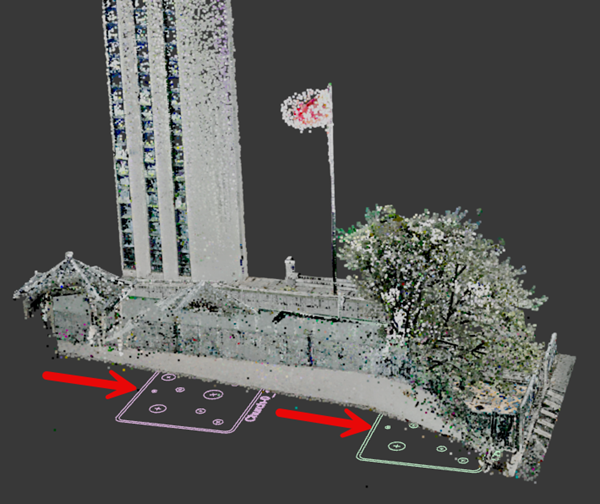
On import, PLY and SPZ files are imported as a single Gaussian Splat object. Each object has an associated display icon in the viewport. Clicking the icon selects the object.LCC files are often segmented, which means each segment is represented by a different display icon.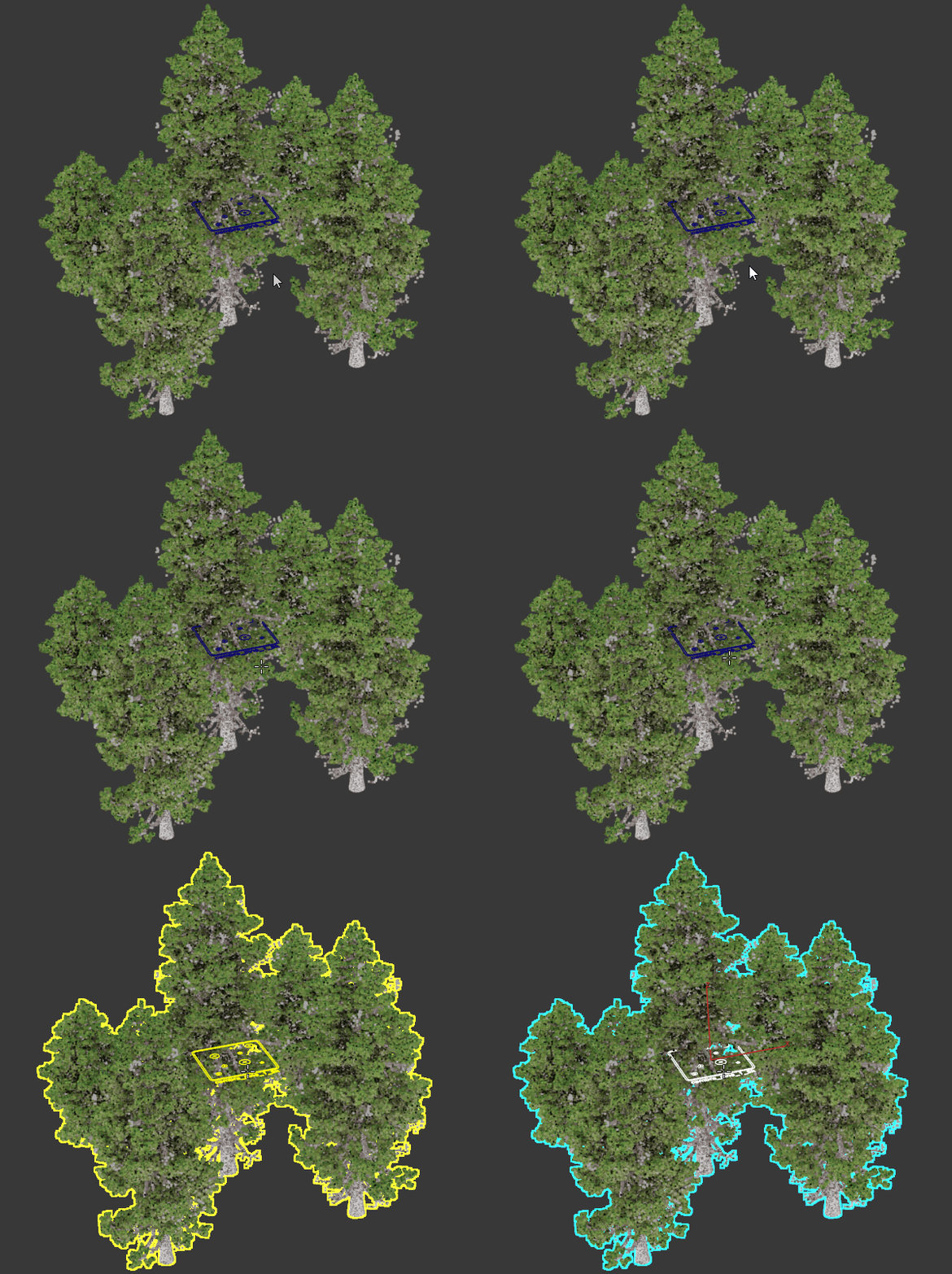
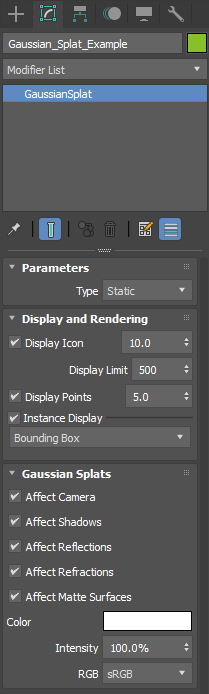
 The Gaussian Splat object appears in the Modifier stack as <GaussianSplat>. Clicking it displays parameters that assist with visualizing your 3DGS data in the Arnold renderer.For more details on each of the parameters, see 3D Gaussian Splat (3DGS) in 3ds Max. For more information on rendering, see Visualize 3DGS data.