Show Keyable Icons
The Show Keyable Icons tool provides a method for viewing and interactively tagging animation tracks so they can receive keyframes or be prevented from receiving keyframes.

- Track View > Curves/Display toolbar (Curve Editor / Dope Sheet) > Show Keyable Icons
- Track View > View menu > Keyable Icons
When on, Show Keyable Icons displays a key icon in the Controller window of Track View next to each track’s name. The icon's color indicates whether or not the track is keyable. To toggle the keyable property, click the icon.
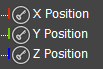
Tracks are keyable
When the keyable icons are visible, click the key icon to turn off the track.
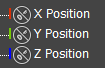
Tracks are not keyable
Procedures
Example: To make an individual track keyable:
Select the object in the viewport.
Right-click the object and choose Curve Editor.
Track View opens in Curve Editor mode, with the selected object tracks expanded. If necessary, scroll to see them.
On the Curves toolbar, click Show Keyable Icons. Alternatively, open the View menu and choose Keyable Icons.
Click the keyable icons for the tracks for which you want to prevent animation.
The tracks are changed, now marked with a slash across the key. These tracks will not receive keyframes. Only the tracks marked with keyable icons will.
Note: Keyable tracks work with both Auto Key and Set Key animation modes.
To make multiple tracks keyable:
In Track View, from the View menu, choose Keyable Icons.
The keyable icon appears next to the tracks.
Hold down the
Ctrlkey and click each track to create a selection set of tracks for which you want to prevent animation. This can be for one or multiple objects.Tip: You can hold down theShiftkey to select a group of sequential tracks at once. Alternately you can hold down theAltkey to select all tracks at the same level as a given track at once.Note: If you select just a parent track such as Position, the Keyable function will toggle all of its sub-tracks, even if they are not selected.Choose Edit menu > Controller > Keyable.
This toggles the keyable status for all highlighted tracks.
Tip: Use the same procedure to make multiple tracks not keyable. The Keyable command toggles the keyability of the tracks.Note: If you have a mixed keyable situation, Keyable toggle the state of the first track and then set all remaining tracks to match the value of the first track.