View Menu
The View menu is present in both Dope Sheet and Curve Editor modes, but not all commands are available in both. Its controls let you adjust and customize how items in Track View appear.
- Track View > View menu
Selected Key Stats
Toggles the display of statistics for the selected keys in the function curve window (Curve Editor only). The statistics for a key typically include frame number and value.
This is useful because you see statistics only for the keys you are working on.
All Tangents
Toggles display of tangent handles for all keys in the Curve Editor (see Editing Key Tangents). When off, handles appear for selected keys only.
Interactive Update
Controls whether editing keys in Track View updates the viewports in real time. Turning off Interactive Update allows faster animation playback in some cases.
Frame
This submenu provides tools for zooming to horizontal or vertical extents.
- Frame Horizontal Extents Zooms to the active time segment. See Frame Horizontal Extents.
- Frame Horizontal Extents Keys Zooms to show all keys. See Frame Horizontal Extents.
- Frame Value Extents (Curve Editor only) Adjusts the view magnification of the Key window vertically so that you can see the full height of all visible curves. Also available on the Navigation toolbar as Frame Value Extents.
- Frame Values (Curve Editor only) Initiates a mode that lets you adjust the vertical magnification of the Key window manually. Drag upward to increase magnification, or downward to decrease magnification. Also available on the Navigation toolbar as Zoom Values.
Navigate
This submenu provides tools for panning and zooming the Key window.
- Pan Lets you move the Key window contents. See Pan (Track View).
- Zoom Lets you change the Key window magnification. See Zoom Track View Key Window.
- Zoom Region Lets you zoom to a rectangular area. See Zoom Region (Track View).
Show Custom Icons
When on, displays icons in the Hierarchy list as 3D shaded instead of 2D.
Keyable Icons
Toggles a key icon for each track that indicates and lets you define whether the track is keyable and can record animation data.
A red key icon indicates a keyable track, while a black key icon indicates the track is not keyable. to toggle between these, click the icon or use Keyable on the Edit menu > Controller submenu. See Keyable Icon.
Lock Toggle Icons
Toggles a lock icon for each track that indicates and lets you define whether the track is locked. When Lock Toggle Icons is on, you can click the icon to toggle the track’s locked status. Locking a track prevents manipulation of the data (such as position animation) controlled by that track.
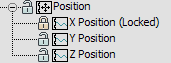
The X Position track is locked; Y and Z Position are unlocked
Filters
Provides controls to filter the display in Track View. A wide range of options to show, hide and display data is available.
Enable Auto-Zoom
Automatically frames the active range of keys in the timeline when changing a track or channel in the Track View, and sets the zoom level when moving between tracks. This is the default functionality.
Turn off the Enable Auto Zoom option to retain your own zoom settings.