Named Selection Sets Dialog
The Named Selection Sets dialog, available from the Edit menu and the toolbar, is a modeless dialog that lets you create named selection sets or select objects to add to (or remove from) a selection set, directly from the viewport. The dialog also lets you organize your current named selection sets, browse their members, delete or create new sets, or identify which named selection sets a particular object belongs to.
- Main toolbar > Edit Named Selection Sets
- Default menu: Edit menu > Manage Selection Sets
- Alt menu: Edit menu > Select > Manage Selection Sets
Procedures
To create a named selection:
- In the viewport, select the objects you want to gather as a selection set.
- On the main toolbar, click Edit Named Selection Sets, or from the main menu, choose Edit > Manage Selection Sets.
- On the Named Selection Sets dialog, click
 (Create New Set).
 - Enter a name for the new selection set.
To add objects to a named selection set:
- On the main toolbar, click Edit Named Selection Sets, or on the main menu, choose Edit > Manage Selection Sets.
- Choose the named selection set in the dialog.
- Select one or more objects in the viewport.
- In the dialog, click
 (Add Selected Objects).
To remove objects from a named selection set:
- On the main toolbar, click Edit Named Selection Sets, or on the main menu, choose Edit > Manage Selection Sets.
- Choose the named selection set in the dialog.
- In the viewport, select the objects you want to remove.
- In the dialog, click Subtract Selected Objects.
Delete.To move an object from one set to another:
On the main toolbar, click Edit Named Selection Sets, or on the main menu, choose Edit > Manage Selection Sets.
In the Named Selection Sets dialog, expand the selection sets.
Drag an object from one set to another.
The object is moved into the second set. If you use
Ctrl+drag, the object will be copied into the second set.Tip: You can also copy the contents of an entire set into another, by dragging them into the desired selection set.
To select objects in a set:
- Highlight the set in the Named Selection Sets dialog.
- Click
 (Select Objects In Set) to select all of the objects in the highlighted set.
Interface
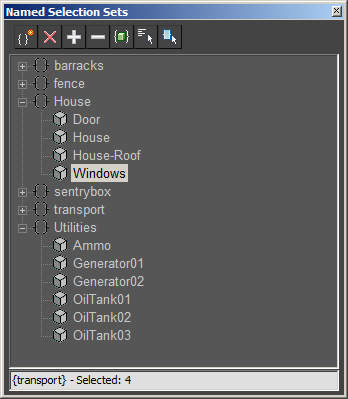
In the Named Selection Sets dialog, all of the current named selection sets are displayed. By clicking the plus ( +) or minus ( -) icon, you can expand or collapse (respectively) the object list for each set.
The buttons along the top of the dialog let you create or delete sets, add or remove objects from a set, select objects (independently or as a selection set), and see which named selection set(s) a particular object belongs to.
Create New Set
Creates a new selection set, including any currently selected objects as members.
Remove
Removes the selected object or selection set.
Add Selected Objects
Adds the currently selected objects to the selected named selection set.
Subtract Selected Objects
Removes currently selected objects from the selected named selection set.
Select Objects in Set
Selects all members of the current named selection.
Select Objects by Name
Opens the Select From Scene dialog, where you can select a group of objects. The selected objects can then be added to or removed from any named selection set.
Highlight Selected Objects
Highlights all of the named selection sets that contain the current scene selection.
Status Bar

Displays the current named selection set, as well as what’s currently selected in the scene. If more than one object is selected, the number of selected objects is displayed.
Right-click menu
Additional commands are available when you right-click in the Named Selection Sets dialog.
Rename
Lets you rename the selected set or object.
F2.Cut
Removes the selected object or set and stores it in a buffer for reuse with the Paste command, similar to the Cut command in Windows.
Ctrl+X.Copy
Copies the selected object or set and stores it in a buffer for reuse with the Paste command, similar to the Copy command in Windows.
Ctrl+C.Paste
Adds a Cut or Copied object or set into another set.
Ctrl+V.Collapse All
Collapses all expanded selection sets.
Expand All
Expands all collapsed selection sets.
Create New Set
Creates a new selection set, including any currently selected objects as members.
Remove
Removes the selected object or selection set.
Add Selected Objects
Adds currently selected objects to the selected named selection set.
Subtract Selected Objects
Removes currently selected objects from the selected named selection set.
Select Objects in Set
Selects all members of the current named selection.
Select Objects by Name
Opens the Select Objects dialog, and adds all objects selected there to the current named selection set.
Highlight Selected Objects
Highlights all of the named selection sets that contain the current scene selection.
Find Next
Cycles through selection sets containing the selected object, when used in collaboration with the Highlight Selected Objects command.
Ctrl+G to cycle through the sets.