Units Setup Dialog
The Units Setup dialog establishes the unit display method, giving you the choice between generic units and standard units (feet and inches, or metric). You can also create custom units, which are used whenever you create an object.
- Default menu: Customize menu > Units Setup > Units Setup dialog
- Alt menu: Scene menu > Tools (Scene Set) > Units Setup > Units Setup dialog
- Alt menu: Customize menu > Customization > Units Setup > Units Setup dialog
The units that you set here are used to measure geometry in your scene. In addition to these units, 3ds Max also uses system units as an internal mechanism. System units should only be changed before you create your scene or import a unitless file. Do not change the system unit in an existing scene.
You can also set the lighting units using this dialog.
System vs. Display Units
It is important to note the distinction between System and Display units. Display units only affect how geometry is displayed in the viewports. System units determine the actual scale of geometry. For example, if you import a DXF file (unitless) containing a 1 x 1 x 1 Box, 3ds Max could import the box’s dimensions in inches or miles, depending on the System unit. This can have a significant impact on your scene, which is why it's important always to set up the system unit before you import or create geometry.
Procedures
To change units to feet and inches:
On the Units Setup dialog, choose US Standard.
Choose from among the display options on the drop-down list.
- If you want to display measurements as feet with inches, choose how inches should appear: fractional or decimal. Also choose, for Default Units, Feet or Inches
- If you choose one of the Fractional display options, choose the fraction on the drop-down list to the right.
To enter fractions in numeric fields:
- When you enter fractions in numeric fields, they are converted to the correct units. For example, if units are set to Feet w/ Decimal Inches, and Default Units is set to Feet, type 37/45 and press
Enterfor the result 0'9.867", or 37/45'.
To enter a fraction and a units specifier, place the specifier after the divisor. For example, type 17/5', but not 17'/5.
To convert between unit types:
You can convert between unit types by entering any valid unit specifier, along with the number, and then pressing
Enter.The number is converted to the current unit display type. For example, if units are set to Meters, type 1/2 to get the result 0.5M. However, if you type 1/2' or 6" the result is 0.152M.
Interface
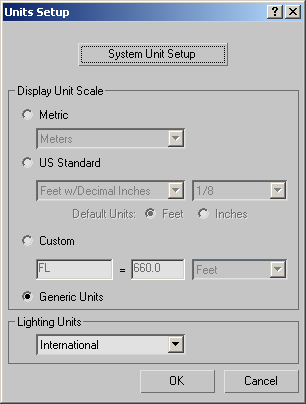
System Unit Setup
Click to display the System Unit Setup dialog and change the system unit scale.
Display Unit Scale group
Choose a unit scale option (Metric, US Standard, Custom, or Generic Units) to activate its settings.
Metric Choose this option and then choose a metric unit: Millimeters, Centimeters, Meters, or Kilometers
US Standard Choose this option and then choose a US Standard unit. If you choose a fractional unit, the adjoining list activates to let you select the fractional component. The decimal units require no additional specification.
The US Standards are as follows:
- Fractional Inches
- Decimal Inches
- Fractional Feet
- Decimal Feet
- Feet w/ Fractional Inches
- Feet w/ Decimal Inches
For the last two items, you can specify which unit is assumed when you enter a value in a numeric field and press
Enterwithout including a units specifier, such as ' for feet or " for inches.For example, if Feet is the default, typing 5 followed by
Enterresults in 5 feet. Typing 5" followed byEnterresults in 0'5". If Inches is the default, typing 5 followed byEnterresults in 0'5". Typing 5' followed byEnterresults in 5 feet.Custom Fill in the fields to define a custom unit of measurement.
Generic Units (The default.) A Generic or “system” unit in 3ds Max is equal to one inch. You can treat it as an arbitrary unit of your own definition, unless your scene uses features that depend on real-world measurements, such as photometric lights, Use Real-World Scale for bitmaps, and so on.
Warning: If you are modeling an object that includes details whose dimensions are very much less than one inch, treat the Generic unit as an arbitrary unit that is smaller than one inch: for example, 1 unit = 1/50 of an inch. Otherwise, you might encounter problems with your model that are due to roundoff error.
Lighting Units group
Use the drop-down list to choose whether light values are displayed in American or International units.