File Load: Units Mismatch Dialog
This dialog appears when you open or merge a file that has been saved with system unit settings that are different from those of your current 3ds Max session. The default system unit setting is Inches.
- Change the system unit scale. > Open, Merge, XRef, or drag geometry from a file with a different unit scale.
If you open a file with the system unit set to meters, for example, you will see this dialog.
When this happens, you have two options:
Rescale the File Objects to the System Unit Scale: You can choose to rescale the objects from the incoming file to match the current system unit. This changes the size of the incoming geometry
Adopt the File's Unit Scale: This changes the system unit in your 3ds Max installation to match that of the incoming file. This setting will persist between the current and future 3ds Max sessions until you reset your system unit. This is the default option.
Choosing File > Reset will not reset your system unit. You must either change it using Customize > Units Setup > System Unit Setup, or manually edit your 3dsmax.ini file.
Interface
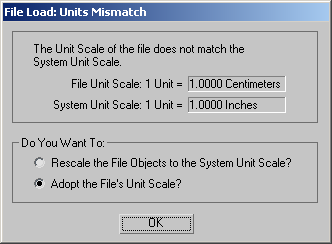
Rescale the File Objects to the System Unit Scale Objects from the file are rescaled to the current session's system unit scale.
Note: Many features depend on the scale of the scene, so choosing to rescale the file objects can have unpredictable results, particularly in scenes using radiosity. Reset and recalculate radiosity if you have rescaled the file objects.Tip: Use the Zoom Extents All button if the geometry is no longer visible in the viewport after rescaling.Adopt the File's Unit Scale (The default.) The system unit scale is changed to match that of the other file.
Choosing Adopt The File’s Unit Scale adds two settings to your 3dsmax.ini file: UnitType= and UnitScale=. For this reason, this change is persistent between sessions until you reset it manually.
To get back the default System Unit Scale, you can edit your 3dsmax.ini file and remove those settings; or go to Customize > Units Setup > System Unit Setup and change the units back to the default scale, Inches.
Tip: Objects with a UVW Unwrap might lose their texture coordinate information when you choose this option. If this occurs, choose the Rescale option rather than the Adopt option.