MCP Preferences (Tech Preview)
On the MCP panel of the Preference Settings dialog, you connect to the 3ds Max MCP server, choose which tools external clients can use, and set how clients authenticate with 3ds Max.
- Default menu: Customize menu > Preferences > Preference Settings dialog > MCP tab
- Alt menu: Customize menu > Customization > Preferences > Preference Settings dialog > MCP tab
Interface
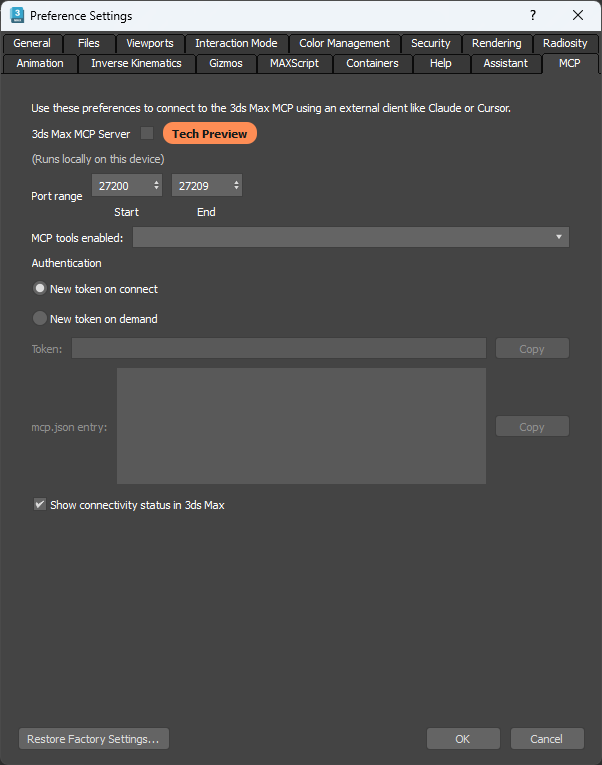
Use these preferences to connect to 3ds Max using an external client. The MCP server runs locally on your computer. For the full workflow, see Connect an external MCP client to 3ds Max.
3ds Max MCP Server
Connects to the 3ds Max MCP server. When enabled, external MCP clients can connect to 3ds Max and use the tools you enable in the MCP Preferences.
Port range
Start and End set the range of ports that 3ds Max can use for the MCP server. The default range is 27200 to 27209. When you turn on the server, 3ds Max uses the first available port in the range. If you run more than one instance of 3ds Max, each instance uses the next available port.
Use the port that 3ds Max reports in your MCP client's configuration.
MCP tools enabled
Sets which tools an external client can use.
- Read-only: The client can read information from 3ds Max, like the undo history. It can't make changes to the scene.
- Read/write: The client can read information from 3ds Max, and it can also undo and redo.
- Safe MAXScript: The client can also propose and run MAXScript to make changes to the scene. By default, you review and approve each script before it runs.
Authentication
Sets the token that a client uses to connect to 3ds Max. Keep the token private, as you would a password.
- New token on connect: 3ds Max creates a new token each time the server starts. After you restart the server, update the token in your client's configuration.
- New token on demand: 3ds Max keeps the same token until you ask for a new one, so your client's configuration stays valid between sessions.
Token
Shows the authentication token. Click Copy to copy it to the Clipboard.
mcp.json entry
Shows the server entry to add to your client's mcp.json file. It includes the port that 3ds Max is using. Click Copy to copy the entry to the Clipboard.
Show connectivity status in 3ds Max
When on, an MCP icon is displayed in the 3ds Max menu bar. Click it on the menu bar to connect to the server. The MCP icon updates to indicate when the server is on ( ) or off (
 ).