Display Driver Selection Dialog
Choose and configure graphic display drivers on the Viewports panel of the Preference Settings dialog. This topic explains driver options available on the Display Driver Selection dialog.
- Default menu: Customize menu > Preferences > Preference Settings dialog > Viewports tab > Display Drivers group > Choose Driver button
- Alt menu: Customize menu > Customization > Preferences > Preference Settings dialog > Viewports tab > Display Drivers group > Choose Driver button
You can also change the graphics driver when you start 3ds Max by going to the Windows Start menu and choosing Programs > Autodesk > Autodesk 3ds Max 2022 [installed version] > Change Graphics Mode. 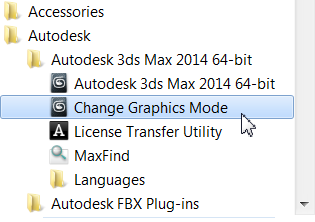 In addition, you can specify the graphics driver when you start 3ds Max from the command line.
For more information about graphics drivers, see the Autodesk certified recommendations and system requirements.
Interface
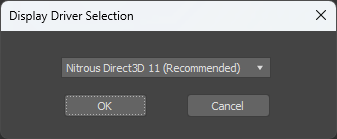
[display driver drop-down list]
Lets you choose which driver to use. If you change the active driver, 3ds Max displays a reminder that you must exit and then restart 3ds Max before the newly chosen driver becomes active.
Nitrous Direct3D 11 (Recommended) (The default.) Selects the Nitrous graphics driver and viewport system.
This driver requires Direct3D 11.
Nitrous Software Selects the Nitrous graphics driver and viewport system.
The Nitrous Software driver doesn't require hardware support. It can be slower than the hardware supported versions, but does support multithreading and multiple CPUs.
The Nitrous Software driver is supported by WARP.
Legacy OpenGL Selects the legacy OpenGL driver.
With the OpenGL driver, 3ds Max uses the display driver installed for your operating system. You can use the OpenGL driver if your system has any form of hardware graphics acceleration.
The viewport configuration options for legacy viewports differ from those of Nitrous viewports. Additional options for the Legacy OpenGL driver are on the Configure OpenGL dialog.
Warning: The OpenGL driver cannot preview shadows or ambient occlusion in viewports.