Viewport Preferences
On the Viewports panel of the Preference Settings dialog, you set options for viewport display and behavior. You can also set the current display driver.
- Default menu: Customize menu > Preferences > Preference Settings dialog > Viewports tab
- Alt menu: Customize menu > Customization > Preferences > Preference Settings dialog > Viewports tab
Interface
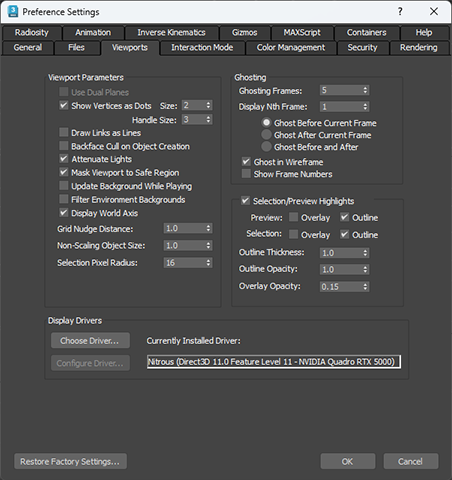
Viewport Parameters group
Use Dual Planes
Uses the front/back plane system when redrawing the viewport. The selected object is manipulated in the front plane and is redrawn, while other objects remain on the back plane and are not redrawn. This default setting provides the fastest redraws under normal circumstances. If your assigned display driver doesn't support dual planes, this option is not available.
Turn off this setting to improve redraw speed if you are rotating the whole scene or moving a camera through the scene (usually situations in which the whole viewport needs to be redrawn anyway).
Show Vertices as Dots
When on, 3ds Max displays vertices in mesh and patch objects as small, solid-color squares, whose size you can set with the Size parameter. When off, the vertex display is a tick mark.
Size Lets you specify the vertex size displayed in the viewports. Range = 2 to 7. Default=2.
Handle Size Lets you specify the display size for handles attached to patch vertices and spline vertices. Range=2 to 7. Default=3.
Draw Links as Lines
Displays the hierarchical links between parent and child objects as plain lines, rather than shapes when Display panel > Link Display rollout > Display Link is on.
Backface Cull on Object Creation
Determines whether to display faces with normals pointing away from view. When on, you see through the wireframe to the backfaces. This option applies to wireframe viewport displays only. In most cases, keep this switch enabled. However, when modeling with NURBS surfaces, which consist of single-sided planes, it's easier to view the geometry from all angles when backface culling is off.
- This control affects only the created objects, and you can reverse the effect on each object by changing the Backface Cull setting in the Object Properties dialog for that object.You might turn off Backface Cull On Object Creation before creating your NURBS, and then turn it on again when your finished.
- You can globally change the display of backface culling in the viewports by turning on Force 2-Sided on the Rendering Method panel of the Viewport Configuration dialog.
Attenuate Lights
Turns the display of attenuation effects on or off from start to end in the interactive viewport renderer. When off, attenuated lights behave as though unattenuated. Default=off.
Mask Viewport to Safe Region
By default, the viewport area outside the outermost safe frame displays the contents of the viewport. When this switch is on, that area is left blank.
Update Background While Playing
Turns on the updating of bitmaps in the viewport background when you play an animation. This capability lets you check your action against a 2D rotoscoped background, even if your animation plays at 1 frame per second. When on, an IFL file, AVI file, or MOV file updates on each frame when you click the Play button. To use this feature, turn off the real-time switch on the Time Configuration dialog.
The viewport updates not only when you click Play, but also when you drag the time slider.
Filter Environment Backgrounds
Affects the background displayed in the viewport only when you have chosen Use Environment Background on the Viewport Configuration dialog > Background panel. Default=off.
When you turn on Filter Environment Backgrounds, the environment background is filtered in the viewport, resulting in an antialiased image. When you turn it off, the background image is not filtered, resulting in an aliased, pixelated image.
Note the following:
- Filtering slows down the recalculation of the viewport background image about 30 to 40 percent. Unless you really need that smooth display, it's best to leave the option off.
- This option doesn't affect the rendered background image.
Display World Axis
When on, displays a world axis in the lower-left corner of all viewports. Default=on.
Grid Nudge Distance
Sets the nudge distance for the Nudge Grid Down and Nudge Grid Up functions, which you can use to move an active grid helper object into position. See To nudge a grid object up or down:.
Non-scaling object size
Sets the display size of cameras, lights, and other nonscaling objects. Default=1.
Selection Pixel Radius
Sets the pixel radius of your selections. Modifying complex objects may require a lower pixel radius selection. Default=16.
Ghosting group
Ghosting Frames
Specifies the number of ghost images that appear before and after the current frame when you choose Show Ghosting from the Views menu. If you display ghosts both before and after the current frame, the total number of ghosts is twice this number.
Display Nth Frame
Specifies the number of frames between the appearance of each ghost. The smaller this number, the closer the ghost images appear to each other.
- Ghost Before Current Frame Displays only ghost images that occur before the current frame. This makes the ghosts trail the object.
- Ghost After Current Frame Displays only ghost images that occur after the current frame.
- Ghost Before and After Displays ghosts both before and after the current frame.
Ghost in Wireframe
Displays ghosts in black wireframe in shaded viewports. When off, the ghosts appear as shaded objects, using the same colors as the wireframe ghosts.
Show Frame Numbers
Displays a frame number in the upper-left corner of each frame.
Selection Preview Highlights checkbox and group
When on, Nitrous viewports use preview and selection highlights. You can use the controls in this group to change how the previews display. Default=on.
When off, previews and selections are not highlighted.
Preview options and Selection options
Selection previews highlight in yellow, and actual selections highlight in blue. There are two checkboxes for each of these states:
- Overlay When on, the highlight includes a translucent overlay on the object. Default=off.
- Outline When on, the highlight includes an outline of the object. Default=on.
Turning off both checkboxes for both options is equivalent to turning off the main Selection Preview Highlights checkbox.
Outline Thickness
Controls the thickness of the selection outline and the preview outline.
Outline Opacity
Controls the opacity of the selection outline and the preview outline. At 0.0, the outline is invisible. At 1.0, the outline is fully opaque.
Overlay Opacity
Controls the opacity of the selection overlay and the preview overlay. At 0.0, the overlay is invisible. At 1.0, the overlay is fully opaque.
Display Drivers group
Choose Driver
Displays the Display Driver Selection Dialog. Use this dialog to choose a different display driver.
Configure Driver
Displays a Legacy Driver Configuration, where you can change the options for the current display driver.
(Not available for Nitrous viewports: All Nitrous settings are on the Viewport Configuration dialog.)
Currently Installed Driver
Displays the name of the currently installed driver.