Building Object Style Editor
Lets you create 3D buildings from 2D floor plan shapes.
- Civil View menu > Building Object Style Editor > Building Object Style (BOS) Editor
- Civil View Explorer > Civil View Objects branch > Other Objects branch > Right-click the Buildings entry. > Create Building Objects > Building Object Style (BOS) Editor
You can access this panel from either the main Civil View pull-down menu, or by right-clicking the appropriate item in the Civil View Explorer.
With the Building Object Style Editor, you can apply a building type to a range of buildings by associating the building type with a series of shape label masks.
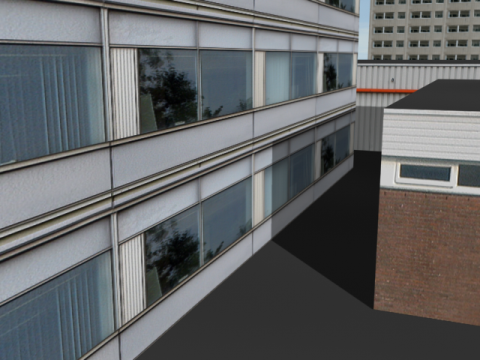
Various building types in a Civil View scene
By default, building objects use the Material CivilViewBuildings material.
Interface
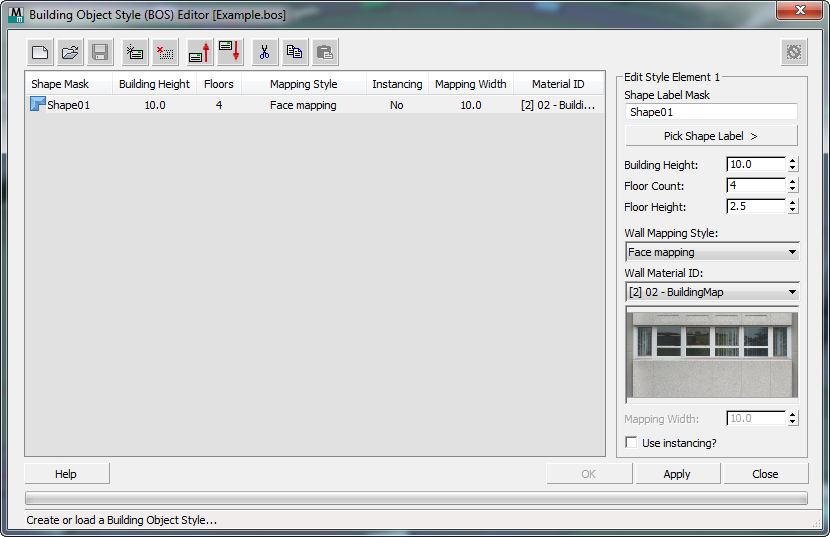
[BOS element list]
Lists the contents of the BOS style. Each line shows an individual element in the style. You can select an element in the list to display its details in the Edit BOS Element group.
 Start New Style
Click to create a new Building Object Style.
 Open Style
Click to open a previously created Building Object Style.
 Save Style
Click to save the current Building Object Style.
 Add new element
Click to add a new element to the current Building Object Style.
 Delete selected element
Click to remove the selected element from the current Building Object Style.
 Move selected element up
Click to move the selected element up by one position in the current Building Object Style.
 Move selected element down
Click to move the selected element down by one position in the current Building Object Style.
 Cut Element
Click to cut the selected style element. The element remains available on the clipboard.
 Copy Element
Click to copy the selected style element to the clipboard.
 Paste Element
Click to paste a cut or copied style element to another position in the current style or to an alternative style definition.
 Reset
Reset
Click to delete all objects placed in the scene from the current building style session.
Edit BOS Element group
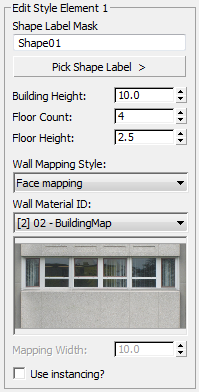
Displays the settings of the building style you have selected in the BOS Element List, and lets you choose the shapes to which the style is applied.
Shape Label Mask
Specifies a full or partial shape label mask ( wildcard string). Civil View applies a building object of this style to each shape in the scene whose name matches this mask.
Pick Shape Label
Click to turn on, then click in a viewport to pick a shape object. Civil View uses the name of the shape as the initial mask (wildcard) string.
Building Height
Sets the overall height of buildings generated by the building style. Changing this value affects the individual height of each floor.
Number of Floors
Sets the number of floors in buildings generated by the building style. Changing this value affects the overall height of the building.
Floor Height
Sets the height of each floor in buildings generated by the building style. Changing this value affects the overall height of the building.
Wall Mapping Style
Chooses how to apply the texture map:
- Box Mapping Per Floor
- Box Mapping Per Building
- Face Mapping
- Wrap Mapping
Wall Material ID
Sets the material ID that is assigned to the walls of buildings generated by the building style.
Wall Mapping Width
Sets the width of the mapping assigned to the walls of buildings generated by the building style.
Use instancing?
When on, activates parameter instancing for objects created from the building style.
In Civil View, parameter instancing allows parameters to be shared across multiple objects of the same type, even if the resultant geometric shape defined by the parent spline is entirely different.
For building objects, this means that two buildings of the same design can share a single instance of the parameters used to define the height and texture of the building. This is possible even if the floor area of the buildings are different, since it is only the properties of building itself that are instanced: not the geometry of the parent floor area shape.