Rail Object Style Editor
Lets you create rail objects.
- Civil View menu > Rail Object Style Editor > Rail Object Style (ROS) Editor dialog
- Civil View Explorer > Upper panel > Civil View Objects branch > Other Objects branch > Right-click the Rail Objects entry. > Pop-up menu > Create Rail Objects > Rail Objects Style (ROS) Editor dialog
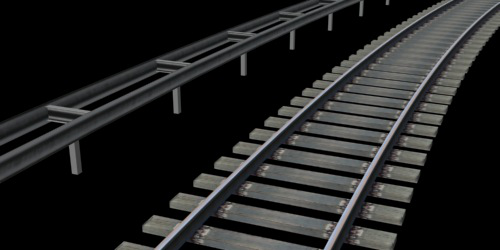
Two different styles of rail objects
Rail objects are made up of three key components: a post, a brace, and one or two rails. You can disable one or more of these components; for example, to create only evenly spaced posts, or perhaps walls that use only the rail component.
The Rail Object Style Editor associates a rail type with a series of shape label masks.
By default, rail objects use the CivilViewRails material.
Interface
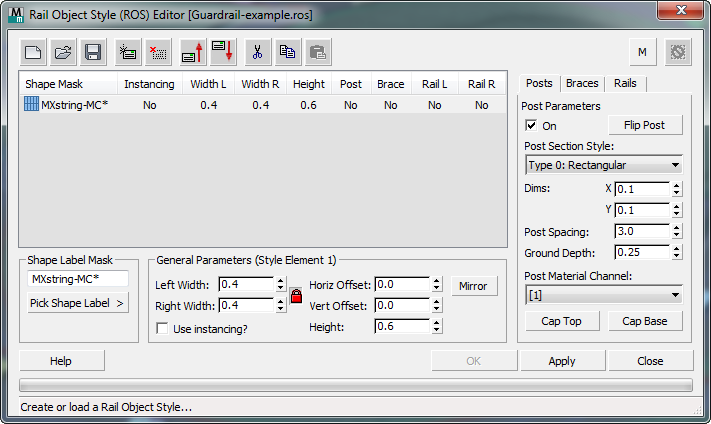
[rail object style element list]
Lists the contents of the current ROS style. Each line shows an individual element. When you highlight an element in the list, the General Parameters group and the rail element editor at the right display the settings of this element.
 Start New Style
Click to create a new Rail Object Style.
 Open Style
Click to open a previously created Rail Object Style.
 Save Style
Click to save the current Rail Object Style.
 Add new element
Click to add a new element to the current Rail Object Style.
 Delete selected element
Click to delete the selected element from the current Rail Object Style.
 Move selected element up
Click to move the selected element up by one position in the current Rail Object Style.
 Move selected element down
Click to move the selected element down by one position in the current Rail Object Style.
 Cut Element
Click to cut the selected element from the style, saving it to the Clipboard.
 Copy Element
Click to copy the selected element and save it to the Clipboard.
 Paste Element
Click to paste a cut or copied element.
You can paste a Cut element to a different location in the current style, and you can paste a Cut or Copied element to a different ROS.
 Allow multiple markings per shape?
Indicates whether more than one rail object can be applied to each parent shape. This is a global setting defined in the Civil View Preferences panel. It is off by default. You can overridde this setting locally, for an individual element, by changing the status of this button.
 [reset]
Click to delete all objects placed in the scene from the current object placement session.
Shape Label Mask group
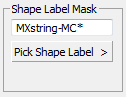
[text field]
Specifies a full or partial shape label mask ( wildcard string). Civil View applies a rail object of this style to each shape in the scene whose name matches this mask.
Pick Shape Label
Click to turn on, then click in a viewport to pick a shape object. Civil View uses the name of the shape as the initial mask (wildcard) string.
General Parameters group
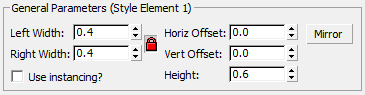
Left Width / Right Width
Set the horizontal width from the center of the rail object to the left and right rails.
 [lock] When on, the width values are locked and equal to each other. You can turn off the lock to have unequal widths. Default=on.
Use instancing?
When on, uses Civil View parameter instancing for rail objects created from the current style element.
For rail objects, this means that two highway guard rails of the same type can share a single instance of the parameters used to define the properties of that rail object. This is possible even if the guard rail lengths and paths are entirely different, since it is only the properties of rail profile itself that are instanced: not the geometry of the parent shape.
Hor[izontal] Offset / Ver[tical] Offset
Set the overall horizontal and vertical offsets of the rail object from the parent shape object.
Mirror When on, mirrors the Horizontal Offset by inverting its value.
This is a useful way to convert a left-handed rail object to a right-handed version, and vice versa.
Height
Sets the overall height of the rail object from the base (normally ground level) to the center of the brace.
ROS Style Element Editor
At the right of the editor is a panel for editing rail object styles. It consists of three tabs, one for each of the rail object components: Posts, Braces, and Rails.
Posts Panel
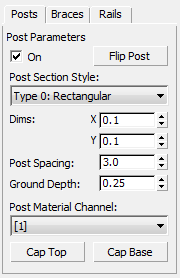
On
When on, the rail object includes post geometry. When off, it does not.
Flip Post
Allows the post section to be flipped laterally (useful when using "Z" profile posts with guard rail).
Post Section Style
Specifies the type of post: either a rectangular section or a "Z" profile.
Dim[ension]s
Set the X and Y dimensions of the post.
Post Spacing
Sets the spacing between adjacent posts.
Ground Depth
Sets the depth of the post below ground level.
Post Material Channel
Chooses the material channel from the CivilViewRails material to apply to the post geometry.
Cap Top
When on, a geometric cap is placed on the top of the post.
Cap Base
When on, a geometric cap is placed on the bottom of the post.
Braces Panel
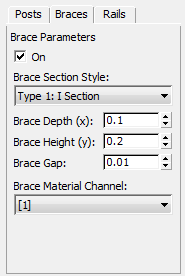
The brace is the horizontal link between the two rail elements.
On
When on, the rail object includes brace geometry. When off, it does not.
Brace Section Style
Specifies the type of brace: either a rectangular section or an "I" profile.
Brace Depth (x) / Brace Height (y)
Set the horizontal and vertical dimensions of the brace.
Brace Gap
Sets the gap between the outer edge of the brace and the outside face of the rail. This helps make sure that the brace geometry is not visible through the outer face of the rails.
Brace Material Channel
Chooses the material channel from the CivilViewRails material to apply to the brace geometry.
Rails Panel
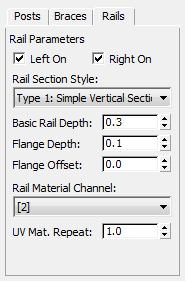
Left On / Right On
When on, the left or right rail geometry is part of the rail object. When off, the left or right side of the rail is not present.
Rail Section Style
Chooses the type of rail:
Type 0: Flanged Vertical Section
A "[" profile rail with a flange
Type 1: Simple Veritical Section
A simple vertical rail section
Type 2: Railway Section
An "n" profile rail section (suitable for use in railway modelling)
Type 3: W Section
A "W" profile rail profile
Type 4: W Section (Smooth)
A "W" profile rail profile with smoothing applied
Type 5: Vertical Fence Panel
Fence panel profile
Basic Rail Depth
Sets the depth of rail geometry.
Flange Depth / Flange Offset
Set the dimensions of the flange (if this rail style has a flange).
Rail Material Channel
Specifies the material channel from the CivilViewRails material to apply to the rail geometry.
UV Mat[erial] Repeat
Sets the number of times that the material is repeated along each rail segment.