Path Parameters Rollout
The Path Parameters rollout lets you control the position of shapes at various intervals along the path of the loft object.
- Select a path or shape. >
 Create panel >
  (Geometry) > Compound Objects > Object Type rollout > Loft > Path Parameters rollout
 - Default menu: Select a path or shape. > Create menu > Compound > Loft > Path Parameters rollout
- Alt menu: Select a path or shape. > Objects menu > Compound Objects > Loft > Path Parameters rollout
Interface
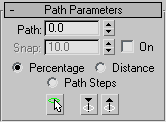
On the Path Parameters rollout, you control the position of multiple shapes at different intervals along the path of the loft object.
Path
Lets you set a path level by entering a value or dragging the spinner. If Snap is on, the value will jump to the previous snap increment. The Path value depends on the selected measuring method. Changing the measuring method causes the Path value to change.
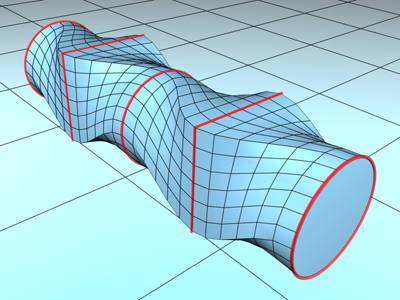
Inserting different shapes at different positions on the path
Snap
Lets you set a consistent distance between shapes along the path. The Snap value depends on the selected measuring method. Changing the measuring method also changes the Snap value to keep snap spacing constant.
On
When On is turned on, Snap is active. Default=off.
Percentage
Expresses the path level as a percentage of the total path length.
Distance
Expresses the path level as an absolute distance from the first vertex of the path.
Path Steps
Places shapes on path steps and vertices, rather than as a percentage or a distance along the path.
When Path Steps is on, the following take place:
- The Path spinner specifies the step along the path. The first step, at 0, is the first vertex.
- The total number of steps, including vertices, appears in parentheses beside the Path spinner.
- The current path level is indicated by the standard yellow X when it's a step, and by a small boxed X when it's a vertex.
- Get Shape places a selected shape on the specified step or a vertex of the path.
- Adaptive Path Steps on the Skin Parameters rollout is unavailable. (If it were available, the path steps and shapes would change positions along the path, depending on the result of the adaptive algorithm.)
Please note the following when using the Path Steps option:
- When you switch to Path Steps with a loft object that already contains one or more shapes, an alert message tells you that this action may relocate shapes. This is because there are a limited number of path steps, and only one shape can be on a single step or vertex. The Percentage and Distance options, on the other hand, provide an almost unlimited number of levels on which to place shapes. Thus, if you change from Percentage or Distance to Path Steps, the shapes must be moved to existing steps. If there are more shapes than can be moved to nearby steps, you could end up with more than one shape on a step. Switching from Path Steps to either Percentage or Distance, however, can always be done without loss of data.
- If you alter the Path Steps spinner while in Path Steps mode, the location of your shapes might change. An alert message warns you of this.
- If you animate the topology of the path while in Path Steps mode (such as animating the number of sides of an NGon), your shapes might jump around trying to find a legitimate position, and you could end up with more than one shape on the same path level.
Pick Shape
Sets the current level at any shape on the path. When you pick a shape on the path, Snap is turned off and Path is set to the level of the picked shape, where a yellow X appears. Pick Shape is available only from the Modify panel.
Previous Shape
Jumps the path level from its current location to the previous shape along the path. A yellow X appears at the current level. Clicking this button turns Snap off.
Next Shape
Jumps the path level from its current location to the next shape along the path. A yellow X appears at the current level. Clicking this button turns Snap off.