ProCutter Compound Object
The ProCutter Compound object lets you perform specialized Boolean operations, primarily for the purpose of breaking apart or subdividing volumes.
- Select an object. >
 Create panel >
  (Geometry) > Compound Objects > Object Type rollout > ProCutter
 - Default menu: Create menu > Compound > ProCutter
- Alt menu: Objects menu > Compound Objects > ProCutter
The results of ProCutter operations are particularly suitable for use in simulations where an object explodes or is shattered by impact with a force or another object.

ProCutter used as a cookie cutter
Following is a list of ProCutter features:
- Break apart a stock object into elements of an editable mesh or into separate objects using cutters that are either solids or surfaces.
- Use one or more cutters on one or more stock objects at the same time.
- Perform a volume decomposition of a set of cutter objects.
- Use a single cutter many times without maintaining the history.
Procedures
To use ProCutter:
 Select an object to use as a cutter.
- Activate the ProCutter compound object.
- On the Cutter Picking Parameters rollout, click Pick Cutter Objects, and then select additional cutters.
- On the Cutter Picking Parameters rollout, click Pick Stock Objects, and then select objects to be cut by the cutter objects.
- In the Cutter Parameters rollout > Cutter Options group, choose the parts of the originals you wish to keep: Stock Outside Cutters, Stock Inside Cutters, Cutters Outside Stock.
- To get separate objects to manipulate or animate, collapse the result to an Editable Mesh object and use the Explode tool set to 180.0. Alternatively, use Auto Extract Mesh and Explode By Elements, described below.
Interface
Cutter Picking Parameters rollout
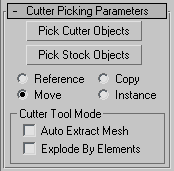
Pick Cutter Objects
When on, objects you select are designated as cutters, used to subdivide stock objects.
Pick Stock Objects
When on, objects you select are designated as stock objects; that is, objects that are subdivided by cutters.
Choose a radio button to specify how the next object you pick is transferred to the ProCutter object:
- Reference The Boolean operation uses a reference to the picked operand, so the object remains after being incorporated into the Boolean object. Future modifications to the originally picked object will also modify the Boolean operation. Use Reference to synchronize modifier-induced changes to the original operand with the new operand, but not vice-versa.
- Copy The Boolean operation uses a copy of the picked operand. The selected object is unaffected by the Boolean operation, but a copy of it participates in the Boolean operation.
- Move The picked operand becomes part of the Boolean operation and is no longer available as a separate object in the scene. This is the default choice.
- Instance The Boolean operation makes an instance of the selected object. Future modifications of the selected object will also modify the instanced object participating in the Boolean operation and vice-versa.
Cutter Tool Mode group
These options let you use the cutter as a sculpting tool, cutting the same object repeatedly in different places. You can also get separate objects without having to go through Editable Mesh conversion.
Auto Extract Mesh
Automatically extracts the result when you select a stock object. It does not maintain the stock as a sub-object, but edits it and replaces the object with the result of the cut. This lets you quickly cut, move the cutter, and cut again.
Explode By Elements
When Auto Extract is on, detaches each element into a separate object automatically. Has no effect when Auto Extract is off.
This convenient option makes it unnecessary to convert the ProCutter object to Editable Mesh format and then use Explode, as mentioned in this procedure. This is useful when cutting up an object. For example, you could use it to slice a loaf of bread. You use the cutter to cut a piece off, move the cutter, and then cut again.
Cutter Parameters rollout
You can choose any combination of the three cutting options to get the desired result. If you have non-closed meshes, the orientation of the mesh might determine which part of the stock is considered to be inside or outside the cutter.
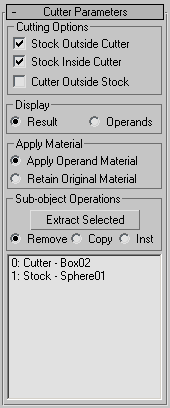
Cutting Options group
Stock Outside Cutter
The result contains the parts of the stock outside of all of the cutters. This option gives you a similar result to a Boolean subtraction of the cutters from the stock objects. The gold part of the object in the following illustration results from this option.
Stock Inside Cutter
The result contains the parts of the stock inside one or more cutters. This option gives you similar results to a Boolean intersection of the cutters and the stock objects. There is some difference because each cutter is treated individually. The green, blue and red parts of the object on the left side of the following illustration are the results of this option.
Cutter Outside Stock
The result contains the parts of the cutters that are not inside the stock objects. Note that the cutters will cut each other if they intersect also.
The right side of the following illustration (exploded for visibility) shows, as the result of this option, the parts that are not present on the left side.
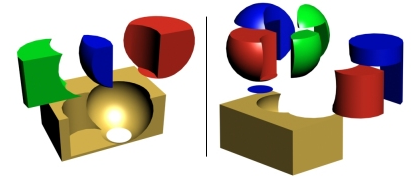
Cylinder and sphere as cutters and box as stock:
Left: Keeping stock inside and outside cutters
Right: Keeping stock inside/outside cutters and cutters outside stock
Display group
Display
Choose one of the following display modes:
- Result Displays the result of the Boolean operations.
- Operands Displays the operands that define the Boolean result. Use this mode to edit the operands and modify the result.
Apply Material group
Choose one of the following material application modes:
- Apply Operand Material New faces created by the Boolean operation acquire the material of the operand.
- Retain Original Material New faces created by the Boolean operation retain the material of the original object.
Sub-object Operations group
These functions operate on operands highlighted in the hierarchy view list (see following).
Extract Selected
Based on the chosen radio button (Remove, Copy, or Inst; see following), Extract Selected applies the operation to the highlighted operand in the hierarchy view list. Three modes of extraction are available:
- Remove Removes the operand or operands highlighted in the hierarchy view list from the Boolean result. It essentially undoes the addition of the highlighted operand(s) to the Boolean object. Each extracted operand becomes a top-level object again.
- Copy Extracts a copy of the operand highlighted in the hierarchy view list. The original operand remains part of the Boolean.
- Inst Extracts an instance of the operand highlighted in the hierarchy view list. Subsequent modifications to this extracted operand also modify the original operand, thus the Boolean object.
[hierarchy view]
The hierarchy view displays a list of all operands: cutters and stock objects. You can select and edit objects using the hierarchy view, as with ProBoolean.
Advanced Options rollout
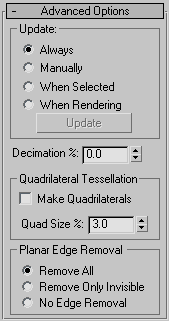
Update group
These options determine when updates are performed on the Boolean object after you make changes. Choose one of the following:
- Always Updates occur as soon as you make changes to the Boolean object.
- Manually Updates occur only when you click the Update button.
- When Selected Updates occur whenever the Boolean object is selected.
- When Rendering Updates are applied to the Boolean object only at render time, or when you click Update.
Update
Applies changes to the Boolean object. Available with all options except Always.
Decimation %
The percentage of edges to remove from the polygons in the Boolean object, thus reducing the number of polygons. For example, a Decimation % setting of 20.0 removes 20 percent of the polygon edges.
Quadrilateral Tessellation group
Make Quadrilaterals
When on, changes the tessellation of the Boolean object from triangles to quadrilaterals. This makes the object suitable for editing subdivision surfaces and for smoothing meshes. It also makes the object suitable for conversion to Editable Poly format.
Quad Size %
Determines the size of the quadrilaterals as a percentage of the overall Boolean object length.
Planar Edge Removal group
This option determines how the polygons on planar faces are handled. Choose one of the following:
- Remove All Removes all extra coplanar edges on a face such that the face itself will define the polygon.
- Remove Only Invisible Removes invisible edges on each face.
- No Edge Removal No edges are removed.