Hose
The Hose object is a flexible object that you can connect between two objects, whereupon it reacts to their movement. You can specify the overall diameter and length of the hose, the number of turns, and the diameter and shape of its "wire."
 Create panel >
  (Geometry) > Extended Primitives > Object Type rollout > Hose button
- Default menu: Create menu > Extended Primitives > Hose
- Alt menu: Objects menu > Extended Primitives > Hose
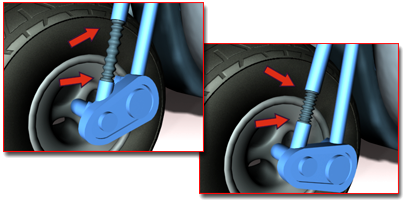
Hose models a workable spring on a motorcycle
Procedures
To create a hose:
- From the menu bar, choose Create > Extended Primitives > Hose.
- Drag the mouse to define the radius of the hose.
- Release the mouse, and then move it to define the length of the hose.
- Click to finish the hose.
Example: To bind a hose to two objects:
Add a hose and two other objects that you'll move to manipulate the hose ends, such as boxes. Select the hose.
In the
 Modify panel > Hose Parameters rollout > End Point Method group, choose Bound To Object Pivots.
In the Binding Objects group, click Pick Top Object, and then select one of the two objects.
In the Binding Objects group, click Pick Bottom Object, and then select the second of the two objects.
The two ends of the hose attach themselves to the two objects.
Move one of the objects.
The hose adjusts itself to remain attached to both objects.
Interface
Hose Parameters rollout
End Point Method group
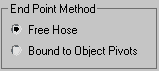
- Free Hose Choose this when using the hose as a simple object that’s not bound to other objects.
- Bound to Object Pivots Choose this when binding the hose to two objects, using the buttons in the Binding Objects group.
Binding Objects group
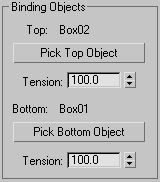
Available only when Bound To Object Pivots is chosen. Use the controls to pick the objects to which the hose is bound and to set the tension between them. "Top" and "Bottom" are arbitrary descriptors; the two bound objects can have any positional relationship to each other.
Each end point of the hose is defined by the center of the overall diameter. This end point is placed at the pivot point of the object to which it is bound. You can adjust the relative position of the binding object to the hose by transforming the binding object while the Affect Object Only button is turned on in the Hierarchy panel > Adjust Pivot rollout.
Top (label)
Displays the name of the "top" binding object.
Pick Top Object
Click this button and then select the "top" object.
Tension
Determines the tension of the hose curve near the Top object as it reaches for the Bottom object. Lower the tension to have the bend occur closer to the Top object, raise the tension to have the bend occur further away from the Top object. Default=100.
Bottom (label)
Displays the name of the "bottom" binding object.
Pick Bottom Object
Click this button and then select the "bottom" object.
Tension
Determines the tension of the hose curve near the Bottom object as it reaches for the Top object. Lower the tension to have the bend occur closer to the Bottom object, raise the tension to have the bend occur further away from the Bottom object. Default=100.
Free Hose Parameters group
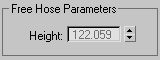
Height
Use this field to set the straight-line height or length of the hose when it is not bound. This is not necessarily the actual length of the hose. Available only when Free Hose is chosen.
Common Hose Parameters group
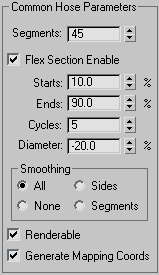
Segments
The total number of segments in the hose's length. Increase this setting for a smooth profile when the hose is curved. Default=45.
Flex Section Enable
When on, lets you set the following four parameters for the central, flexible section of the hose. When off, the hose's diameter is uniform throughout its length.
Starts
The percentage of the hose length from the starting extremity of the hose at which the flex section begins. By default, the starting end of the hose is the end at which the object pivot appears. Default=10%.
Ends
The percentage of the hose length from the end extremity of the hose at which the flex section ends. By default, the end extremity of the hose is opposite the end at which the object pivot appears. Default=90%.
Cycles
The number of corrugations in the flex section. The number of visible cycles is limited by the number of segments; if Segments isn't high enough to support the number of cycles, then not all cycles will appear. Default=5.
Diameter
The relative width of the "outside" parts of the cycles. At negative settings, these are smaller than the overall hose diameter. At positive settings, these are larger than the overall hose diameter. Default=-20%. Range=-50% to 500%.
Smoothing
Defines the geometry that gets smoothed. Default=All:
- All The entire hose is smoothed.
- Sides Smoothing is applied along the length of the hose but not around its circumference.
- None No smoothing is applied.
- Segments Smoothing is applied only on the inner section of the hose.
Renderable
When on, the hose is rendered using the specified settings. When off, the hose is not rendered. Default=on.
Generate Mapping Coords
Sets up required coordinates for applying mapped materials to the hose. Default=on.
Hose Shape group
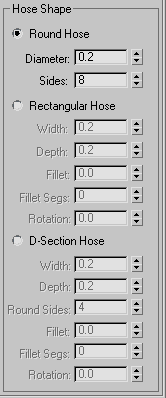
Sets the shape of the hose cross section. Default=Round Hose.
Round Hose
Sets a circular cross section.
- Diameter The maximum width of the hose at the ends.
- Sides The number of sides of the hose. A Sides setting of 3 gives a triangular cross section; 4 gives a square cross section; and 5 gives a pentagonal cross section. Increase Sides for a circular cross section. Default=8.
Rectangular Hose
Lets you specify different settings for width and depth.
- Width The width of the hose.
- Depth The height of the hose.
- Fillet The amount by which the cross-section corners are rounded. For this to be visible, Fillet Segs must be set to 1 or higher. Default=0.
- Fillet Segs The number of segments across each filleted corner. A Fillet Segs setting of 1 cuts the corner straight across; use higher settings for rounded corners. Default=0.
- Rotation The orientation of the hose along its long axis. Default=0.
D-Section Hose
Similar to Rectangular Hose, but rounds one side for a D-shaped cross-section.
- Width The width of the hose.
- Depth The height of the hose.
- Round Sides The number of segments on the rounded side. Increase for a smoother profile. Default=4.
- Fillet The amount by which the two cross-section corners opposite the rounded side are rounded. For this to be visible, Fillet Segs must be set to 1 or higher. Default=0.
- Fillet Segs The number of segments across each filleted corner. A Fillet Segs setting of 1 cuts the corner straight across; use higher settings for rounded corners. Default=0.
- Rotation The orientation of the hose along its long axis. Default=0.