Prism
Use Prism to create a three-sided prism with independently segmented sides.
 Create panel >
  (Geometry) > Extended Primitives > Object Type rollout > Prism button
- Default menu: Create menu > Extended Primitives > Prism
- Alt menu: Objects menu > Extended Primitives > Prism
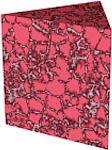
Example of a prism
Procedure
To create a prism with an isosceles triangle as its base:
Choose Isosceles on the Creation Method rollout.
Drag horizontally in the viewport to define the length of Side 1 (along the X axis). Drag vertically to define the length of Sides 2 and 3 (along the Y axis).
(To constrain the base to an equilateral triangle, press
Ctrlbefore performing this step.)Release the mouse, and move it vertically to define the height of the prism.
Click to complete the prism.
On the Parameters rollout, alter the length of the sides as needed.
To create a prism with a scalene or obtuse triangle at its base:
- Choose Base/Apex in the Creation Method rollout.
- Drag horizontally in the viewport to define the length of Side 1 (along the X axis). Drag vertically to define the length of Sides 2 and 3 (along the Y axis).
- Click, and then move the mouse to specify the placement of the apex of the triangle. This alters the length of sides 2 and 3, and the angles of the corners of the triangle.
- Click, and then move the mouse vertically to define the height of the prism.
- Click to complete the prism.
Interface
Creation Method rollout
Isosceles
Draws a prism with an isosceles triangle at its base.
Base/Apex
Draws a prism with a scalene or obtuse triangle at its base.
Parameters rollout
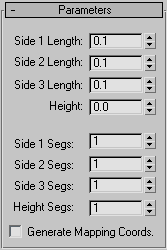
Side (n) Length
Sets the length of triangle's corresponding side (and thus the triangle's corner angles).
Height
Sets the dimension of the prism's central axis.
Side (n) Segs
Specifies the number of segments for each side of the prism.
Height Segs
Sets the number of divisions along the prism's central axis.
Generate Mapping Coordinates
Sets up the required coordinates for applying mapped materials to the prism. Default=off.