TextPlus
TextPlus provides an all-in-one text object. You can create a spline outline or solid, extruded, beveled geometry. Additional options let you apply different fonts and styles on a per-character basis and add animation and special effects.
- Create panel > Geometry > Standard Primitives > Object Type rollout > TextPlus button
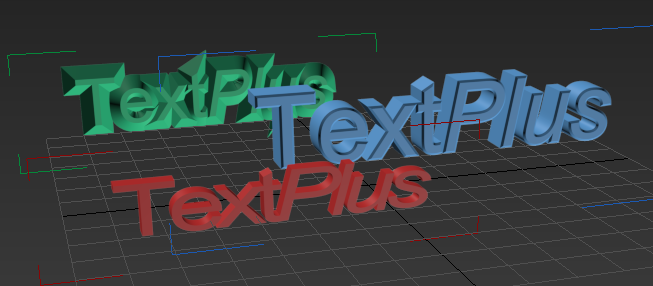
Examples of TextPlus
Procedure
To create text:
- On the Create menu choose Standard Primitives > TextPlus.
- Enter the text in the Text field of the Parameters rollout.
- In any viewport, define an insertion point by either clicking to place the text or dragging the text into position and then releasing the mouse button.
Interface
Interpolation rollout
Use this rollout to change how the text element is generated.
Steps
Sets the number of vertices used to divide the curve. The higher the number of steps, the smoother the curve. You can set the steps manually or automatically using the Adaptive checkbox. Range=0-100.
Optimize
Removes unnecessary steps from straight segments. Default=on.
Adaptive
Automatically sets the number of steps to produce as a smooth curve. Default=off.
Layout rollout
Use this rollout to change how the text is located.
Type group
Point
Determines layout using a point.
Plane
Determines layout using Auto, XY, XZ, or YZ planes.
Region
Determines layout using Length and Width measurements.
Parameters rollout
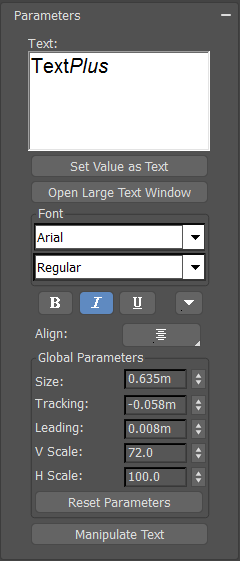
Use this rollout to change the text and typography.
Text box
Allows for multiple lines of text. Press Enter to start a new line. The default text is "TextPlus". You can copy and paste single and multiple lines of text from the Clipboard.
Set Value as Text
Toggles the Set Value as Text window to link the text to a value to display. The value can be an object value such as a radius, or any other value that can be returned from a script or expression.
Open Large Text Window
Toggles a large text window to better see large amounts of text.
Font group
Font list
Choose from a list of available fonts including fonts installed in Windows and Type 1 PostScript fonts.
Font type list
Choose from Regular, Italic, Bold, or Bold Italic font types.
Bold style button
Toggles bolding text.
Italic style button
Toggles italicizing text.
Underline style button
Toggles underlining text.
Strikethrough button
Toggles striking-through text.
All Caps button
Toggles capitalizing text.
Small Caps button
Toggles capitalizing text using the same height and weight as lowercase.
Superscript button
Toggles reducing the height and weight of letters and placing them above the regular line of text.
Subscript button
Toggles reducing the height and weight of letters and placing them below the regular line of text.
Align
Set the text alignment. Justification options include: Left, Center, Right, Last Left, Last Center, Last Right, and Full.
Global Parameters group
Size
Sets the text height where the measuring method is defined by the active font.
Tracking
Sets the space between letters.
Leading
Sets the distance between lines. Multiple lines of text are required.
V Scale
Sets the vertical scale.
H Scale
Sets the horizontal scale.
Reset Parameters button
Reset selected parameters to their default values for selected characters or all characters. Parameters include: Global V Scale, Global H Scale, Tracking, Leading, Baseline Shift, Kerning, Local V Scale, and Local H Scale.
Manipulate Text button
Toggles the ability to manually manipulate the text uniformly or non-uniformly. You can adjust the text size, font, tracking, kerning, and baseline.
Geometry rollout
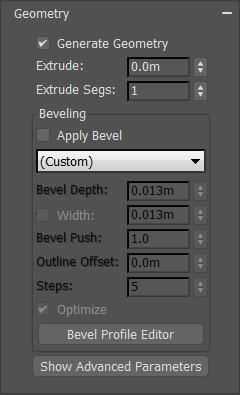
Generate Geometry
Toggles the geometric effects from 2D to 3D.
Extrude
Sets the extrusion depth.
Extrude Segs
Specifies the number of segments created in the extruded text.
Beveling group
Apply Bevel
Toggles the beveling on the text.
Presets list
From the drop-down list, select a preset bevel type or select custom to use a bevel you create using the Bevel Profile Editor. Presets include: Concave, Convex, Engrave, Half Circle, Ledge, Linear, Ogee, Three Step, Two Step.
Bevel Depth
Sets the depth of the beveled area.
Width
The checkbox toggles the ability to modify the width parameter. The default setting is unchecked and constrained to the depth parameter. Select to change the width from the default and enter the amount in the width field.
Bevel Push
Sets the intensity of the bevel curve. For example: using a concave bevel preset, a value of 0 is a perfect linear edge, -1 is a convex edge, and +1 is a concave edge.
Outline Offset
Sets the outline's offset distance.
Steps
Sets the number of vertices used to divide the curve. The higher the number of steps, the smoother the curve.
Optimize
Removes unnecessary steps from straight segments in the bevel. Default=on.
Bevel Profile Editor button
Toggles the Bevel Profile Editor window, enabling you to create your own custom profiles.
Show Advanced Parameters button
Toggles advanced parameters.
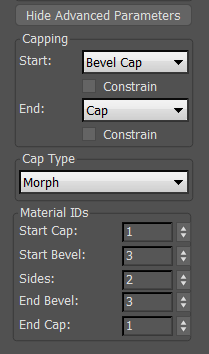
Capping group
Start
Set the cap for the front face of the text. Options include: Cap (simple cap without bevel), No Cap (open face), Bevel Cap, Bevel No Cap. Default=Bevel Cap.
End
Set the cap for the back face of the text. Options include: Cap (simple cap without bevel), No Cap (open face), Bevel Cap, Bevel No Cap. Default=Cap.
Constrain
Uses selection constraints on the selected face.
Cap Type group
Morph
Creates cap face using triangles.
Grid
Creates cap face in a grid pattern. This cap type deforms and renders better than morph capping.
Subdiv
Creates cap face that will deform using a subdivision pattern.
Material IDs group
Use this group to apply individually selected materials to the Start Cap, Start Bevel, Sides, End Bevel, and End Cap.
Animation rollout
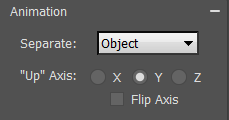
Separate
Sets which portion of the text animates. Options include:
| Object | Applies animation globally to entire text element. |
| Character | Separates characters as children objects and only animates selected characters. |
| Word | Separates words as children objects and only animates selected words. |
| Line | Separates lines of text as children objects and only animates selected lines. |
| Paragraph | Separates paragraphs as children objects and only animates selected paragraphs. |
"Up" Axis
Sets the upward orientation of the text element to the X, Y, or Z axis. This is necessary if you are using an animation preset where original object used to create the preset had a different orientation axis than the current text element, resulting in the text running in an incorrect direction.
Flip Axis
Reverses the orientation of the text element. This may be necessary if you are using an animation preset where original object used to create the preset had a different orientation axis than the current text element, resulting in the text running in an incorrect direction.