Values as Text
Use TextPlus to display and update numeric data such as object transforms, parameters, or time information.
Set Values as Text using TextPlus
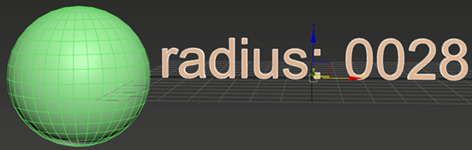
Text can be used to display an object's value, such as its radius, or any value that can be returned from a script or expression. The text in the scene dynamically updates when this value changes.
- Create panel > Geometry > Standard Primitives > Object Type rollout > TextPlus button > Parameters rollout > Set Value as Text button
Procedure
To set values as text:
Create a TextPlus object in the same scene as the object from which the value will be derived.
In the TextPlus Parameters rollout, edit the Text field to display the value's label name (eg. "Radius: ").
Note: Remember to leave a space after the label name.Click Set Value as Text.
In the Edit Value as Text dialog, click Add.
In the Value Options group, enter a name.
In the Value Type group, select Script, Expression, or Number depending on your requirements.
Do one of the following: - If you want to select the value from the scene, click Pick Value From Scene and then click on the object and select the desired value.
- If you want to create your own expression/script, click Edit and then create the expression/script using the Controller dialog.
- If you want the value to be a set and static number, select Number and then enter the number you want to display.
In the Display As group, set how you want the value to display.
Click Insert In Text.
Interface
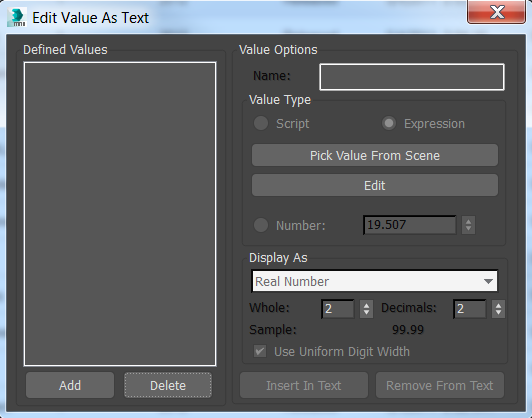
Defined Values group
Add button
Create one or more values to link to text.
Delete button
Delete a value.
Value Options group
Name
Enter a name for the value.
Value Type group
Script
Links the value using script.
Expression
Links the value using an expression.
Pick Value From Scene button
Sets the value by clicking on the object in the scene and then selecting an available preset. Options include transforms such as position and rotation, and object values such as height and width.
Edit button
Toggles the Script/Expression Controller dialog.
Number
Sets the value based on a number you enter.
Display As group
Value type list
Sets the value type. Options include: Whole Number, Real Number, Percent, Display Units and Time Display.
Whole
Sets the number of whole numbers to display.
Decimals
Sets the number of decimal places to display.
Use Uniform Digit Width
Sets whether to use uniform digit width or not.
Insert In Text
Inserts the value in the text box at the end of the existing text element.
Remove From Text
Removes the value from the text element.