Bone Tools: Object Properties Reference
These settings let you turn other objects into bones and control bone rigidity and alignment.
- Default menu: Animation menu > Bone Tools > Bone Tools dialog > Object Properties rollout
- Alt menu: Animation menu > Create (Animation Set) > Bone Tools > Bone Tools dialog > Object Properties rollout
Interface
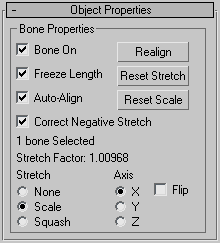
Bone On
When on, the selected bone or object behaves as a bone. When off, the object stops behaving like a bone: There is no auto alignment or stretching, and the remaining controls are disabled. Default=on for bone objects, off for other kinds of objects.
Freeze Length
When on, the bone maintains its length. When off, the bone's length is based on the translation of its child bone. Default=on.
Auto-Align
When off, the bone's pivot point doesn't align to its child object, so the translation of a child bone is not converted into rotation of the parent. Instead, the child is allowed to move away from the parent's X axis. Default=on.
Correct Negative Stretch
When on, any stretching of the bone that results in a negative scale factor is corrected to a positive number. Default=on.
Realign
Causes the bone's X axis to realign and point at the child bone (or the average pivot of multiple children).
Normally this alignment is maintained, and there is no need to use this option. However, it is possible for the bones to come out of alignment by turning off Auto-Align and moving a child bone. Use Realign to align the bone back to its child.
Reset Stretch
Stretches the bone to reach its child object if the child has been moved away from the bone.
Reset Scale
Resets a stretched bone's internally calculated scale to 100% on each axis. Using this option avoids unexpected behavior due to objects which are both linked and scaled. This option has no visual effect on the bone.
Stretch Factor Information
Under the Correct Negative Stretch options is a text display giving information about the number of bones selected and the respective stretch factor for all three axes. If more than one bone is selected, the Stretch Factor text displays undefined.
Stretch and Axis Options
Stretch
Determines what kind of stretch takes place when the child bone is transformed and Freeze Length is off. Default=Scale.
- None No stretch takes place.
- Scale Lets the bone scale. The stretch happens along one axis.
- Squash Lets the bone squash. The bone gets fatter as it gets shorter, and thinner as it gets longer.
Axis
Determines the axis used for the stretch.
- X/Y/Z Choose the axis for scaling or squashing.
- Flip Flips the stretch along the selected axis.