Editable Patch (Edge)
An edge is the portion of a patch object between two adjacent vertices.

- Select an editable patch > Modify panel > Modifier stack display > Expand the Editable Patch entry. > Edge sub-object level
- Select an editable patch > Modify panel > Selection rollout > Edge
- Select an editable patch > Right-click the patch > Tools 1 (upper-left) quadrant of the quad menu > Sub-objects > Edge
At the Edge sub-object level of an Editable Patch object, you can select single and multiple edges and move, rotate, and scale them using standard methods. You can also hold down the Shift key and drag an edge to create a new patch. Holding down the Shift key during edge extrusion creates a new element.
Procedures
To unlock interior edges:
When you move an outer or boundary edge of a patch, the adjacent interior edges are normally “locked” so that they move in parallel with the boundary edge. This is often useful, because it provides a uniform transition across the patch. This default is known as Auto Interior.
At Patch level, you can change the default on a patch-by-patch basis by right-clicking a patch and choosing Manual Interior from the Tools 1 (upper-left) quadrant of the quad menu. Thereafter, when you move a boundary edge, interior edges are affected in a nonlinear way. The interior edges are no longer locked to the boundary edge.
Warning: If you return a patch to the default, changes caused by Manual Interior are lost.
Interface
Selection rollout
Select Open Edges
Selects all edges that are used by only one patch. You can use this to troubleshoot a surface; open edges will be highlighted.
For information on the other controls in this rollout, see Selection Rollout (Editable Patch).
Soft Selection rollout
See Soft Selection Rollout for information on the Soft Selection rollout settings.
Geometry rollout
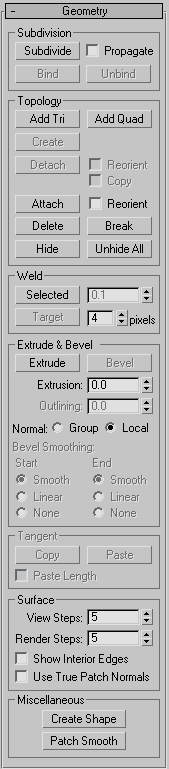
See Geometry Rollout (Patch) for detailed descriptions of these controls.