Crease Explorer
Crease Explorer provides a spreadsheet-like interface for managing crease sets within the CreaseSet and Crease modifiers.
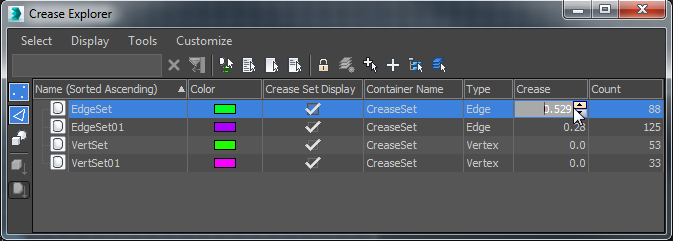
Usage of the Crease Explorer dialog is similar to that of Scene Explorer. Following are descriptions of features specific to Crease Explorer.
Although you invoke the Crease Explorer from a specific CreaseSet modifier, the dialog lists all crease sets defined in the scene. It doesn't list other types of scene data, except, optionally, the objects associated with the crease sets.
Crease Explorer toolbar
The toolbar is arranged vertically on the left side of the dialog.
 Show Vertex Creases
When on, lists vertex crease sets. To show only vertex crease sets, Alt +click the button.
 Show Edge Creases
When on, lists edge crease sets. To show only edge crease sets, Alt +click the button.
 Display Objects
When on, lists crease sets by object or by crease set, along with associated objects (see following). When off, Crease Explorer lists only crease sets without showing the associated objects.
 Sort By Object
Lists objects that contain crease sets, with the sets as children of each object.
 Sort By Crease
Lists crease sets in the scene, with each associated object as a child of the crease set.
Crease Explorer Columns
Name
The name of each crease set in the scene. To rename a set in Crease Explorer, double-click its name slowly.
Container Name
Lists the name of each modifier that contains crease data. To rename a modifier in Crease Explorer, double-click its name slowly.
Type
The type of the crease set, based on the sub-objects it contains: Vertex or Edge.
Crease
The numeric Crease value of the set. To change the value, click the number and use the keyboard or the spinner.
Count
The number of sub-objects contained in the crease set.
Color
This non-default column shows each set's assigned color. To change the color, click the swatch.
Crease Set Display
This non-default column shows the state of the Crease Set Display toggle for each modifier. When on, sub-objects belonging to crease sets display in the viewport using colors defined in the Crease or CreaseSet modifier.