CreaseSet Modifier
The CreaseSet modifier provides comprehensive tools for managing creasing in conjunction with the OpenSubdiv modifier.
- Modify panel > Make a selection. > Modifier List > Object-Space Modifiers > CreaseSet
- Make a selection. > Modifiers menu > Subdivision Surfaces > CreaseSet
A crease set is a collection of edges or vertices with the same Crease value. The CreaseSet modifier lets you create and delete crease sets; you can also derive crease sets from underlying settings in the modifier stack.
A particularly useful application of the CreaseSet modifier is for use with multiple objects. For example, a scene might contain several copies of a car with creases in the same areas in each car. You can use the CreaseSet modifier to collect each group of similar creases in all cars into a single set, and thus edit the creasing across the multiple objects simultaneously. For a detailed description, see this task.
Selection rollout
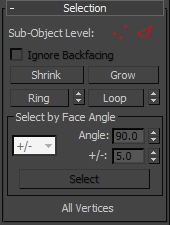
Sub-Object Level
Provides access to Vertex and Edge sub-object levels. You can also access these levels by expanding the modifier entry on the modifier stack.
 Vertex: Accesses the Vertex sub-object level, which lets you select a vertex beneath the cursor by clicking. To select multiple vertices,
 Ctrl+click or drag a region. Edge: Accesses the Edge sub-object level, which lets you select a polygon edge beneath the cursor. To select multiple edges,
 Ctrl+click or drag a region.
Ignore Backfacing
When on, selection of sub-objects affects only those facing you. When off (the default), you can select any sub-object(s) under the mouse cursor, regardless of their visibility or facing.
Shrink
Reduces the sub-object selection area by deselecting the outermost sub-objects. If the selection size can no longer be reduced, the remaining sub-objects are deselected.
Grow
Expands the selection area outward in all available directions.
Ring
Expands an edge selection by selecting all edges parallel to the selected edges.
Loop
Expands an edge selection as far as possible, in alignment with selected edges.
Loop selection propagates only through four-way junctions.
 [Ring Shift]
Lets you move the selection in either direction to other edges in the same ring; that is, to neighboring, parallel edges.
 [Loop Shift]
Lets you move the selection in either direction to other edges in the same loop; that is, to neighboring, aligned edges.
Select by Face Angle group
These controls enable selecting edges by the angle between pairs of faces they belong to. Two methods are available from the drop-down list:
+/-
Specify a base Angle and a range. For example, if you use the default settings of Angle=90.0 and +/-=5.0, clicking Select selects all edges whose adjacent faces are within 85 to 95 degrees of each other.
A/B
Specify the range as two angles. For example, setting A=20.0 and B=30.0 selects all edges whose adjacent faces are between 20 and 30 degrees of each other. The order of the two angles doesn't matter.
Select
Click to select all edges that meet the specified criteria.
Crease Sets rollout
Whenever you have selected vertices or edges, you can save them as a crease set. This rollout provides controls for managing crease sets and adjusting their values.
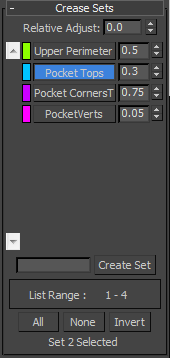
Relative Adjust
Adds the amount you specify with the numeric field to all selected crease sets. Adjustment can be positive or negative.
[Crease Set List]
Lists all crease sets, with a scroll bar to the left.
When you create a crease set, its name appears on a button in this list. Each entry in the list also includes the set's color swatch and Crease value.
To toggle a set's selected status, click its name. When a set is selected, its button background color is blue. You can delete all selected sets by right-clicking the list and choosing Delete Selected Sets.
When Crease Set Display is on (see Options rollout, following), the sub-objects in each crease set display in the viewports in the set's color, with the color saturation indicating the Crease value. To change a set's color, click its color swatch in the list.
Right-clicking an item in the list opens a menu with commands related to that set or all sets. For details, see the Crease Sets List Right-Click Menu section, following.
Create Set
Creates a set from the current sub-object selection and adds it to the list. If the text field on the left side is empty, uses a default name; otherwise, uses the name specified in the text field, with an appended number.
List Range
Shows the range of visible crease sets. To see other sets, if necessary, scroll the list.
All/None/Invert
Selects, deselects all sets, or inverts the selection.
Sets Selected
Shows the number of selected crease sets.
Crease Sets list right-click menu
This menu opens when you right-click an item in the Crease Sets list. Its commands pertain to the set you right-click.
Select Elements in Set
Selects all sub-objects (edges or vertices) that belong to that set.
Add Selection to Set
Adds selected sub-objects to that set, if the selection is of the same type as the set contents.
Subtract Selection from Set
Removes selected sub-objects from that set.
Update Set from Selection
Replaces the contents of the set with the current sub-object selection, if the selection is of the same type as the set contents.
Set Information
Displays the set's name, type, and number of elements.
Rename
Opens a small dialog for renaming the set.
Delete
Deletes the set.
Delete Selected Sets
Deletes all highlighted sets.
Delete Empty Sets
Deletes all sets that contain no edges or vertices.
Options rollout
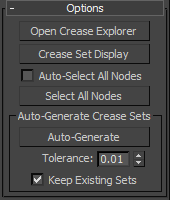
Open Crease Explorer
Opens a spreadsheet-type dialog for managing crease sets.
Crease Set Display
When on, displays each set's elements using its assigned color. The displayed color saturation indicates the set's Crease value.
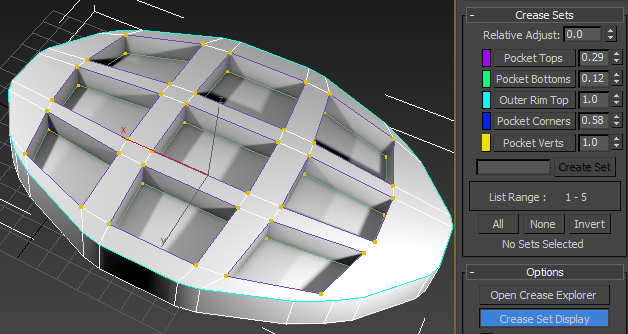
Each crease set appears in the viewport in its assigned color.
Auto-Select All Nodes
When on, selecting an object that shares an instanced CreaseSet modifier with other objects in the scene, with the CreaseSet modifier selected in the stack, automatically selects all such objects.
Select All Nodes
Selects all objects that share instanced versions of the same CreaseSet modifier.
Auto-Generate
Creates crease sets from all vertices and edges in the object that have non-zero Crease values. Creates a crease set for each set of edges with the same Crease value, and likewise for vertices.
Tolerance
Sets a range for sub-objects' Crease values for determining how they should be combined into sets with Auto-Generate. If the difference between two sub-objects' Crease values is less than or equal to the Tolerance value, they are placed in the same set; otherwise, they are placed in different sets.
Keep Existing Sets
When on, using Auto-Generate adds sub-objects to existing sets, if their Crease values qualify. Otherwise, they are added to new sets. When off, using Auto-Generate creates all new sets.