OpenSubdiv Modifier
The OpenSubdiv modifier performs subdivision and smoothing of mesh objects. It also reads Crease values from underlying stack entries and applies them to the modified object.
- **Modify panel > Make a selection > Modifier List > Object-Space Modifiers > OpenSubdiv**
- **Make a selection > Modifiers menu > Subdivision Surfaces > OpenSubdiv**
General Controls rollout
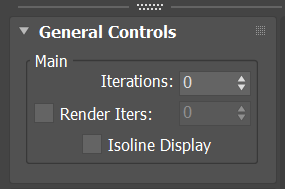
Iterations
The number of times the mesh is subdivided. Range = 0 to 6.
Render Iterations
The number of times the mesh is subdivided at render time. The checkbox must be on for this setting to take effect. Range = 0 to 10.
Isoline Display
When on, and edges are visible (for example, with Edged Faces display active), displays only edges of the original object. When off, displays all edges, including those resulting from subdivision.
OpenSubdiv Controls rollout
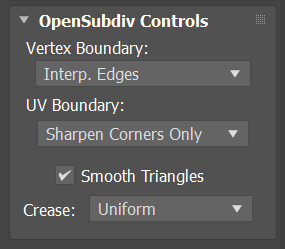
Vertex
Controls how boundary edges and corner vertices are interpolated.
- Interpolated Edges: Edges remain sharp after smoothing. All corners are smoothed.
- Interpolated Edges and Corners: Edges and two-edge corners remain sharp after smoothing.
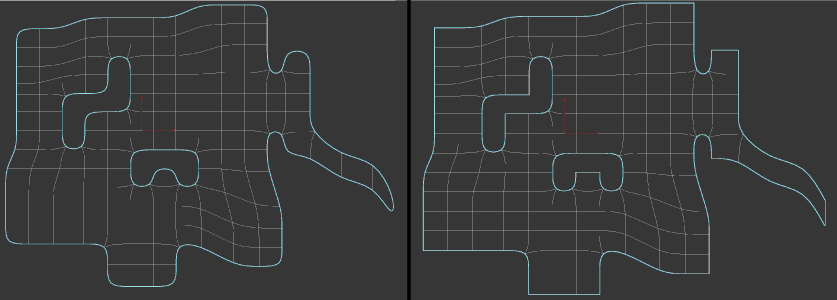
Left: Interpolated Edges; Right: Interpolated Edges and Corners
UV Boundary
Controls how smoothing is applied to boundary UVs. The following illustrations show the preceding mesh as smoothed in the Unwrap UVW modifier editor.
Smooth Everywhere: All UVs and corners and edges are smoothed.
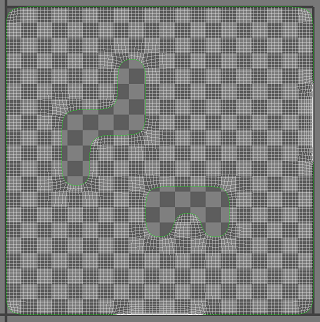
Sharpen Corners Only: UVs are smoothed. Two-edge corners remain sharp after smoothing.
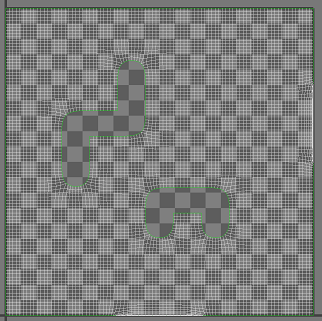
Sharpen Edges and Corners: UVs are smoothed. All edges and two-edge corners remain sharp after smoothing.
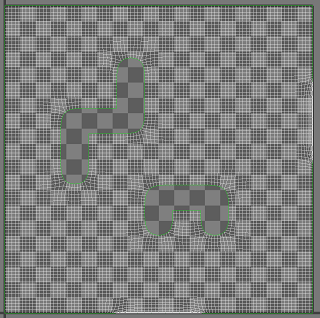
Sharpen Edges and Corners, Prop.: UVs are smoothed. All edges and two-edge corners remain sharp after smoothing.
Sharpen All Boundaries: When on, smooths face-varying data (UVs and colors sets) near vertices that are not on a discontinuous boundary. Vertices on a discontinuous boundary are subdivided with a sharp rule (interpolated through).
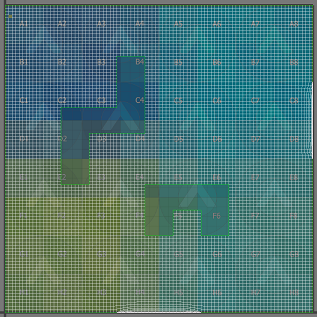
Bilinear (None): UVs are not smoothed.
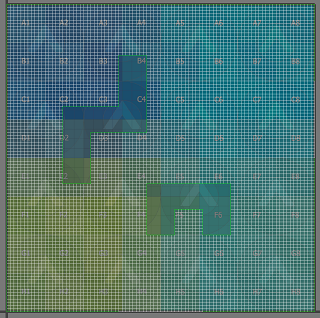
Smooth Triangles
When on (default), applies a subdivision rule to your mesh that makes triangles subdivide more smoothly.
Crease
Controls how creases are smoothed during subdivision.
Uniform: No smoothing is applied to creases.
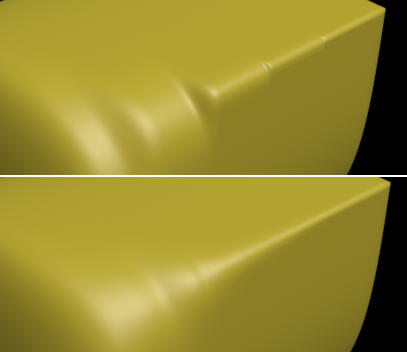
Chaikin: Interpolates the sharpness of incident edges, producing semi-sharp creases. After subdividing a crease edge, the sharpness of the resulting edges is determined using Chaikin's algorithm.
This method improves the appearance of multi-edge creases with different edge weights.
In the following illustration, the six edges' Crease values increase from 0.1 on the left side to 1.0 on the right. The upper image was rendered with Crease set to Normal, and the lower with Crease set to Chaikin. The latter option smoothes the stairstep effect considerably.