STL Check Modifier
The STL Check modifier checks an object to see if it's correct for exporting to an STL (stereolithography) file format. Stereolithography files are used by specialized machines to produce prototype physical models based on the data in the STL file.
- Select an object. >
 Modify panel > Modifier List > STL Check
 - Default menu: Select an object. > Modifiers menu > Mesh Editing > STL check
- Alt menu: Select an object. > Modifiers menu > Geometry (Convert to Mesh) > STL check
To create a physical model, an STL file must have a complete and closed surface. Using STL Check to test your geometry before you export it can save time and money when the file is used to create the physical model.
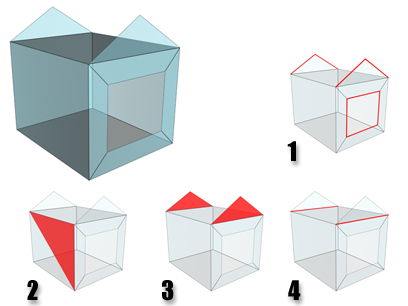
STL Check errors:
1. Open edges
2. Double face
3. Spikes
4. Multiple edges
Procedures
To check an object for STL compatibility:
 Select the object, then on the Modify panel > Modifier List, choose Mesh Editing > STL Check.
Turn on Check.
The message in the Status group shows if errors are found. STL Check indicates errors by selecting the problem geometry, assigning it a special material ID, or both.
Interface
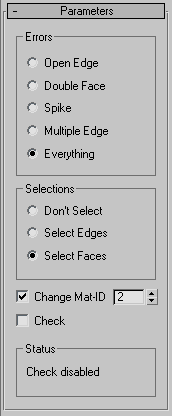
Errors group
Choosing one of these options selects incorrect geometry specific to the choice, and selects it depending on the option chosen in the Selections group.
- Open Edge Checks for open edges (holes).
- Double Faces Checks for faces that share the same 3D space.
- Spike Checks for spikes, which are isolated faces that share only one edge with the object.
- Multiple Edges Checks for faces that share more than one edge.
- Everything Checks for all of the above.
Selections group
These options specify the level of incorrect geometry that's selected, based on the settings in the Errors group.
- Don't Select When chosen, STL Check doesn't select any part of objects in error.
- Select Edges When chosen, STL Check marks the edges of faces in error by selecting them. The selection of erroneous edges is visible in viewports.
- Select Faces When chosen, STL Check marks the faces of any object in error by selecting them. The selection of erroneous faces is visible in viewports.
Change Mat-ID
When on (the default), STL Check also marks faces in error by assigning them a unique material ID. Use the spinner to choose the value of the material ID that STL Check uses.
Check
Turn on to perform the STL check. For complex models, expect a pause between the time you turn this on, and the time you see the reported errors in the Status group. Default=off.
Status group
Displays the number of errors when Check is on.