Subdivide Modifier (Object Space)
The Subdivide modifier provides a number of algorithms for generating a refined, triangulated representation of the input geometry. In addition to simply refining the mesh, the Adaptive and Variable Curvature algorithms in particular tend to produce a high-quality triangulation, consisting predominantly of roughly equilateral triangles. Remeshing via the Subdivide modifier can be helpful in obtaining a well-conditioned input mesh for complex geometric process operations, such as the retopology operations offered by Autodesk Retopology Tools for 3ds Max, or for rendering with the radiosity renderer. A more dense mesh also allows for finer lighting detail and accuracy during rendering.
- Select an object >
 Modify panel > Modifier List > Object-Space Modifiers > Subdivide
 - Default menu: Make a selection. > Modifiers menu > Radiosity > Subdivide
- Alt menu: Make a selection. > Modifiers menu > Subdivision Surfaces > Subdivide
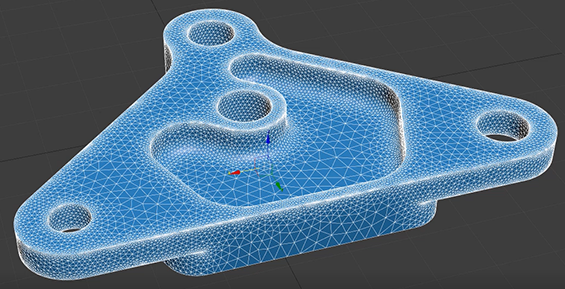
Object with Subdivide modifier applied and Variable Curvature mode selected
Although it is primarily developed for increasing the quality of radiosity solutions, the Subdivide modifier can also be used by any application that requires well-formed meshes. For example, irregular mesh elements generated for Terrain compound objects can be improved.
The modifier has world space and object space variants. In the world space modifier the size limit is on the mesh after it is transformed into world space coordinates. The object space modifier limits the size in object space coordinates.
Interface
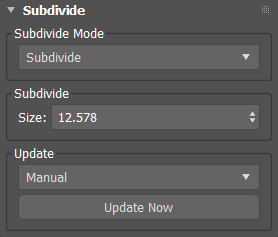
Subdivide Mode rollout
Subdivide Mode
Selects the subdivision algorithm to use:
- Subdivide: a highly-constrained legacy solver that maintains all existing edges.
- Delaunay: constrains edges that have data when the Preserve Mesh Data option is enabled. This mode also includes the option to relax unconstrained surfaces.
- Adaptive: attempts to achieve a relatively uniform mesh like the Subdivide and Delaunay modes, however with greater computation time and often better results. Being less dependent upon the input mesh, there is generally no correspondence between unconstrained edges of the original mesh and the edges of the output mesh in this mode.
- Variable Curvature: has the same positive qualities as the Adaptive algorithm and gives similar results in flat regions of the mesh. This mode will refine more in regions of high surface curvature however in order to accurately capture the shape. The degree to which Variable Curvature mode will refine high curvature regions is controlled by the Variable Density parameter. This mode requires the most computation time but often provides the best results for complex geometry.
Subdivide mode
Size
Sets the target face length scale on the output mesh.
Delaunay mode
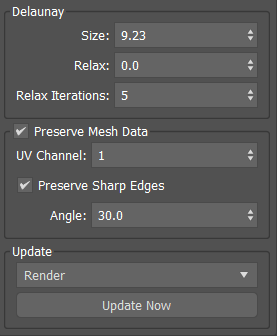
Size
Sets the target face length scale on the output mesh. This is similar to edge length in other modes.
Relax
Sets the blending between relaxed and unrelaxed vertex positions at each relaxation iteration. A value of 1.0 yields a fully relaxed result.
Relax Iterations
Sets the number of relax iterations to apply to the output mesh.
Preserve Mesh Data
When enabled, mesh data, such as smoothing groups, material IDs, Boolean seams, normals, specified UVs, and vertex float data channels, will be preserved with Subdivide. This can help in a modifier such as Retopology, where you might use this mesh data as an auto edge constrict.
When this option is disabled, mesh data is cleared with the subdivide results.
UV Channel
UV Channel is only active when Preserve Mesh Data is on. The specified map channel will be indexed and preserved for which map coordinates and seams should be propagated to the output mesh.
Preserve Sharp Edges
Enables the propagation of hard edges to the output mesh. The detected edges are based upon the angle between adjacent face normals. This setting influences the degree of refinement near such edges, similar to how the Smooth modifier uses the edge angle threshold to determine hard and soft edges.
Angle
Sets the angle in degrees above which hard edges will be detected.
Adaptive mode
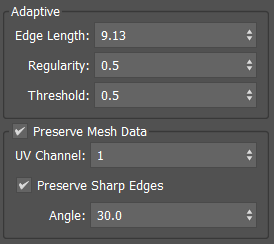
Edge Length
Sets the target edge length on the output mesh. If an edge on your mesh exceeds the specified edge length amount, the edge and its associated faces will be subdivided. The edge length amount is based on world units. Smaller values will result in longer processing time.
Regularity
Controls the degree of regularity imposed on the output mesh. The mesh will become more uniform as you increase the regularity. For example, a regularity of 1.0 will have a relatively uniform size on the output mesh with triangles being closer to equilateral. A regularity closer to 0.0 will have more variation in size, which allows a higher degree of accuracy.
Threshold
Sets the normal threshold value for the algorithm.
Preserve Mesh Data
When enabled, mesh data, such as smoothing groups, material IDs, Boolean seams, normals, specified UVs, and vertex float data channels, will be preserved with Subdivide. This can help in a modifier such as Retopology, where you might use this mesh data as an auto edge constrict.
When this option is disabled, mesh data is cleared with the subdivide results.
UV Channel
UV Channel is only active when Preserve Mesh Data is on. The specified map channel will be indexed and preserved for which map coordinates and seams should be propagated to the output mesh.
Preserve Sharp Edges
Enables the propagation of hard edges to the output mesh. The detected edges are based upon the angle between adjacent face normals. This setting influences the degree of refinement near such edges, similar to how the Smooth modifier uses the edge angle threshold to determine hard and soft edges.
Angle
Sets the angle in degrees above which hard edges will be detected.
Variable Curvature mode
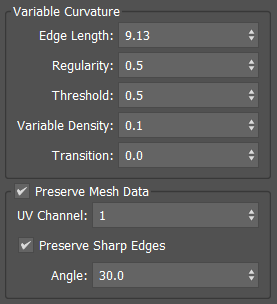
Edge Length
Sets the target edge length on the output mesh. If an edge on your mesh exceeds the specified edge length amount, the edge and its associated faces will be subdivided. The edge length amount is based on world units. Smaller values will result in longer processing time.
Regularity
Controls the degree of regularity imposed on the output mesh. The mesh will become more uniform as you increase the regularity. For example, a regularity of 1.0 will have a relatively uniform size on the output mesh with triangles being closer to equilateral. A regularity closer to 0.0 will have more variation in size, which allows a higher degree of accuracy.
Threshold
Sets the normal threshold value for the remesh algorithm.
Variable Density
Controls the variation of mesh density in areas of strong curvature. A smaller value creates more refinement.
Transition
Sets the width of the transition area near boundary or constrained edges.
Preserve Mesh Data
When enabled, mesh data, such as smoothing groups, material IDs, Boolean seams, normals, specified UVs, and vertex float data channels, will be preserved with Subdivide. This can help in a modifier such as Retopology, where you might use this mesh data as an auto edge constrict.
When this option is disabled, mesh data is cleared with the subdivide results.
UV Channel
UV Channel is only active when Preserve Mesh Data is on. The specified map channel will be indexed and preserved for which map coordinates and seams should be propagated to the output mesh.
Preserve Sharp Edges
Enables the propagation of hard edges to the output mesh. The detected edges are based upon the angle between adjacent face normals. This setting influences the degree of refinement near such edges, similar to how the Smooth modifier uses the edge angle threshold to determine hard and soft edges.
Angle
Sets the angle in degrees above which hard edges will be detected.
Update
Selects the interval for updating the output mesh:
- Automatic Updates immediately whenever changes are made to either the controls or the mesh.
- Render Updates only for rendering.
- Manual Updates manually. Subdivision can be interrupted by pressing
Esc. If the subdivision is interrupted, the Update mode is changed to Manual.
Update Now button
Updates the mesh when Render or Manual mode is selected.