Spline Influence Modifier
The Spine Influence modifier creates a soft selection of spline knots based on their proximity to the origin of the specified objects.
The selection of individual knots is shown in the viewports as a color gradient ranging from red (completely selected) to blue (not selected).
- Select a spline. >
 Modify panel > Modifier List > Object Space Modifiers > Spline Influence
Interface
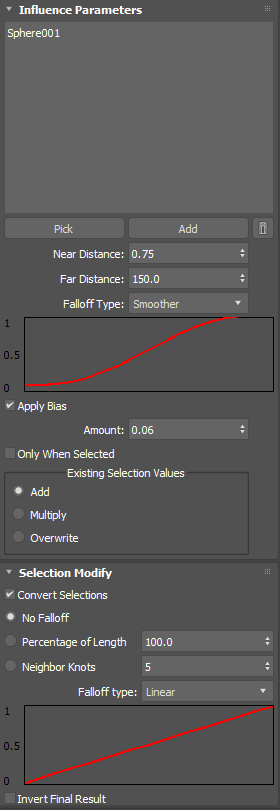
Influence Parameters rollout
Influences list
Shows a list of objects currently influencing the spline knot selections.
Pick button
Selects objects by clicking directly in the viewport.
Add button
Opens a Scene Explorer dialog to select objects.
Delete button
Deletes selected objects from the Influences list.
Near Distance
Sets the distance for 100% selection of the knot. Knots which are this distance or closer will be selected.
Far Distance
Sets the distance at which knots are not selected. Knots which are this distance or further will have no selection applied.
Falloff Type
Sets the type of falloff between the Near and Far distance settings. The Smooth and Smoother options improve blending quality however require more processing.
Apply Bias
Adds a specific value to the selection amount. For example, a value of 0.25 adds an additional 25% to the selection value.
Amount
Sets the amount of bias to add.
Only When Selected
Sets the bias to be added only if the selection value is greater than 0.
Existing Selection Values group
Add
If knots are already selected by prior operations in the modifier stack, this option adds the two values.
Multiply
If knots are already selected by prior operations in the modifier stack, this option multiplies the two values.
Overwrite
Replaces existing selection values with this selection.
Selection Modify group
Use these settings to convert existing knot selections into soft selections before performing object proximity selections.
Convert Selections
Converts selected knots into soft selections.
No Falloff
Converts each knot selection to 100%.
Percentage of Length
Sets the percentage of the spline's length that the falloff will go from 100% to 0%. For example, if the value is 50%, then a selected knot will taper off its selection to 0% at half the distance of the spline.
Neighbor Knots
Sets a specific number of knots ranging from 100% to 0%. For example, if the value is 5, the first knot will be 100%, its neighbour will be 80%, the third 60%, the fourth 40%, and the last knot 20%.
Falloff Type
Specifies the type of falloff to apply. The Smooth and Smoother options improve blending quality however require more processing.
Invert Final Result
Inverts the final selection. For example, a 100% selected knot becomes 0%, and a 70% selected knot becomes 30%.