Point Display and Rendering Modifier
The Point Display and Rendering modifier controls how the points of a Points or 3DGS object display in the viewport and how they render. Place it at the top of the modifier stack to override the display and rendering settings of the modifiers below it, so you can control the entire object from one place.
 Modify panel > Make a selection > Modifier List > Object-Space Modifiers > Point Display and Rendering
- Default menu: Make a selection > Modifiers menu > Point Editing > Point Display and Rendering
Notes
- The Point Display and Rendering modifier works with any object that has points, like a Points object or an Editable point object.
- The settings in this modifier take priority over the Display and Rendering settings of the object and of other modifiers lower in the stack.
- Modifiers that have a Display and Rendering rollout reset those settings to their defaults each time you apply the modifier. This lets you change a modifier's display settings and see the result without affecting the settings of other modifiers.
- You can save a set of User Defined Defaults for this modifier. User Defined Defaults are stored per user and aren't shared between 3ds Max sessions.
Interface
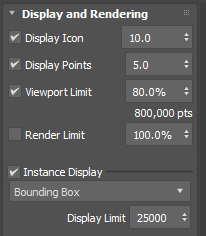
Display and Rendering rollout
This rollout has the same parameters as the Display and Rendering rollout of the Edit Point Modifier and the Gaussian Splat object.
Display Icon: Toggles the visibility of the icon that represents the object in the viewport. Use the numeric field to set the size of the icon.
Display Points: Toggles the visibility of the points in the viewport. Use the numeric field to set the size of the points. If the points are very small, for example after importing 3DGS data, increasing their size can help you visualize the data, especially in less dense areas.
Viewport Limit: When on, limits the number of points displayed in the viewport to the percentage entered, and the number of points appears below the percentage value. The displayed points are chosen at random. By default, this option is off.
Tip: Lower the percentage to improve viewport performance with very dense data.Render Limit: When on, limits the number of points sent to the renderer to the percentage entered, and the number of points appears below the percentage value. The rendered points are chosen at random. By default, this option is off.
Note: Viewport Limit and Render Limit each have their own value, so you can choose to display fewer points in the viewport than what you render.Instance Display: Toggles the display of instanced geometry in the viewport.
Instance Display Type: Sets how instanced geometry displays: Bounding Box or Mesh.
Display Limit: Sets the maximum number of instances that display on the object. The instances that display are chosen at random, not the first instances in the object. For example, if Display Limit is set to 1000, a random selection of 1000 instances displays.
Procedure
To override the display settings of an object
Select a Points or a Gaussian Splat object.
In the Modify panel, select Point Display and Rendering from the Modifier list.
The modifier is added to the top of the stack.
In the Display and Rendering rollout, adjust the settings.
The settings apply to the whole object, regardless of the display settings of the modifiers below it.