Bevel Profile Modifier Reference
- Select a shape. > Modify panel > Modifier List > Bevel Profile
- Alt menu: Select a shape. > Modifiers menu > Spline > Bevel Profile
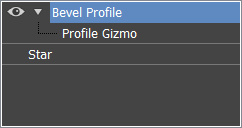
Modifier Stack
Parameters rollout
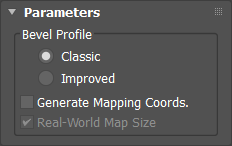
Bevel Profile group
Classic
Opens the Classic rollout, to create a bevel profile using the original method of picking a second shape to be used as the profile.
Improved
Opens the Improved rollout, to create a bevel profile using the same system as TextPlus which includes profile presets and the Bevel Profile Editor.
Generate Mapping Coords.
Assigns UV coordinates.
Real-World Map Size
Controls the scaling method used for texture mapped materials applied to the object. The scaling values are controlled by the Use Real-World Scale settings found in the applied material's Coordinates rollout. Default=on.
Classic rollout
Bevel Profile group
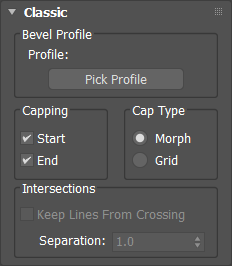
Pick Profile
Click the button to choose a shape or NURBS curve to be used for the profile path. After that, the name of the path object appears above the button.
Capping group
Start
Caps the bottom of the extruded shape.
End
Caps the top of the extruded shape.
Cap Type
Morph
Uses a deterministic method of capping providing the same number of vertices for morphing between objects.
Grid
Creates caps with grids, better for cap deformations.
Intersections
Keep Lines From Crossing
Prevents beveled surfaces from self intersecting. Available after you specify the profile object.
Separation
The distance sides should be kept apart to prevent intersections.
Improved rollout
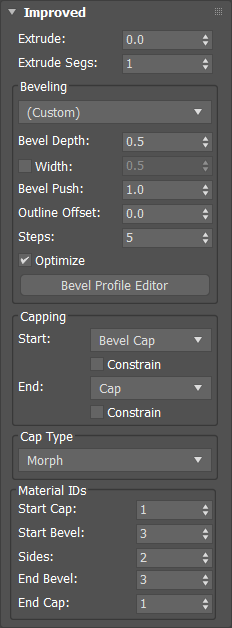
Extrude
Sets the extrusion depth.
Extrude Segs
Specifies the number of segments created in the extrusion.
Beveling group
Presets list
A list of previously created bevels. Select Custom to use a bevel you create using the Bevel Profile Editor. Presets include: Concave, Convex, Engrave, Half Circle, Ledge, Linear, Ogee, Three Step, and Two Step.
Bevel Depth
The depth of the beveled area.
Bevel Width
The checkbox toggles the ability to modify the width of the beveled area. When off, the width is constrained to the depth parameter. Default=off.
Bevel Push
The intensity of the bevel curve. For example: using a concave bevel preset a value of 0 is a perfect linear edge, -1 is a convex edge, and +1 is a concave edge.
Outline Offset
The outline's offset distance.
Steps
The number of vertices used to divide the curve. The higher the number of steps, the smoother the curve.
Optimize
Removes unnecessary steps from straight segments in the bevel. Default=on.
Bevel Profile Editor
Toggles the Bevel Profile Editor window, enabling you to create your own custom profiles.
Capping group
Start
The cap for the front face of the object. Options include: Cap (simple cap without bevel), No Cap (open face), Bevel Cap, and Bevel No Cap. Default=Bevel Cap.
End
The cap for the back face of the object. Options include: Cap (simple cap without bevel), No Cap (open face), Bevel Cap, and Bevel No Cap. Default=Cap.
Constrain
Uses selection constraints on the selected face.
Cap Type group
Morph
Creates cap face using triangles.
Grid
Creates cap face in a grid pattern.
Subdiv
Creates cap face that deforms using a subdivision pattern.
Material IDs group
Use this group to apply individually selected materials to the Start Cap, Start Bevel, Sides, End Bevel, and End Cap.