Bevel Profile Modifier
The Bevel Profile modifier extrudes a shape using another shape as the path or "beveling profile."
There are two methods to create a bevel profile. The classic method utilizes the legacy technique of creating an object such as a spline to use as the profile. The improved method utilizes the Bevel Profile Editor, which is also used with TextPlus.
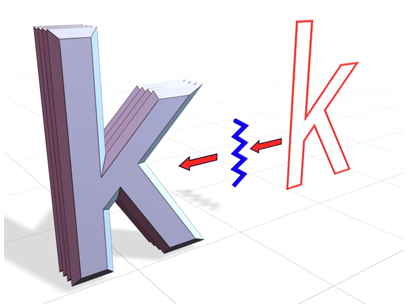
Creating an object using an open spline as the profile
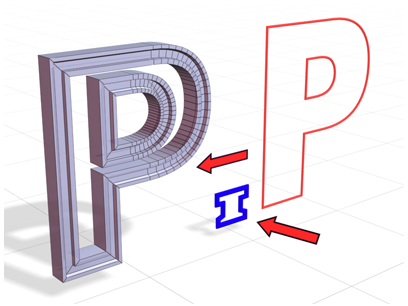
Creating an object using an closed spline as the profile
Procedure
Classic Method
To create a bevel profile using the classic method:
Create a shape to bevel.
Tip: For best results, use the Top viewport.In the Front viewport, create a shape to use as the beveling profile.
Select the shape to which you want to apply the bevel.
In the Command Panel, select the Modify tab and then select Bevel Profile from the Modifier List.
In the Parameters rollout, select Classic.
In the Classic rollout, click Pick Profile and then click on the profile shape.
Improved Method
To create a bevel profile using the improved method:
Create a shape to bevel.
Tip: For best results, use the Top viewport.In the Command Panel, select the Modify tab and then select Bevel Profile from the Modifier List.
In the Parameters rollout, select Improved.
In the Extrude field, set the extrusion depth to a number greater than 0.
In the Beveling group, select a bevel profile preset from the list or select custom.
If you want to modify a preset or create a new one:
Click Bevel Profile Editor.
To view the profile on your shape as you work in the Bevel Profile Editor, click Auto-Update.
Note: You can also adjust the settings in the Improved rollout.In the Bevel Profile Editor window, click on a vertex or the curve and drag to reposition it.
Use the tools as needed (pan, zoom, mirror, flip, etc.).
When you are satisfied with the profile, do one of the following:
- If you want to close without saving the profile as a preset, click Cancel.
- If you modified a preset and want to overwrite it, click Save.
- If you want to save the profile as a new preset, click Save As and then enter a name and click OK.