Data Channel Interface
Display rollout
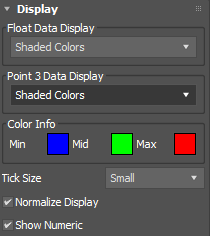
Use the Display rollout to customize how data is displayed in the viewports.
Float Data Display
Displays float data as either tick marks or shaded colors.
Point 3 Data Display
Displays point 3 data (vectors) as either position ticks, color ticks, vectors, or shaded colors.
Color Info
Sets the color display to visualize minimum to maximum values of data. Click a color swatch to change the associated color.
Tick Size
Changes the tick mark size to either small, medium or large.
Normalize Display
Applies a normalize operation to smooth out displayed data.
Show Numeric
Shows the actual numeric data, overriding all other visualizations.
Parameters rollout
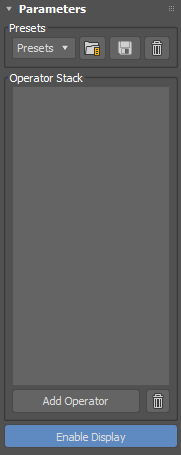
Use the Parameters rollout to add operators, save and load presets, and enable the visual display of data in the viewports.
Presets
From the drop-down menu, choose from the list of preset operator stacks, including:
Angle Mask
Auto Edge Crease Weights
Delta Mush
Dirt Map
Edge Wear Mask
Explode Elements
Map to Soft Selection
Random Element Color
Smooth Push
New preset additions
- Invert Soft Selection: inverts the soft selection input.
- Select Border Edges of Selected Polygons: converts the selected Polygon face data input into the DCM to a selection of border edges.
- Select Hard Edges By Smoothing Group: selects the "hard" edges of your geometric data as defined by the Smoothing Group borders.
- Select Open Edges: chooses open edges on your geometric data.
- Select Open Edge Verts: chooses only the vertices of open edges.
- Select UV Seam Edges: chooses the edges in your geometric data that are also UV seams.
- Select Top: selects the vertices that are facing the +Z direction. You can alter the Scale operator to adjust the falloff angle.
- Select Polygon by Elements: converts a polygon face selection input into the DCM to select all contiguous faces that form an element.
- Convert Face VC to Vertex VC: converts per Face-based Vertex Color data into per Vertex Color data.
- Convert Material ID to Smoothing Group: converts Material ID assignments into Smoothing Groups.
Click
 to load a selected preset.
Click
 to save the current stack as a preset. When saving a preset, you specify a name and an optional tooltip to show while hovering over the name in the list.
Click
 to delete the selected preset.
The presets are stored in 3ds Max <version>\en-US\plugcfg\DataChannelPresets.
Operator Stack
Shows the currently-added operators in the process stack. Drag and drop operators to reorder them. Right-click operators to open the context menu.
 Use the resizer handle to adjust the stack height, which is preserved when the modified object is deselected and reselected or 3ds Max is closed and restarted.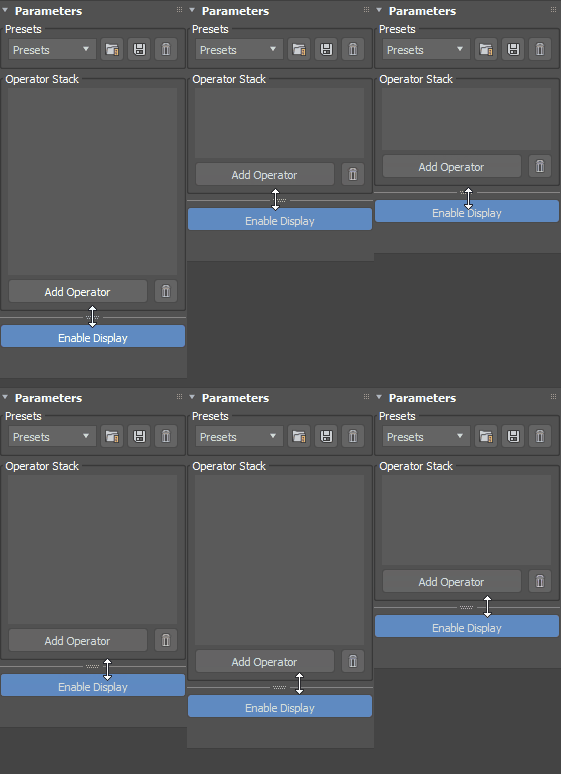
Add Operator
Click to open the Add Operator dialog.
Enable Display
Click to enable the visual display of data in the viewport.
Add Operator dialog
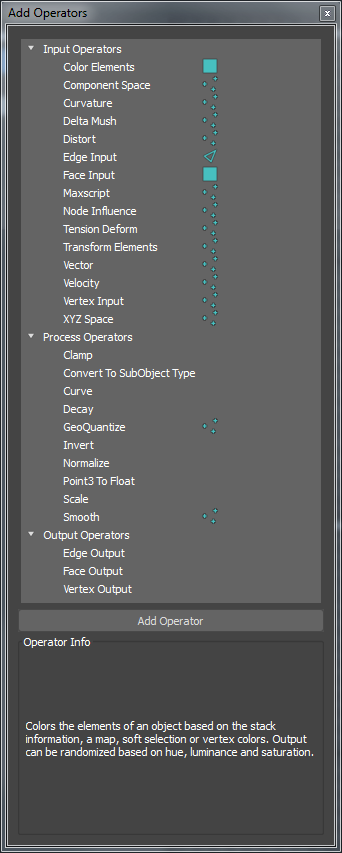
Use the Add Operators dialog to add input, process, and output operators to the stack.
Operator List
Shows a list of available operators and their channel type, either edge, face, or vertex.
Add Operator button
Adds operators to the process stack. You can also drag and drop operators from the list to a desired position in the stack.
Operator Info
Shows a brief description of the currently selected operator.
Context menu
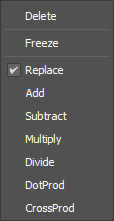
Right-clicking an operator displays the context menu, when available. Use this menu to freeze operators and change blending mode.
Delete
Deletes the selected operator.
Freeze
Freezes the operator so values do not update, capturing the state of the input at the frame at which frozen. Frozen operators are shown in blue in the stack.
Replace 
Replaces existing values with new values.
Add 
Adds values to existing values.
Subtract 
Subtracts values from existing values.
Multiply 
Multiplies values with existing values.
Divide 
Divides values with existing values.
DotProd 
Provides a float value based on the dot product between the existing and input vectors.
CrossProd 
Provides a vector based on the cross product between the existing and input vectors.
Curve Editor
Use the curve editor to customize the following operator parameters using function curves:
| Operator: | Parameters: |
| Decay | Custom Decay Curve |
| Curve | Curve Control |
| Node Influence | Falloff Shape, Strength Over Time, Radius Over Time |
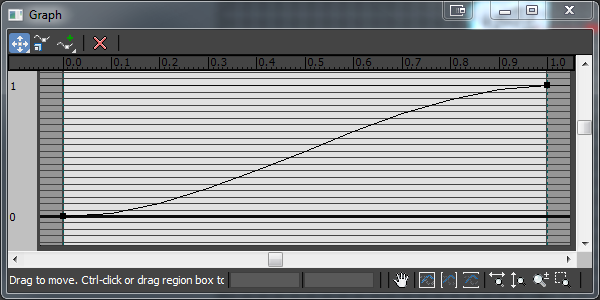
Main toolbar
Use these icons to add, delete, move and scale control points.
Move icons
Enable to move control points on the curve.
From the drop-down menu, choose one of the following:
 Move XY to move control points freely. You can also right-click a point and choose Move > XY.
 Move X to move control points horizontally only. You can also right-click a point and choose Move > X.
 Move Y to move control points vertically only. You can also right-click a point and choose Move > Y.
Scale icon 
Enable to scale selected control points up and down.
Add Point icons
Enable to add points to the curve.
From the drop-down menu, choose one of the following:
 Add Corner Point to add fixed control points.
 Add Bezier Point to add control points with adjustable tangent handles.
You can also right-click a point and choose Corner (no tangent handles), Bezier-Smooth (tangent handles move together), or Bezier-Corner (tangent handles move independently) to change the interpolation mode.
Delete Point icon 
Enable to delete control points from the curve.
Navigation toolbar
Use these icons to pan and zoom in the editor window.
Pan icon 
Enable and drag to pan the view.
Zoom Extents icon 
Fits all control points in the edit window.
Zoom Horizontal Extents icon 
Fits all control points horizontally in the window.
Zoom Vertical Extents icon 
Fits all control points vertically in the window.
Zoom Horizontally icon 
Enable and drag to zoom horizontally.
Zoom Vertically icon 
Enable and drag to zoom vertically.
Zoom icon 
Enable and drag to zoom in and out.
Zoom Region icon 
Enable and drag to zoom into a specific region.