Materials and UVs Group
Controls how ProOptimizer treats objects with materials or texture mapping.
- Create or import an object. >
 Modify panel > Modifier List > ProOptimizer modifier > Optimization Options rollout > Materials and UVs group
Interface
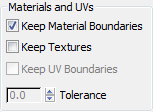
Keep Material Boundaries
When on, ProOptimizer preserves boundaries between materials. Points that belong to faces that have different materials are frozen, and not removed during optimization. Default=on.
When off, ProOptimizer can remove faces along the boundary between materials.
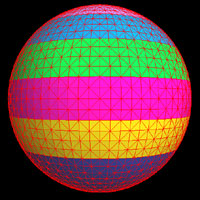
Original object
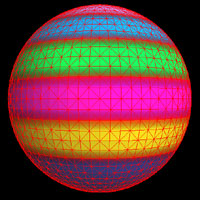
Original object with red points showing the boundaries between materials
Optimized object with Keep Material Boundaries active (red points show the boundaries)
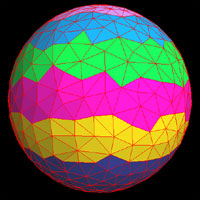
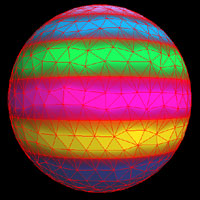
Optimized object with Keep Material Boundaries turned off
Keep Textures
When on, ProOptimizer preserves texture mapping coordinates. When off, ProOptimizer removes texture coordinates. Default=off.
This option is disabled if the object doesn’t have texture coordinates.
Keep UV Boundaries
This control is available only when Keep Textures is turned on. When on, ProOptimizer preserves boundaries between UV mapping values. When off, ProOptimizer disregards UV mapping values. Default=off.
Tolerance This is available only when Keep UV Boundaries is turned on. The Tolerance value controls how UV boundaries are treated. A value of 0.0 (the default), preserves all faces that have UV mapping values that differ from neighboring faces. A value of 1.0 allows any face to be removed, even if its neighbor has a different UV value.
Tip: Setting Tolerance to 0.1 preserves most mapping boundaries, but also allows a reasonable amount of optimization.