Using Smart Bevel in 3ds Max
This Smart Bevel guide walks you through using its built-in limiting features to prevent edge intersections, collapsed geometry, and topology issues, helping you achieve predictable, high-quality bevels even on complex meshes.
Why Smart Bevel?
A traditional chamfer can cause:
- Edge intersections
- Collapsed corners
- Uneven widths on complex geometry
- Broken topology on tight angles
Smart Bevel solves these problems by giving you:
- Precise width control (including world units)
- Controlled segment distribution
- Depth shaping
- Built-in limiting to prevent collapse
In this example, you will apply Smart Bevel to a hard-surface model after a Boolean operation to maintain clean corners and controlled edge transitions.
Chamfer (left) versus Smart Bevel (right)
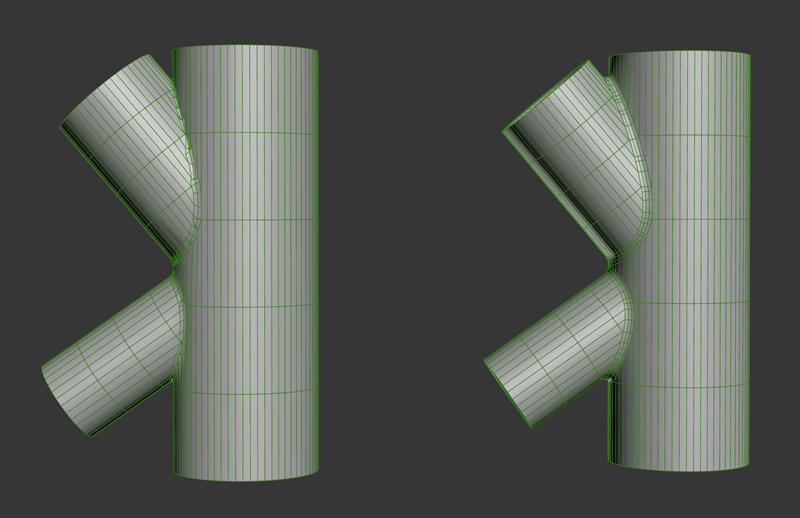
Note the collapsed edges on chamfer compared to the clean geometry of Smart Bevel
Step-by-Step Guide
To use Smart Bevel:
Create or select an object in your scene, go to the
 Modify panel > Modifier List > Object-Space Modifiers, and select the Edit Poly modifier.
Under Edit Poly 's Selection panel, select Edge, then select the edges on the object you want to apply Smart Bevel to. Alternatively, you can apply Smart Bevel to the object as a whole and it will detect border edges.
With the edges selected, follow the same path as step #1,
Modify panel > Modifier List > Object-Space Modifiers, and select Smart Bevel. This will apply Smart Bevel to your object.In Smart Bevel 's Bevel Options rollout, adjust the Width value to set how much the bevel extends.
Increase or decrease the Segments.
Increase or decrease the Depth.
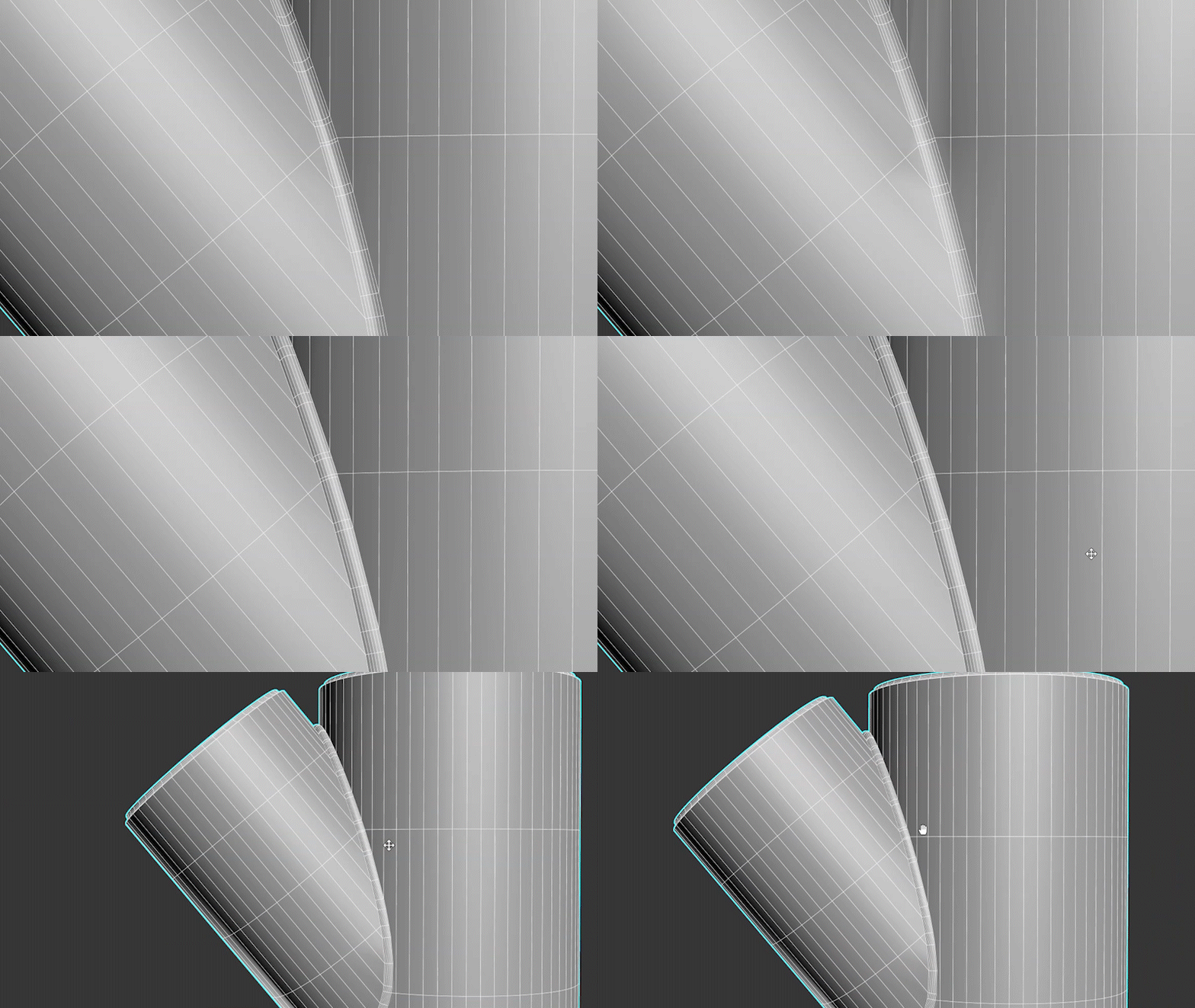
From Stack can be left as the default selection in the Selection rollout.
(Optional) Set the Material ID under Material Output to apply a specific material to the bevel.
(Optional) Choose a Smoothing Output depending on whether you want the entire object smoothed, only the new bevel faces, or for the bevel faces to match adjacent faces.
Make any final adjustments to the Smart Bevel settings to adjust the final shape as needed.