Smart Bevel
Smart Bevel creates smooth, adjustable bevels with precise width, segment, and depth controls after a Boolean operation, supporting world units and complex geometry. It works by following the model's topology outward from the selected edges, such as newly created post-Boolean intersections, traveling a defined distance and generating interpolated geometry between the resulting edge paths. Its built-in limiting functionality prevents bevels from intersecting, collapsing, or producing poor topology, resulting in cleaner and more predictable geometry.
After applying an Edit modifier:
 Modify panel > Make a selection > Modifier List > Object-Space Modifiers
- Menu bar > Modifiers > Mesh Editing >

Interface
Bevel Options
The Smart Bevel interface is organized into two rollouts: Parameters, which includes Presets, Bevel Options, and Selection, and Output. These rollouts and their respective options are similar to other surface modeling features like Chamfer, offering familiar controls for refining edges and surfaces.
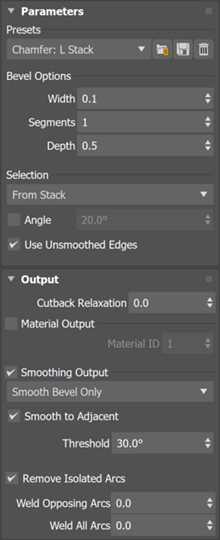
Parameters
Presets
Smart Bevel presets provide ready-to-use configurations designed for common modeling workflows such as Boolean cleanup, hard-surface edge definition, subdivision support edges, and procedural stack modeling.
Each preset defines:
- Profile type (Chamfer, Round, Cove, Straight, Stock)
- Default width scale (S = Small, M = Medium, L = Large)
- Selection source (Selected, Stack, Hard Edge, Boolean, Angle)
- Supporting options such as relaxation and smoothing behavior
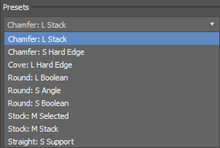
Presets let you switch modeling intent instantly without manually adjusting multiple parameters. You can load, save, and delete presets to best suit your workflow.
- Chamfer: L Stack: Creates a wide, flat bevel using edge selection derived from the modifier stack. Use this preset in procedural workflows where selections are driven by upstream modifiers rather than manual edge selection.
- Chamfer: S Hard Edge: Applies a small chamfer to edges identified as hard based on smoothing or angle criteria. This preset is ideal for quickly softening sharp edges and improving shading in hard-surface models without manually selecting edges.
- Cove: L Hard Edge: Creates a large concave bevel along edges marked as hard. Use this preset when modeling industrial or molded surfaces that require inward fillet transitions.
- Round: L Boolean: Applies a large rounded bevel to edges created by Boolean operations. This preset is designed for cleaning up Boolean seams and converting intersections into smooth, production-ready surfaces.
- Round: S Angle: Creates a small rounded bevel on edges that exceed a specified angle threshold. Use this preset to automatically soften sharp edges across a model while preserving overall form.
- Round: S Boolean: Applies a subtle rounded bevel to Boolean seam edges. This preset is useful when you want to reduce harsh Boolean transitions without significantly altering the original shape.
- Stock: M Selected: Applies a medium-width bevel to the currently selected edges. Use this preset for general-purpose modeling when you want direct control over which edges are beveled.
- Stock: M Stack: Applies a medium bevel using edge selection from the modifier stack. This preset is intended for non-destructive, procedural workflows where selections are defined upstream.
- Straight: S Support: Creates a small straight-profile bevel designed to act as a support edge. Use this preset when preparing geometry for subdivision surfaces or when adding control loops without visible rounding.
Bevel Options
- Width: The Width setting determines how far the bevel is applied. This value is based on world units rather than a percentage.
- Segments: The Segments setting increases the number of segments along the bevel, producing a smoother transition by adding additional edge loops.
- Depth: The Depth setting defines the curvature of the face of the bevel, which can be concave, convex, or linear. Depth values range from -0.5 (concave), through 0 (linear), up to 1 (convex/box-like). Changing the depth adjusts how the surface of the bevel transitions between original faces.
Selection
The Selection section has many similarities to the Chamfer modifier, notably within its rollout.
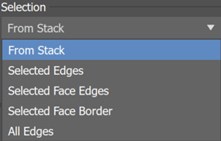
- From Stack: From Stack is the default selection option. Smart Bevel bevels the selection at the current sub-object level. If no sub-object level is active, all edges are beveled.
- Selected Edges: This option bevels the selected edges, regardless of the current sub-object level, such as those that are automatically generated from the intersections of the Boolean modifier.
- Selected Face Edges: This option bevels the edges of selected faces, regardless of the current sub-object level.
- Selected Face Border: This option bevels only the edges on the perimeters of face selections, regardless of the current sub-object level.
- All Edges: All Edges bevels every edge in the object, regardless of the current sub-object level.
Angle: By default, the Angle option is turned on. This setting prevents Smart Bevel from affecting all edges indiscriminately. Instead, it only applies to those edges where the adjacent faces meet at an angle greater than the specified threshold value, set in the angle value beside the Angle checkbox.
Use Unsmoothed Edges: The Use Unsmoothed Edges checkbox makes the bevel apply only to edges marked as hard or unsmoothed. This option is useful if you have already defined the hard and soft edges in your low-poly model and want to quickly apply bevels only to the hard edges.
Output
Material Output
The Material Output option in Smart Bevel allows you to assign the newly created bevel faces to a specific Material ID. This Material ID can then be used with a Multi/Sub-Object material that you create.
If Material Output is turned off, the new bevel faces are automatically assigned to Material ID 1
Material ID: When you select Material Output, you can specify a Material ID for the beveled faces. The Material ID is a number that matches a specific section within a multi-part material. By default, the new faces are assigned to Material ID 1. You can change this to any other Material ID to match your project's requirements.
Smoothing Output
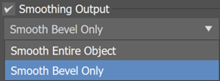
Smoothing Output in Smart Bevel helps to manage the smoothing of the geometry created by the bevel operation. This ensures that the new faces blend smoothly with the surrounding geometry, avoiding hard edges where they are not desired.
In the rollout, you have two options: Smooth Entire Object and Smooth Bevel Only
Smooth Entire Object: Smooth Entire Object recalculates smoothing groups across the entire object.
Tip: Ensure the entire object is uniformly smoothed to prevent undesirable outcomes.Smooth Bevel Only: This option is the default setting. Smooth Bevel Only option ensures only the new faces created by the bevel will have their smoothing recalculated. The original geometry remains unchanged. This uses an edge angle threshold to determine which edges are smoothed.
Smooth to Adjacent: This option activates when Smooth Bevel Only is selected. Smooth to Adjacent ensures the new beveled faces are smoothed in relation to the adjacent faces. It compares the normals of the newly created faces with those of the existing faces and blends them for a seamless transition.
Arc Cleanup
- Remove Isolated Arcs: Removes arc segments generated by the bevel that do not connect to surrounding edge flow. These isolated arcs don't contribute to the final shape and can introduce unnecessary geometry or shading inconsistencies. Enable this option to automatically clean up stray arc segments created during complex bevels, resulting in cleaner and more efficient topology.
- Weld Opposing Arcs: Merges arc edge loops that directly face each other across the bevel surface. This reduces redundant arc pairs while preserving the intended curvature and structure of the bevel. Use this when bevel operations produce overlapping or mirrored arc loops that can be simplified without altering the overall form.
- Weld All Arcs: Merges all adjacent arc edge loops within a specified tolerance, aggressively simplifying the resulting geometry. This is useful for reducing dense or fragmented arc structures created by high-segment bevels or Boolean workflows, while maintaining the overall silhouette.