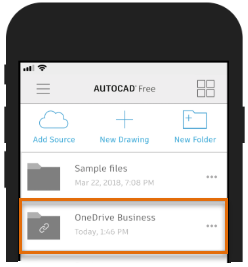
Have you ever needed to access your drawing files while on the job site or when travelling back from a client meeting? The AutoCAD mobile app is a drafting tool that lets you view, create, and edit CAD drawings and DWG files on the go from your smartphone or tablet—anytime, anywhere.
Included with Your AutoCAD or AutoCAD LT Subscription
If you are an AutoCAD or AutoCAD LT subscription customer, you can create, edit, and annotate drawings on your desktop and with the AutoCAD mobile app. Simply download the free mobile app to your device and sign in with the same Autodesk ID as your AutoCAD or AutoCAD LT subscription. You’ll be automatically upgraded to the Premium version of the app.
Don’t have an AutoCAD or AutoCAD LT subscription? Not to worry. You can try a 7-day trial or purchase a subscription to the AutoCAD mobile app separately, and explore the full functionality.
Visit the AutoCAD mobile app product page on autodesk.com for more information.
Download and Install the AutoCAD mobile app to Get Started
You can download the AutoCAD mobile app on one of these platforms:
- iOS (16.0 and later)
- Android (8.0 and later)
- Chrome OS
- Windows 11
Navigate to the appropriate store for your device and download the AutoCAD mobile app.
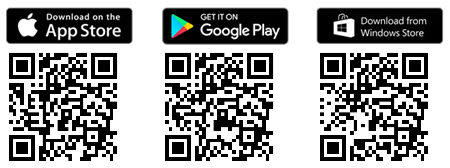
Click on an image above or use a QR reader to open the app's associated store.
Access Drawings from Forma Data Management (formerly Autodesk Docs)
AutoCAD desktop app for Windows along with the AutoCAD web app and mobile app can access drawings from Forma Data Management. This can make it seamless to work on drawing files anywhere and share support files with all project collaborators. A hub and project must be created on Forma Data Management by a Project Administrator before you can save and access drawing files.
Access Drawings from AutoCAD Web & Mobile (No Longer Supported)
Prior to AutoCAD 2027, you could save drawing files to and open drawing files from AutoCAD Web & Mobile, letting you go from working in AutoCAD on your desktop to working on the AutoCAD web app. Starting with AutoCAD 2027, saving drawing files to AutoCAD Web & Mobile has been replaced with storing drawing files on Forma Data Management.
Open and Work with Drawings on the AutoCAD mobile app
- In the AutoCAD mobile app, on the main screen, choose the drawing file you want to open.
- After the file has been loaded, you can manipulate the view of the drawing by performing a:
- Swipe or drag to pan the current view
- Pinch or scroll to zoom in or out
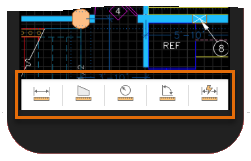
- On the toolbar along the bottom, choose a tool to measure objects or make changes to the drawing.
Remember: You must have an active AutoCAD mobile app, AutoCAD, or AutoCAD LT subscription to access all functionality of the app. To find out about your subscription, visit Autodesk Accounts.
Choose and Upload Files to a Third-Party Cloud Storage Provider
In addition to the ability to open drawing files that have been saved to Forma Data Management, you can open drawing files that were saved to a third-party cloud storage provider.
The following third-party cloud storage providers are supported from the AutoCAD Mobile app, so if you already store your DWG files in the cloud, you can easily access them:
Add a Cloud Storage Provider to the AutoCAD mobile app
- Start the AutoCAD mobile app on your device.
- At the main screen, tap or click Add Source.
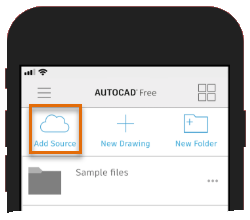
- From the list of supported sources, choose your cloud storage provider.
- Follow the on-screen messages and sign in using your account credentials.