Have you ever wanted to work in AutoCAD on any computer without having the software installed? Have you ever wanted to pull up a drawing during a design review meeting or while on a job site, but didn’t have your work computer? The AutoCAD web app lets you work in AutoCAD anytime, anywhere.
With the AutoCAD web app, you no longer need to be tethered to a specific computer. There is no software installation required since it runs online in a web browser like Chrome or Firefox. Its user interface shares a similar design to that of the AutoCAD desktop with properties panels, a ribbon-like tool, and a command line.
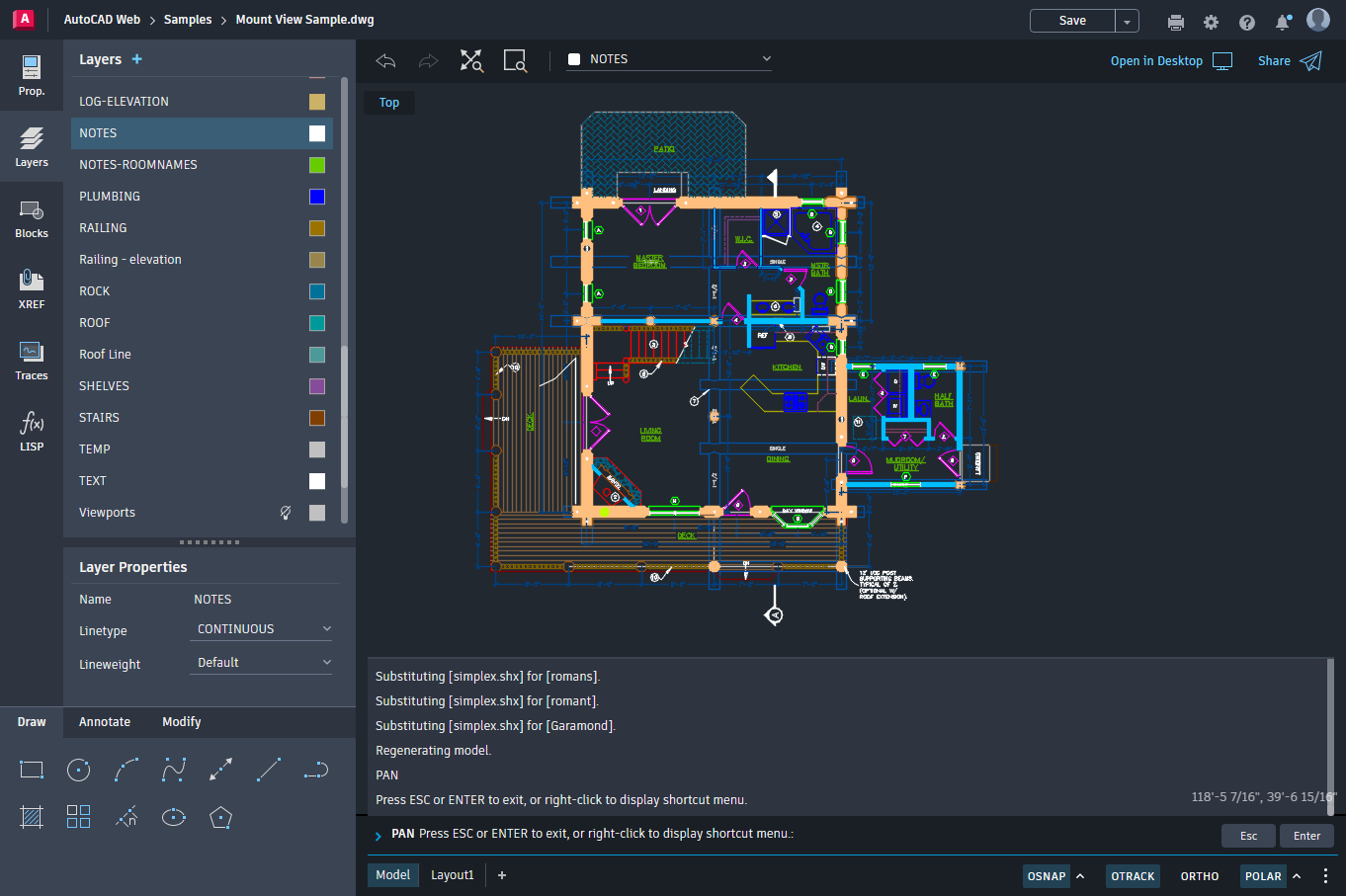
Using the AutoCAD web app, you can:
- View and measure geometry
- Create and edit geometry
- Manage geometry properties with layers
- Add annotation and revision clouds
- View Xrefs
- Insert blocks defined in the drawing
- Open and edit DWG files stored in third-party cloud storage providers
Visit the AutoCAD web app product page on autodesk.com for more information.
Included with Your AutoCAD or AutoCAD LT Subscription
If you have an AutoCAD or AutoCAD LT subscription, you can create, edit, and annotate drawings in a Web browser with the AutoCAD web app. Simply browse to https://web.autocad.com/ and sign in with the same Autodesk ID as your AutoCAD or AutoCAD LT subscription. You’ll be automatically granted access to the full set of design tools the app has to offer.
If you are not on subscription or are new to AutoCAD or AutoCAD LT, you can create a free account and try out the AutoCAD web app but with viewing and measurement only capabilities.
Access Drawings from Forma Data Management (formerly Autodesk Docs)
AutoCAD desktop app for Windows along with the AutoCAD web app and mobile app can access drawings from Forma Data Management. This can make it seamless to work on drawing files anywhere and share support files with all project collaborators. A hub and project must be created on Forma Data Management by a Project Administrator before you can save and access drawing files.
Access Drawings from AutoCAD Web & Mobile (No Longer Supported)
Prior to AutoCAD 2027, you could save drawing files to and open drawing files from AutoCAD Web & Mobile, letting you go from working in AutoCAD on your desktop to working on the AutoCAD web app. Starting with AutoCAD 2027, saving drawing files to AutoCAD Web & Mobile has been replaced with storing drawing files on Forma Data Management.
Open and Work with Drawings in the AutoCAD web app
- Open your Web browser and go to https://web.autocad.com/.
- Login with your Autodesk ID associated with your AutoCAD or AutoCAD LT subscription.
If needed, contact someone within your company to learn what your Autodesk ID is or create a new account.
Remember: You must have an active AutoCAD or AutoCAD LT subscription to access all functionality of the app. To find out about your subscription, visit Autodesk Accounts (https://manage.autodesk.com/). - On the main page, choose the drawing file you want to open.
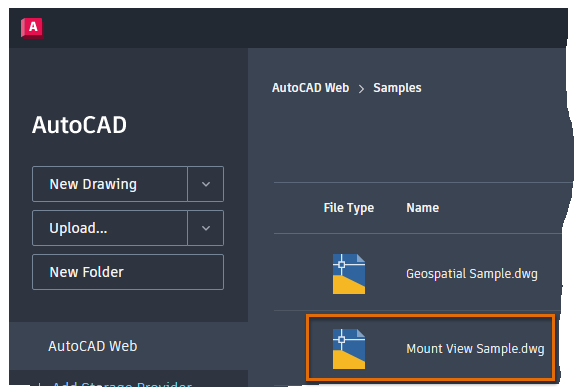
- After the file has been opened, you can manipulate the view of the drawing by performing a:
- Drag to pan the current view
- Wheel scroll to zoom in or out
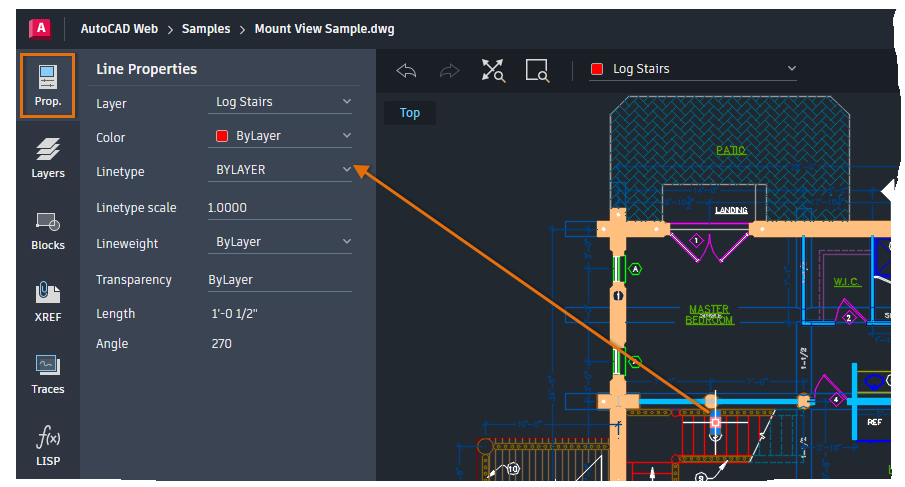
- On the left, click Properties tab and then select an object in the drawing to view and edit that object’s properties.
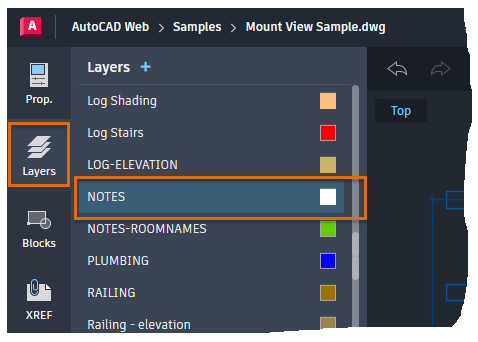
- Click the Layers tab and choose a layer to set it current.
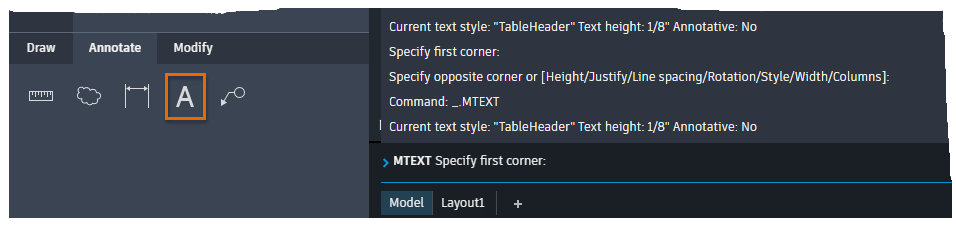
- Click a tool on the ribbon and follow the prompts that are displayed in the Command Line window.
- In the upper-right, click Save to save your changes if desired.

- Close the drawing by clicking Home along the top.
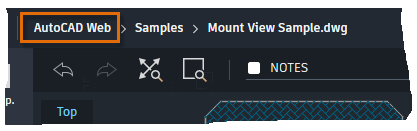
If you didn’t save your changes, you will be prompted to return to the drawing or discard your changes.
Choose and Upload Files to a Third-Party Cloud Storage Provider
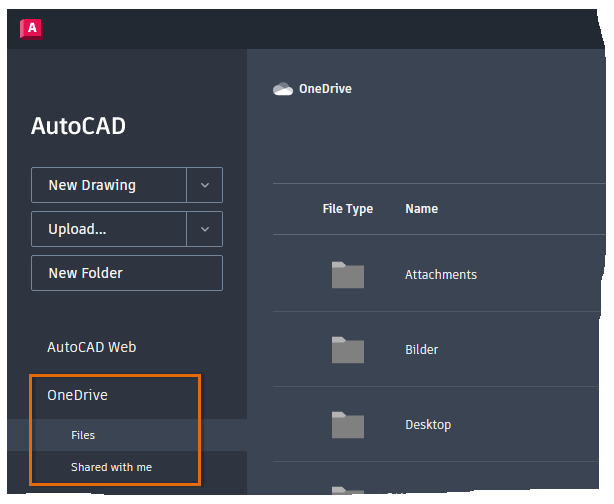
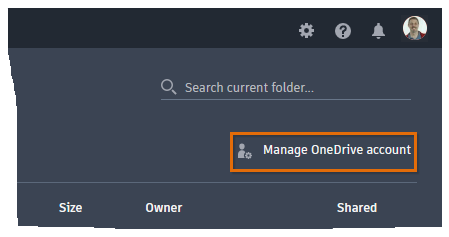
In addition to the ability to open drawing files that have been saved to Forma Data Management, you can open drawing files that were saved to a third-party cloud storage provider directly in the AutoCAD web app with no installation required.
The following third-party cloud storage providers are supported from the AutoCAD web app, so if you already store your DWG files in the cloud, you can easily access and edit them:
Add a Cloud Storage Provider to the AutoCAD web app
- Sign into the AutoCAD web app.
- On the main page, click Add Storage Provider.
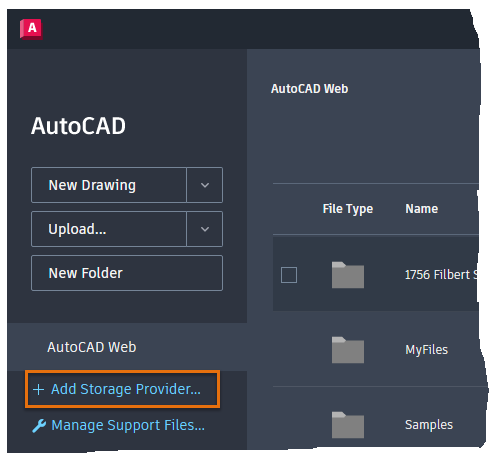
- From the list of supported sources, click Add next to your cloud storage provider.
- Follow the on-screen messages and sign in using your account credentials.