To Edit Placed Features
You can edit placed features using either the property panel or command dialog.
What's New: 2021
To edit features in the canvas, it is recommended to first set the Selection Priority in the QAT to Select Features, then do one of the following.
Double-click Method
In the canvas, double-click the feature you want to modify.
Note: If Select Features isn't active, you can use the mini-toolbar (MTB) option to edit the feature. Select the feature face and the MTB displays, select the edit option.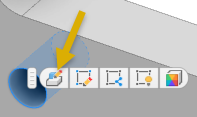
Use either of the following methods to modify the parameters.
- In the canvas, use manipulators to modify the feature.
- In the property panel or dialog, enter an input value in the appropriate field.
Click OK.
Edit Feature Method
If Select Features is active, right-click the placed feature and click Edit Feature.
- Or, you can right-click the feature browser node and click Edit Feature.
Use either of the following methods to modify the parameters.
- In the canvas use manipulators to modify the feature.
- In the property panel or dialog enter an input value in the appropriate field.
Note: Click the fly-out menu of a value field to use methods such as Measure, Select Feature Dimension, Tolerance, and user parameters to modify the value.Click OK.
Show Dimensions
If Select Features is active, in the canvas right-click the feature and select Show Dimensions. Or, you can right-click the feature browser node and select Show Dimensions.
Double-click the dimension you want to edit.
Use either of the following methods to modify the parameters.
- In the canvas use manipulators to modify the feature.
- In the property panel or dialog enter an input value in the appropriate field.
Click OK.