Open File Options and Representation Reference
Specifies the options to apply to a file as it opens.
Access
You can open a file using any of the following methods after which the Open dialog displays.
- File menu
 Open
Open  QAT Open (Ctrl+O)
- In Windows Explorer, double-click an Inventor file.
Open Dialog
The Open dialog provides access to files and options to use when opening the file.
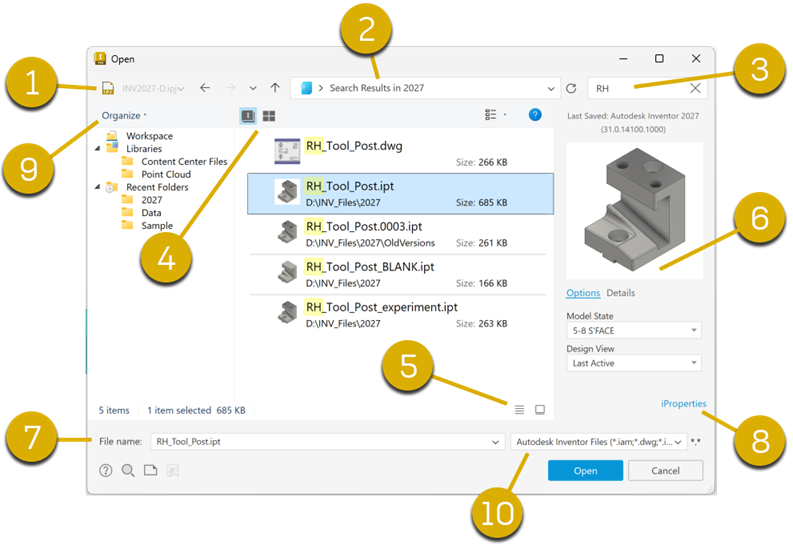
Displays the active project file
Displays the active project path
Basic file search
Left pane and tree view options. Choose from
 Inventor Workspace Tree View
 Windows Navigation Tree View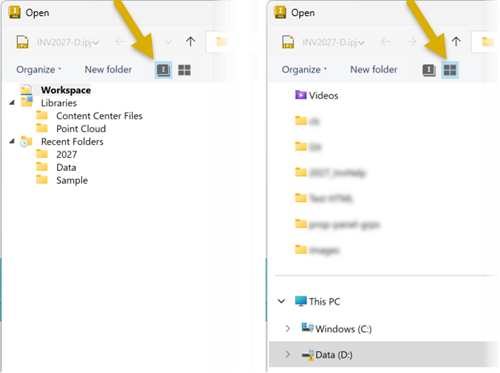
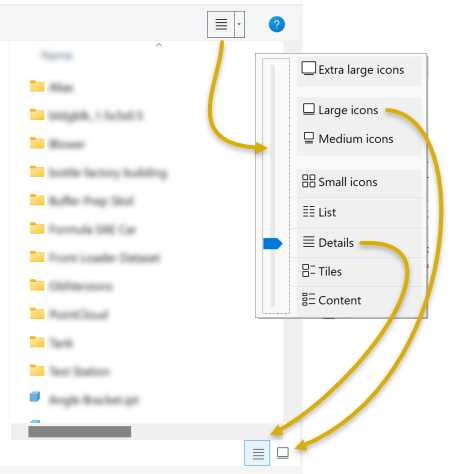
Middle pane and display options
Windows standard view options at the top of the pane.
Details and Large icon options at bottom of pane for ease of use.
Right pane, image preview, open options, and file details.
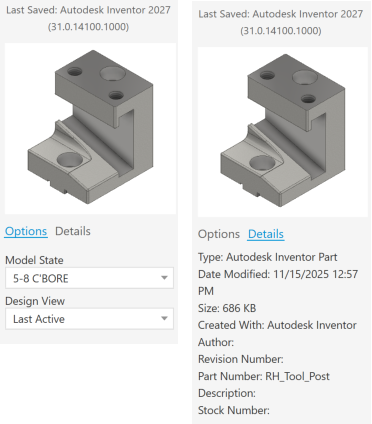
Options
Load in Express Mode Available if the file has been saved with Express data. Use when loading large assembly models. Otherwise, the model opens in Full mode and loads model data for all top level and child documents. Select this option to load minimal top-level data and graphics. See About Express Mode for more information
Model State Specifies the Model State to open. A Model State is typically a configuration, manufacturing state, or simplified component.
Primary: Specifies the primary model state.
Click the drop-list to view all available model states.
Design View Specifies the file with the design view representation to open.
- Last Active: Loads the design view representation that was last saved with the assembly file.
- Primary: Ignores the last-saved design view representation and loads the [Primary].
- Hide Content Center Components: Loads the master with Content Center components invisible.
- All Visible*: Loads a design view representation in which all components are visible.
- Nothing Visible: Loads a design view representation in which no components are visible. Lists previously defined design views.
- Default: Loads the Default design view representation.
Position View Specifies the file with the positional representation to open. The representation includes alternate constraint values, component positions, or other attributes.
- Primary: Click the drop-list to view all available positional representations.
Skip all unresolved files Defers the resolve action for files not found and continues opening the specified file. The
 icon displays in the browser next to unresolved links. Right-click the top browser node of a file containing unresolved files to initiate a Resolve File command. Clear the check box to resolve links on file open.
Click Details to view file information.
File name - specify a file name in the field.
iProperties - displays iProperties dialog. See About iProperties for more information.
Organize provides a range of tools for use with the Tree View and File panes. Tool availability is context sensitive, based on the current selection.
File type provides the list of file types Inventor can open. Select a specific type to reduce the file list.
Create panel Create View  . Or, in a presentation file, in the browser, right-click a presentation view Representations.