To Open or Import a File
How to handle some different file types.
What's New: 2026.1, 2027, 2027.1
Open or import a file
Provides access to the Open dialog, where you specify one or more files to open or import.
- To open a file in a folder that is not part of the project, resolve its links.
- Add the paths for all files to the project before working on them.
- If a DWG (.dwg) file does not contain any Inventor data, import it or open it directly.
- If a DWG file contains Inventor data, you can no longer import the file into Inventor. Open the file only as an Inventor drawing (.dwg).
- If you see the dialog Data Format Has Changed, the file you are trying to open or save was created in a previous version of Inventor. Click OK to migrate the file to the current format or Cancel.
Tip: When opening a file use Copy File Path from a component browser node right-click menu and paste the path in the Open dialog. Copy File Path is helpful navigating the file system, as when using Derive and Replace Component commands. All components populating the Inventor browser have this option.
Show or Hide Windows Navigation
- In the Ribbon, click Tools tab
 Options panel Application Options.
 - Click the File tab.
- Select Show Windows Folder Navigation in the File Dialogs to display the Windows Navigation Tree View in the dialog left pane. Two icons display above the left pane.
- Click
 Inventor Workspace Tree View to view only workspace related navigation.
 - Or, click
 Windows Navigation Tree View to see the machine file system.
 - Deselect the option to hide the Windows navigation section of the dialog and display only the Inventor Workspace Tree View. The icons are hidden.
Search for Files
Use the simple search feature, upper right in the Open dialog, to locate files.
Open Files from within an assembly
In the model browser, right-click a component browser node and click Open. The component document is opened.
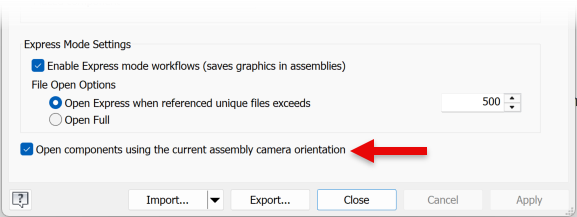
You can open a component and retain the assembly view orientation by selecting an application option.
- In the Ribbon click the Tools tab Options panel Application Options.
- In the Application Options dialog, click the Assembly tab.
- At the bottom of the dialog select Open components using the current assembly camera orientation.