You can create shots in the Sequencer editor using the Sequencer toolbar, the Time Slider, or the Create Shot Options.
Create a shot using the Sequencer toolbar
To create a shot:
- In the Sequencer toolbar, click the Create Shot button.
This is the primary method for creating shots. The behavior of the Create Shot button depends on how it is accessed.
- Left-click creates a shot using the current range settings. This is the default behavior.
- Click the caret next to the Create Shot button to open the flyout menu and access additional shot creation options, such as creating a shot from a selected Time Slider range or using the Create Shot Options window.
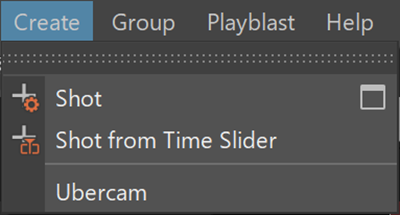
Create a shot using the Sequencer editor
You can also create a shot directly on a selected track using the Sequencer editor.
- Right-click a track in the Sequencer editor.
- Select Create Shot.
- Adjust settings in the Create Shot Options window as needed, then create the shot.
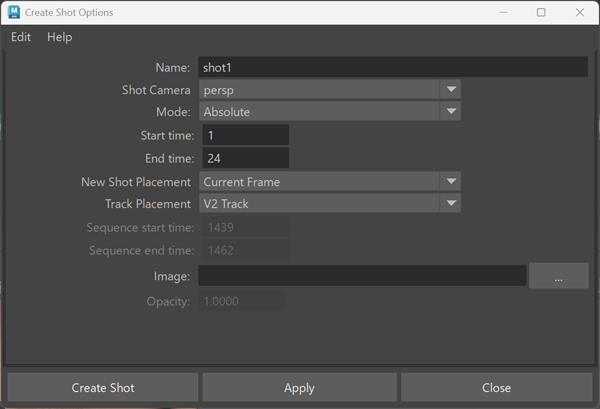
The shot is created on the selected track.
Create a shot from the Time Slider context menu
You can create a shot directly on a desired track from a selected frame range in the Time Slider using the context menu.
To create a shot from the Time Slider:
- In the Time Slider, Shift-drag to select a range of frames.
- Right-click the Time Slider to open the context menu.
- Select Sequencer > and choose Automatic or one of the available tracks to create a shot on the desired track.
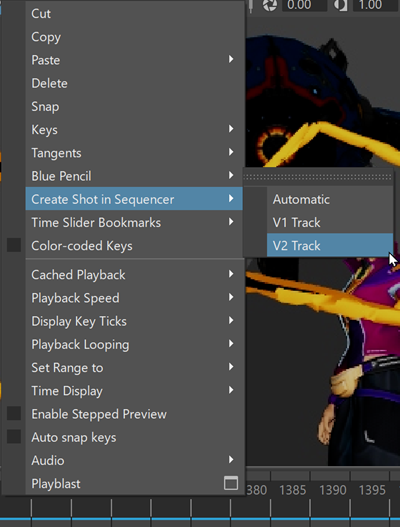
A new shot is created in the Sequencer editor using the selected Time Slider range as the shot's start and end frames. If a track is selected in the Sequencer editor, the shot is created on that track.
Create a shot using Create Shot Options
Use Create Shot Options to create shots with specific start and end frames or a defined duration.
To open the Create Shot Options window:
- In the Sequencer toolbar, click the caret next to the Create Shot button.
- Select
Create Shot >
 .
.
The Create Shot Options window opens.
- Absolute mode
-
Use Absolute mode to manually specify the start and end frames for a new shot. The current playhead position is not used.
- Select Absolute Mode.
- Enter values for Start Frame and End Frame. (If the End Frame value is less than the Start Frame value, it is automatically set to Start Frame + 1.)
- Click Create.
- Relative mode
-
Use Relative mode to create a shot with a specific duration starting at the current playhead position.
- Select Relative Mode.
- Enter a value in the Duration field.
- Click Create.
The new shot is created with a range from the current playhead frame to the playhead frame plus the specified duration.