You can create fade or dissolve transitions between shots in the Sequencer editor.
Fade and dissolve transitions can be imported and exported with OpenTimelineIO (OTIO) files. See Import and export editorial content.
The method for creating a transition depends on whether the shots are on multiple tracks or on a single track.
Create transitions between shots on a single track
You can create a dissolve transition between shots on the same track using a drag operation.
To create a single-track transition:
- Select a shot.
- Ctrl-drag the shot over the adjacent shot you want to transition to.
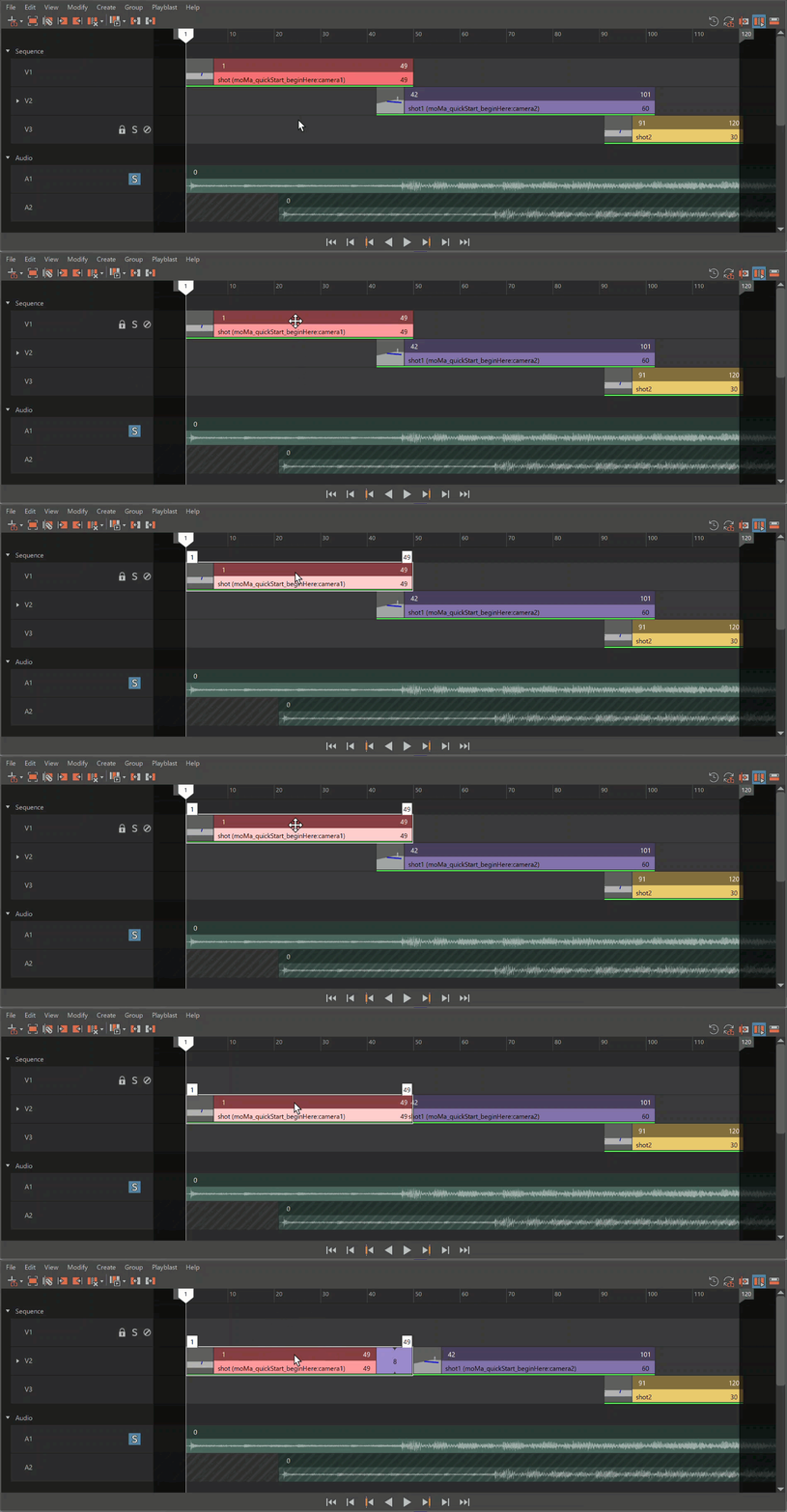
A dissolve transition is created between the overlapping shots. You can adjust the length of the transition by sliding the shots along the track.
Create transitions between shots on multiple tracks
To create a transition:
- Select a shot.
- In the Attribute Editor, expand Transition Attributes.
- Set Transition In Type or Transition Out Type to the desired transition.
The following transition types are available:
- Fade
Creates a fade to or from black on the selected shot.
- Dissolve
Creates a cross-dissolve between the selected shot and the next top-most shot on the track beneath it in the Sequencer editor.