To open the Component Editor
- In the main menu bar: Windows > General Editors > Component Editor
- In the scene view: Panels > Panel > Component Editor
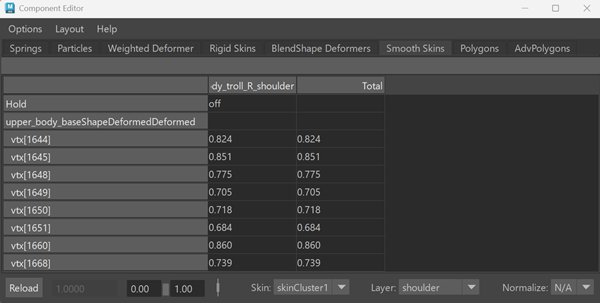
In the Component Editor, you can view and edit the numeric values of individual components of an object or a related series of components. This is useful in fine-tuning values such as skin weighting, deformations, and vertex attributes.
When working with Skin Tools (skin layers), weights are edited on the selected layer, and the final result is calculated from all layers.
| To... | Do this |
|---|---|
|
Edit components on an object. |
Select the object and select Window > General Editors > Component Editor. |
|
Show different component types or influences. |
Click the tabs across the top of the Component Editor window. |
|
Enter values in cells. |
Select all the cells you want to enter the same value in, then type the value or use the slider at the bottom of the window. You can select one or more cells, rows, columns, or any combination. |
|
Switch between always showing the current selection and manually updating the selection. |
In the Component Editor, turn List > Auto Update on or off. When Auto Update is off, use the Load Components button to update the window with the current selection. |
|
Change the decimal precision in the cells. |
Select List > Change Precision. |