Clash Tests
The Tests list in the Clash Detective window enables you to manage your clash tests and results. It shows all of the clash tests currently set up, listed in a table format, and a summary of the status of all clash tests.
 and the Import Clash Tests
  buttons at the top of the Clash Detective window.
When you click on a test, the relevant details for that test will be displayed. You can use the scroll bars at the right and at the bottom of the tab to move through the clash tests, and drag and drop tests to reorder and move them.
 . Right-clicking on this icon enables you to rerun the test.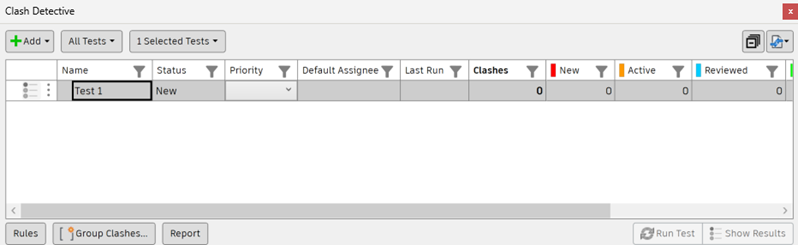
Sort and Filter Clash Tests
You can sort and filter the list of clash tests, and manage the columns that are displayed as needed.
Click the Filter icon
 at the top of a column to display the sort and filter options.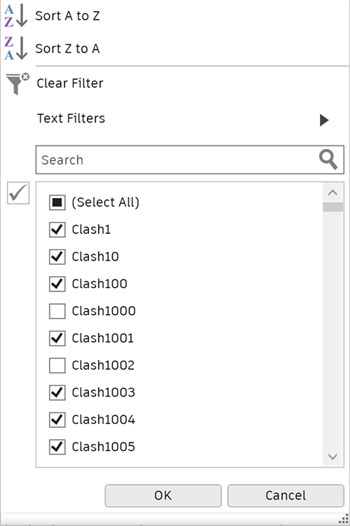
The options displayed will depend on the type of data in the selected column, and include text, number, and date filters.
Use the sort options to reorder the data in the column, either alphabetically or based on date.
Tip: You can right-click a column and sort the contents into ascending or descending order. You can also drag and drop clash tests to reorder them in the list.Search for specific clash tests, or use the available filters. For example, the text filters are as follows:
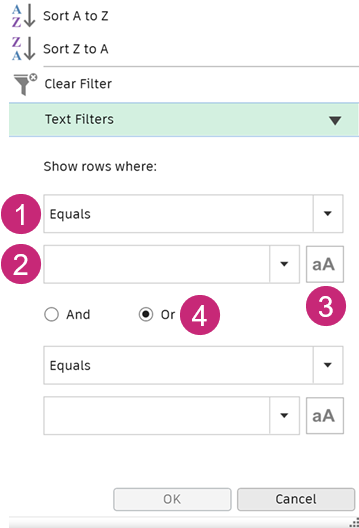
- Select a function from the drop-down list to specify how you want the clash tests to be filtered in relation to your text entry or selection. For example, Equals, Begins with, or Contains.
- Enter text in the field, or use the drop-down list to choose a clash test.
- Specify whether the clash tests should match the case you entered the text in.
- Select And or Or to add a second set of filters.
To clear applied filters, click the Clear Quick Filter button displayed above the Tests list.
To choose which columns to display in the Tests panel, right-click on any column heading, click Choose Columns, and then use the check boxes to select and deselect columns.
Buttons
Use the buttons on the Tests panel to set up and manage clash tests.
Add:
Add Test - adds a new clash test in the window.
Add Tests - opens a dialog to create multiple clash tests at once. See Create Multiple Clash Tests.
Add Folder - adds a new folder which can be used to group and organise clash tests. You can drag and drop existing clash tests in, or create tests directly in a folder.
Tip: You can use Ctrl or Shift+Click to select multiple clash tests at once and move them to a folder.
All Tests/Selected Tests:
- Reset - resets the status of all or the selected tests to 'New'.
- Compact - deletes all resolved clashes in all or the selected tests.
- Delete - deletes all clash tests in all or the selected tests.
- Update - updates all clash tests in all or the selected tests.
Import/Export Clash Tests - enables you to import or export clash tests.
Rules - Opens the Rules window.
Group Clashes - Opens the Clash Grouping dialog.
Report - Opens the Report window.
Run Test - Runs the selected clash test and then opens the Results window to display the results.
Show Results - Opens the Results window.
Context Menu
Right-clicking a clash test or folder opens a context menu containing the following options:
- Run - runs the clash tests.
- Reset - resets the status of the tests to 'New'.
- Compact - deletes all resolved clashes in the tests.
- Rename - enables you to rename the tests.
- Delete - deletes the clash tests.