Clash Detective Window
The Clash Detective dockable window enables you to set up the rules and options for your clash tests, view the results, sort them, and produce clash reports.
Toggle the Clash Detective Window
Click Home tab > Tools panel > Clash Detective
 .
.The Clash Detective window is displayed:
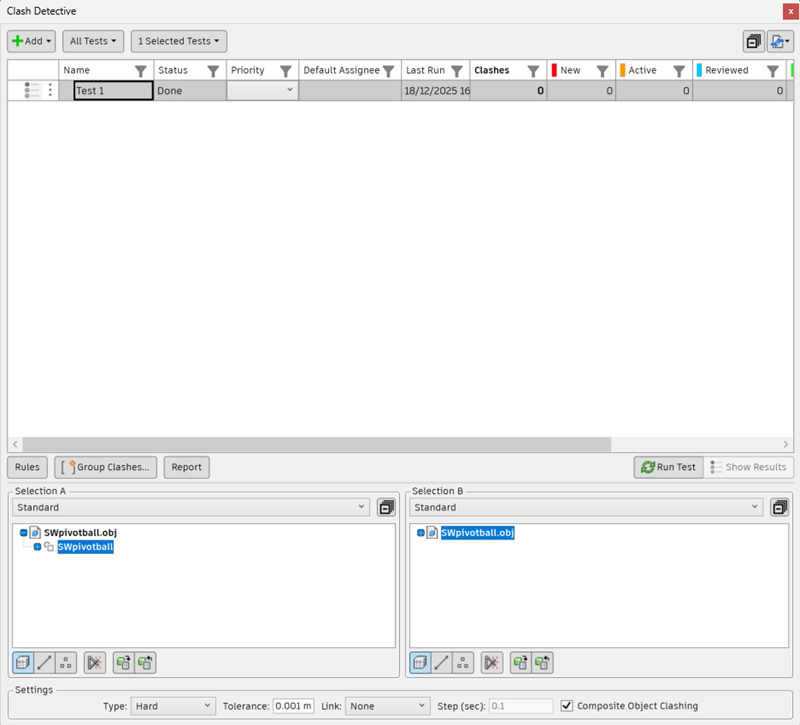
The Clash Detective window contains the Tests list, the Selection area, and options to access the Rules, Report, and Results windows.
A summary of the currently selected clash test is always displayed at the top of the Clash Detective window. The total number of clashes in the test is displayed with details of open (New, Active, Reviewed) and closed (Approved, Resolved) clashes. If a clash test has been altered in some way since being set up (this might include changing an option, or having loaded the latest revision of the model) that will mean the results may not reflect the latest model or settings, then a warning will be displayed  . Right-clicking on this icon enables you to rerun the test.
Selection Area
The Selection area at the bottom of the Clash Detective window enables you to define your clash test by only testing sets of items at a time, rather than the whole model against itself. Use it to configure the parameters for the clash test currently selected in the Tests list.
 and the Import/Export Clash Tests
  buttons will be displayed above the summary.
Selection A and Selection B Panes
These panes contain a tree view of two sets of items that will be tested against each other during the clash test. You need to select items in each pane.
At the top of each pane, there is a drop-down list replicating the current state of the Selection Tree window. You can use these to select items for clash tests:
- Standard - displays the default tree hierarchy, including all instancing.
- Compact - a simplified version of the tree hierarchy.
- Properties - the hierarchy based on the items' properties.
- Sets - shows the same items as on the Sets window.
Clash testing can be faster, more effective, and easily repeatable if you use selection and search sets. Carefully consider what sets of objects need clashing against each other and create Selection/Search Sets accordingly.
Buttons
Geometry type buttons - clash tests can include the clashing of surfaces, lines, and points of the selected items.
 - collapses all items in the Selection Tree.
 - clashes item surfaces. This is the default option.
 - clashes items with centerlines, for example pipes.
 - clashes (laser) points.
- Self-Intersect button
 - click if you want to test the geometry selection in the pane against itself, in addition to testing it against a geometry selection in the other pane.
 - Use Current Selection button
 - you can select geometry for clash testing directly in the Scene View, and in the Selection Tree dockable window. When you have selected the required items (press and hold Ctrl to select multiple objects), click Use Current Selection under the desired pane to create the corresponding clash set.
 - Select in Scene button
 - click the Select in Scene button to set the focus in the Scene View and in the Selection Tree dockable window to be the same as the current selection in the Selection pane on the Select tab.
Context Menu
Right-clicking in the left or right pane opens a context menu:
- Select - selects the items in the Scene View.
- Import Current Selection - has the same effect as pressing the Use Current Selection button.
Settings Area
Type
Selects a clash type. There are four possible types of clashes:
Hard - two objects actually intersect.
Hard (Conservative) - two objects are treated as intersecting even though the geometry triangles do not.
Clearance - two objects are treated as intersecting when they come within a specified distance of each other. Selecting this clash type also detects any hard clashes.
You might use this type of clash when pipes need to have space for insulation around them, for example.
Duplicates - to intersect two objects must be identical both in type and position.
This type of clash testing may be used to clash the entire model against itself. This enables you to detect any items in the scene that may have been duplicated by mistake.
Tolerance
Controls the severity of the clashes reported and the ability to filter out negligible clashes, which can be assumed to be worked around on site. The tolerance quantity entered is automatically converted to the Display Units, for example, if the display units are meters and you type 6 inch, this will be automatically converted to 0.15 m.
Link
Enables you to link a clash test to a TimeLiner schedule.
Step
Enables you to control the Interval Size to use when looking for clashes in a simulation sequence. This option is only available when you have made a selection in the Link drop-down menu.
Composite Object Clashing
Check this box to include clash results that may be found in the same composite object, or a pair of composite objects. A composite object is a group of geometry that is considered a single object in the Selection Tree. For example, a window object might be composed of a frame and a pane, or a cavity wall may be made of several layers.