In a P&ID drawing, a component or line can be substituted with another component or line using either the substitution grip or the Properties palette.
Substitute Using the Substitution Grip
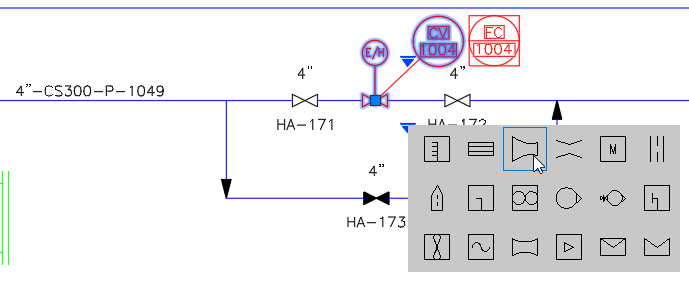
To substitute a component or line, select the object and click the Substitution arrow. In the Substitution panel, choose one of the available items within the same class.
Substitute Using the Properties Palette
One or more components can also be replaced directly from the Properties palette.
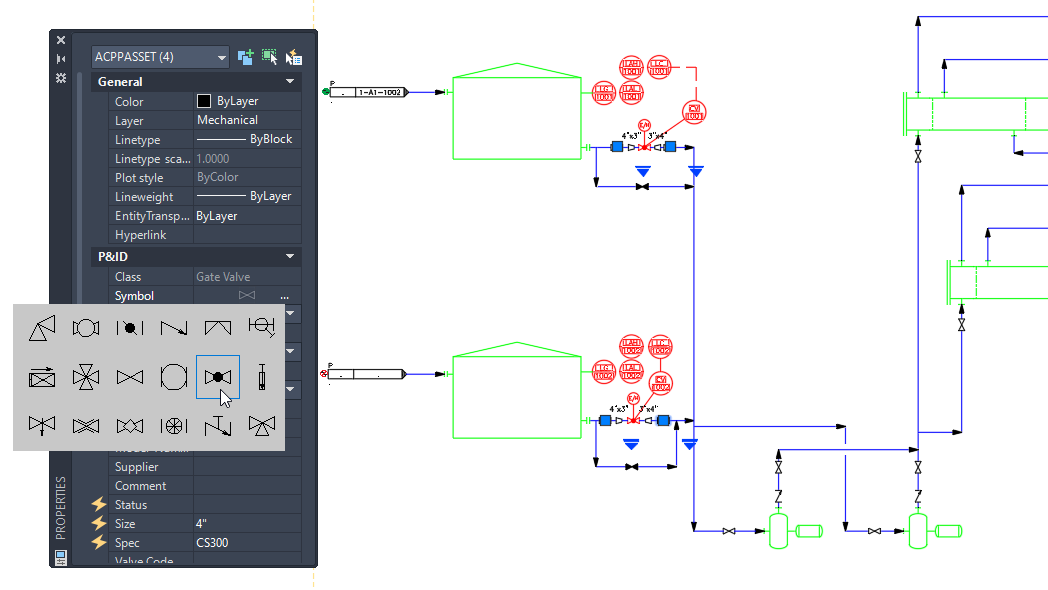
When a component is selected, the Symbol property displays a preview of the component in the Properties palette. Click the Symbol property, then click the ellipsis button (…) to open the Substitution panel, where a different component can be selected.
When multiple components are selected, all selected components can be replaced with the same component simultaneously.
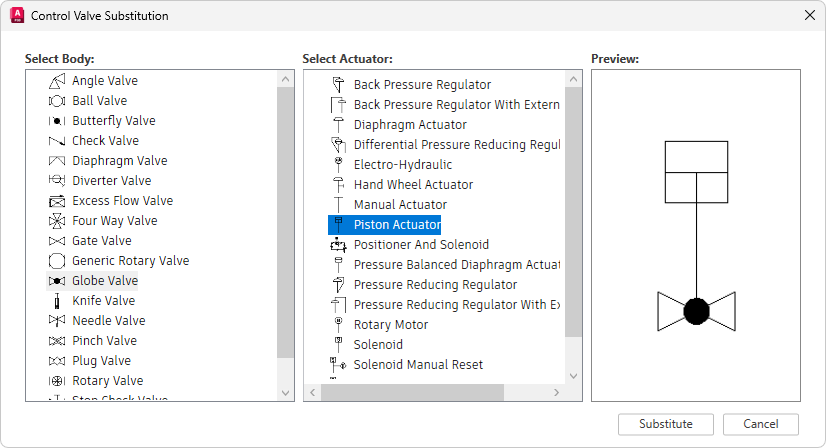
During substitution of one or more control valves, the Control Valve Substitution dialog box opens, allowing you to switch to a different valve body, a different actuator, or both.