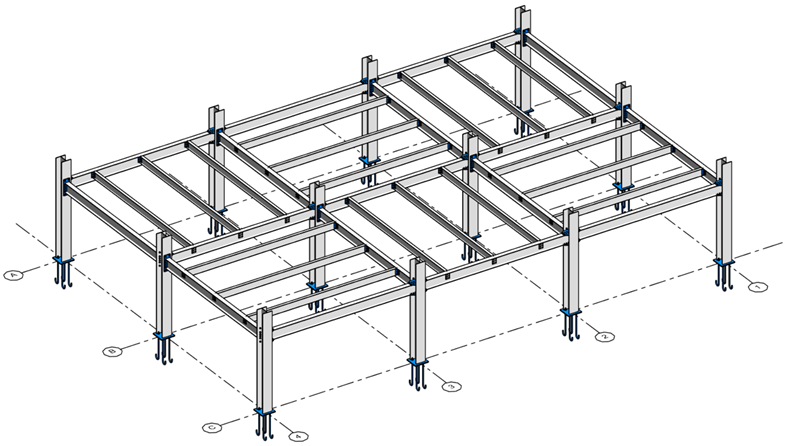
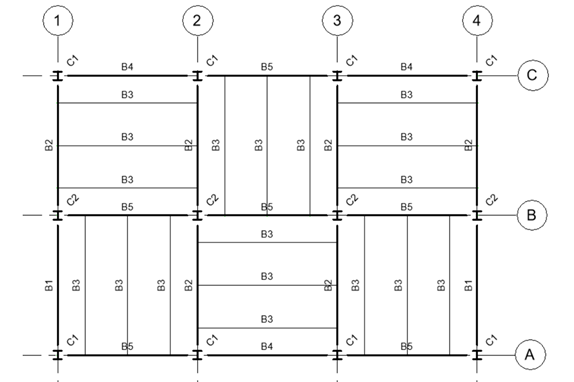
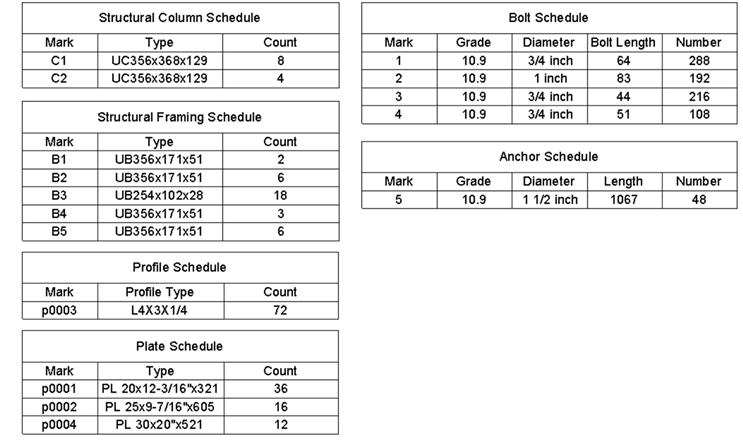
Create numbering templates for a model with steel elements with connections.
For the beams and columns, you can use the same steps as described in Example: Numbering Structural Columns and Structural Framing.
The steps for creating templates for numbering the plates, profiles, bolts, and anchors of steel connections are described below.
Numbering Template for Plates and Profiles
Here, we are numbering the components of steel connections, matching by geometry.
- Open numbering options and create a new template called Plates and profiles
-
Filter - click Filters to open the Filters dialog.
- Create a new filter and select the Plates and Profiles sub-categories of structural connections
Note: Components of connections cannot currently be filtered by parameters, but only by (sub)category.
- Create a new filter and select the Plates and Profiles sub-categories of structural connections
- Numbering parameter - select Mark.
- Partitioning - OFF.
-
Element matching - click Edit next to Element matching to open the Element Matching Rules dialog.
- Check the box next to Matching by element geometry.
-
Number formatting - click Edit next Number formatting to open the Number formatting dialog.
- Click in the "Select minimum digit count for <Number>" drop down and choose 4.
- In the Number label formatting section, add "p" as prefix for <Number> in the column on the right.
- Click Apply in the Numbering Options dialog to apply the template.
Numbering Template for Anchors and Bolts
Here, we are using matching by parameter values.
- Open numbering options and create a new template called Anchors and Bolts.
-
Filter - click Filters to open the Filters dialog.
- Create a new filter and select the
Anchors and
Bolts sub-categories of structural connections
Note: Components of connections cannot currently be filtered by parameters, but only by (sub)category.
- Create a new filter and select the
Anchors and
Bolts sub-categories of structural connections
- Numbering parameter - select Mark.
- Partitioning - OFF.
-
Element matching - click Edit next to Element matching to open the Element Matching Rules dialog.
- Check the box next to Matching by parameter values.
- Switch to <All> in the "select parameters from" drop-down.
- Add the parameters
Bolt Length,
Length, Diameter and
Grade to the right, to be used for matching.
Note: Matching by geometry for Bolts and Anchors considers the whole geometrical arrangement of the bolt / anchor pattern.
- 6.Number formatting - Default.
- Click Apply in the Numbering Options dialog to apply the template.